Phishing Email Prevention: Your Practical Defense Playbook
By Josh C.
Microsoft reported approximately 8.3 billion email-based phishing threats in Q1 2026, and 78% of those email threats were link-based rather than payload-driven in its Q1 2026 email threat report. That should change how you think about phishing email prevention.
Most advice still acts like the main danger is a sketchy attachment with obvious malware. That's old thinking. The problem now is identity theft by email: fake login pages, QR-code lures, business email compromise, payment fraud, and routine-looking messages that push you into giving away access.
If you've cleaned up even one compromised Microsoft 365 or Google Workspace account, you know the pattern. The email itself often looks boring. The damage starts after the click, after the code entry, or after the approval tap. That's why phishing email prevention has to focus on identity, sessions, and verification, not just antivirus.
Always use your email provider's built-in defenses. Then add habits that stop bad decisions before they become account takeovers. And if you want an extra screening layer on your phone, download the Gini Help app on Google Play or the Gini Help app on the App Store.
Why Phishing Email Prevention Has to Change in 2026
APWG recorded 3.8 million phishing attacks in 2025, including 1,003,924 in Q1 and 1,130,393 in Q2, according to its Q4 2025 trends report. That volume alone should end the old habit of treating phishing like a rare, obvious scam.
The bigger problem is where the attack lands. Phishing now targets identity first. The email is just the delivery path. The objective is your Microsoft 365 session, your Google account, your payroll login, your banking access, or an approval flow someone can hijack for money movement.
Stop defending the wrong layer
Attachment scanning still matters. It just does not address the main thing hitting inboxes in 2026.
As noted earlier, Microsoft's Q1 2026 threat reporting found that link-driven lures far outnumbered payload-based email attacks. Fortra reached the same conclusion from a different angle. In its 2025 email threat report press release, the company said response-based social engineering and links to phishing sites made up 99% of analyzed email threats, while only 1% of malicious emails delivering malware reached inboxes.
That is why old advice feels stale. A lot of users were trained to fear the weird attachment with bad grammar. Current attackers would rather send a clean-looking link, a fake shared document, a QR code for "secure access," or a payment request that starts a business email compromise chain.
Practical rule: Build phishing prevention around login theft and approval fraud. Malware scanning is backup, not the centerpiece.
Treat every inbox like an identity entry point
QR-code phishing pushed this shift into plain view. Kaspersky noted in its 2025 spam and phishing report that criminals were sending millions of QR-code emails each day to push people toward phishing pages and malware. That tactic works because the email itself can look harmless while the credential theft happens on the phone.
Finance and payment workflows stay high on the target list for the same reason. APWG's reporting shows a heavy concentration of attacks against online payment and financial services. Attackers go after accounts that let them reset identities, intercept invoices, approve transfers, or reroute payroll.
So change the model. Do not ask only, "Could this email drop malware?" Ask the better question: "What identity, session, or payment action is this message trying to get?"
If you run a business environment, this guide to phishing defense for IT is worth reading because it ties phishing controls to operational risk, not just user awareness. That is the right frame for 2026. Every inbox is a front door into cloud access, money movement, and account recovery.
Reading a Suspicious Email the Right Way
Read suspicious email backwards. Start with the logo, the formatting, or whether the message "feels professional." Wrong approach. Read it like an investigator. Four checks, in the same order, every time.
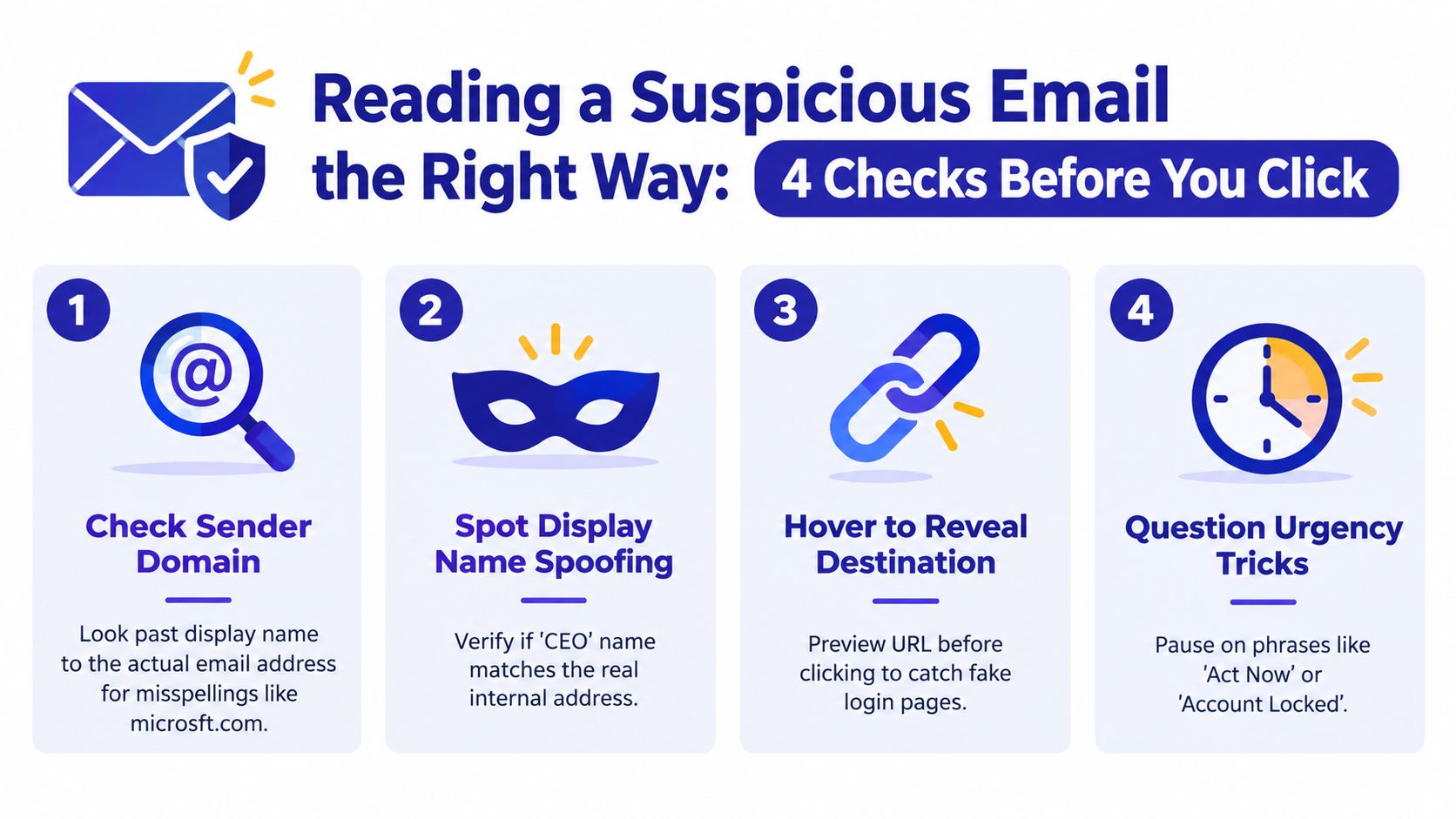
Check the sender, not the display name
Start with the actual email address. "Microsoft Security," "QuickBooks Billing," and "IT Helpdesk" mean nothing by themselves. The display name is cheap theater.
A fake Microsoft 365 password-expiry notice usually gives itself away in the sender domain. Maybe one letter is off. Maybe it comes from a random marketing platform. Maybe the reply-to address points somewhere completely different.
- Look past the name: Open the sender details and inspect the full address.
- Check for lookalikes: Misspellings, extra words, and odd country-code domains are enough reason to stop.
- Notice role mismatch: If the "CEO" email comes from a personal address or a vendor system, assume impersonation.
Preview the destination before you click
Most preventable clicks happen on desktop or mobile. On desktop, hover over the link. On mobile, long-press it. If the email says "review invoice" or "sign in to continue," the previewed destination needs to match the brand and purpose.
Common traps look routine:
- Fake login page: A Microsoft 365 alert sends you to a lookalike sign-in page.
- Invoice lure: A QuickBooks invoice email includes a payment link to an unfamiliar domain.
- QR detour: A DocuSign-themed PDF tells you to scan a QR code instead of clicking a visible link.
- MFA panic: An IT helpdesk message tells you to approve a reset or lose access.
Shortened links deserve extra scrutiny. So do mailto: links that push you to reply with personal details instead of using a normal support channel.
If you want a plain-language walkthrough of fake-email tells, this how to detect fake emails guide is worth bookmarking.
Check the context and pressure
Attackers borrow urgency from real business life. Password expiry. Payroll update. Package issue. Signature request. Refund waiting. That's why context matters more than polish.
If the message tries to speed you up, slow down on purpose.
Read the signature block. Check the send time. Ask whether this request fits the normal relationship. A midnight email from "Finance" asking for gift cards isn't a close call. Neither is a sudden MFA reset request you didn't initiate.
Use the two-second rule. If any one of the four checks fails, or the message pushes fast action, treat it as phishing.
Email Client Settings That Actually Block Phishing
Good phishing email prevention starts before you read anything. Your inbox should do some work for you.
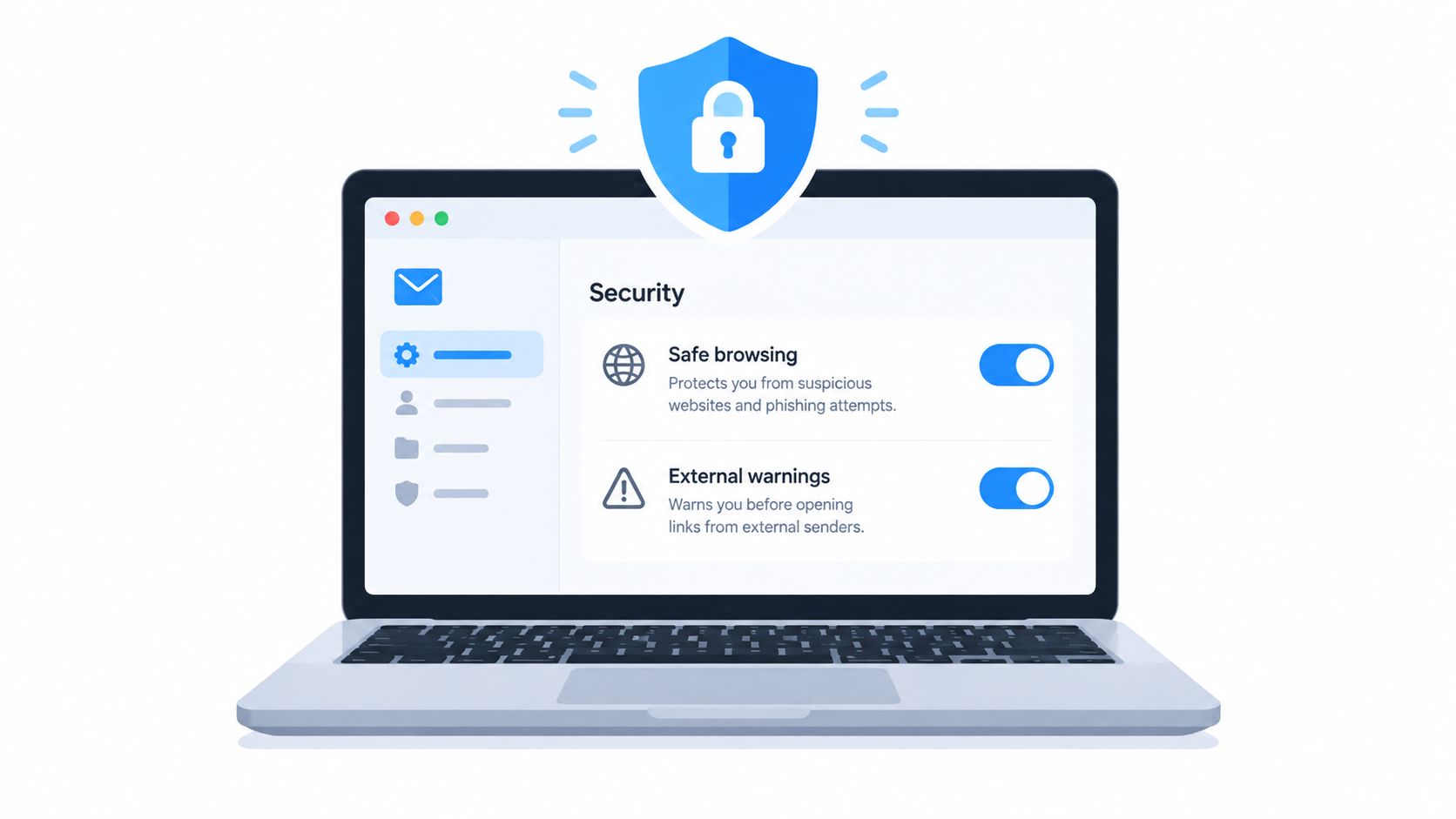
Gmail, Outlook, Yahoo, and iCloud basics
In Gmail, turn on the strongest safe browsing and security warnings available in your account and browser. If you can enable link-confirmation behavior, do it. Also pay attention to external sender warnings and unusual message banners instead of dismissing them out of habit.
In Outlook, use Microsoft 365 Defender protections if your account includes them. Safe Links and Safe Attachments help, but the more practical win for many people is making sure the reporting button is available and used. If you're on a lighter Outlook setup, add the reporting tools your tenant supports and keep junk filtering active.
For Yahoo, don't overcomplicate it. Use the built-in spam filter, aggressively block repeat senders, and create a habit of sending suspicious mail to spam instead of deleting it. The filter learns from that.
For iCloud Mail, use Hide My Email where it makes sense so fewer real addresses circulate. Also create simple rules that move mail from recurring suspicious domains or patterns into Junk for review instead of leaving them in the main inbox.
Two settings people skip for no good reason
Block remote images by default if your email client allows it. That won't stop every phish, but it does cut down on tracking pixels and some visual tricks that make fake messages look more "loaded" and trustworthy.
Also, turn on spam and junk notifications sparingly. If your phone vibrates for every incoming message, urgency wins. A quieter inbox creates better judgment.
A short video can help if you want to harden settings without digging through menus blindly.
Domain protection matters if you run your own email domain
If you own a business domain or family domain, anti-spoofing is not optional. The Canadian Centre for Cyber Security says full email domain protection requires SPF, DKIM, and DMARC, and that for DMARC to pass, a message must pass either SPF or DKIM with alignment to the From field in its implementation guidance.
It also gives a sane rollout path. Start with DMARC policy set to none, deploy SPF and DKIM for authorized senders, then move DMARC enforcement to quarantine and reject in stages from 25% to 100%, while rotating DKIM keys annually in the rollout guidance PDF.
For personal users who want another layer, Gini Help can connect to Gmail, Outlook, Yahoo, and iCloud to screen incoming mail, flag risky links, and surface a verdict before you click. That's useful as a complement to native inbox filtering, not a replacement for it.
Multi-Factor Authentication and Passkeys That Beat Phishers
Awareness helps a little. Authentication choice helps a lot more.
A large real-world study found that annual security awareness training had no significant correlation with lower phishing failure rates, while embedded just-in-time training produced only a small average reduction of about 2%. Among 19,789 users, 56% failed at least once and 25.9% failed at least twice in the UC San Diego paper. That isn't a reason to quit training. It's a reason to stop pretending training can carry the whole defense.
Why passkeys beat codes
Phishers love anything they can relay in real time. That includes SMS codes, email codes, and app-generated one-time passwords if the victim types them into a fake site. The attacker doesn't need to crack the code. They just need to steal it before it expires.
Passkeys and other phishing-resistant methods work differently. They're tied to the legitimate site, so a fake login page can't use them the same way. That's the upgrade that matters.
Training tells people to be careful. Passkeys remove one of the easiest ways attackers cash in when people aren't.
MFA methods ranked against phishing resistance
| MFA Method | Phishing-Resistant? | Setup Difficulty | Best For |
|---|---|---|---|
| Passkeys | Yes | Medium | Primary email, password manager, major personal accounts |
| Security keys | Yes | Medium | Work accounts, admins, high-risk users |
| Authenticator app codes | No | Medium | Accounts that don't support passkeys yet |
| SMS codes | No | Easy | Only when better options aren't available |
| Email codes | No | Easy | Low-value accounts, temporary fallback only |
What to change first
Upgrade in this order:
- Primary email first because email controls password resets everywhere else.
- Bank and financial accounts next because attackers target payment and account access.
- Password manager after that because it becomes your trust anchor.
For Apple, Google, and Microsoft accounts, turn on passkeys or passwordless options where offered. Password managers such as 1Password and Bitwarden can also store passkeys. If you're evaluating self-hosted login flows or want to understand simpler modern auth patterns, this look at lightweight Docker-based identity is a useful technical reference.
If you need a plain support walkthrough before changing settings, use this two-factor authentication help page.
Reporting Phishing and Recovering After a Mistake
Deleting a phish isn't enough. Report it. Then, if you clicked, move fast and do the boring recovery steps in the right order.
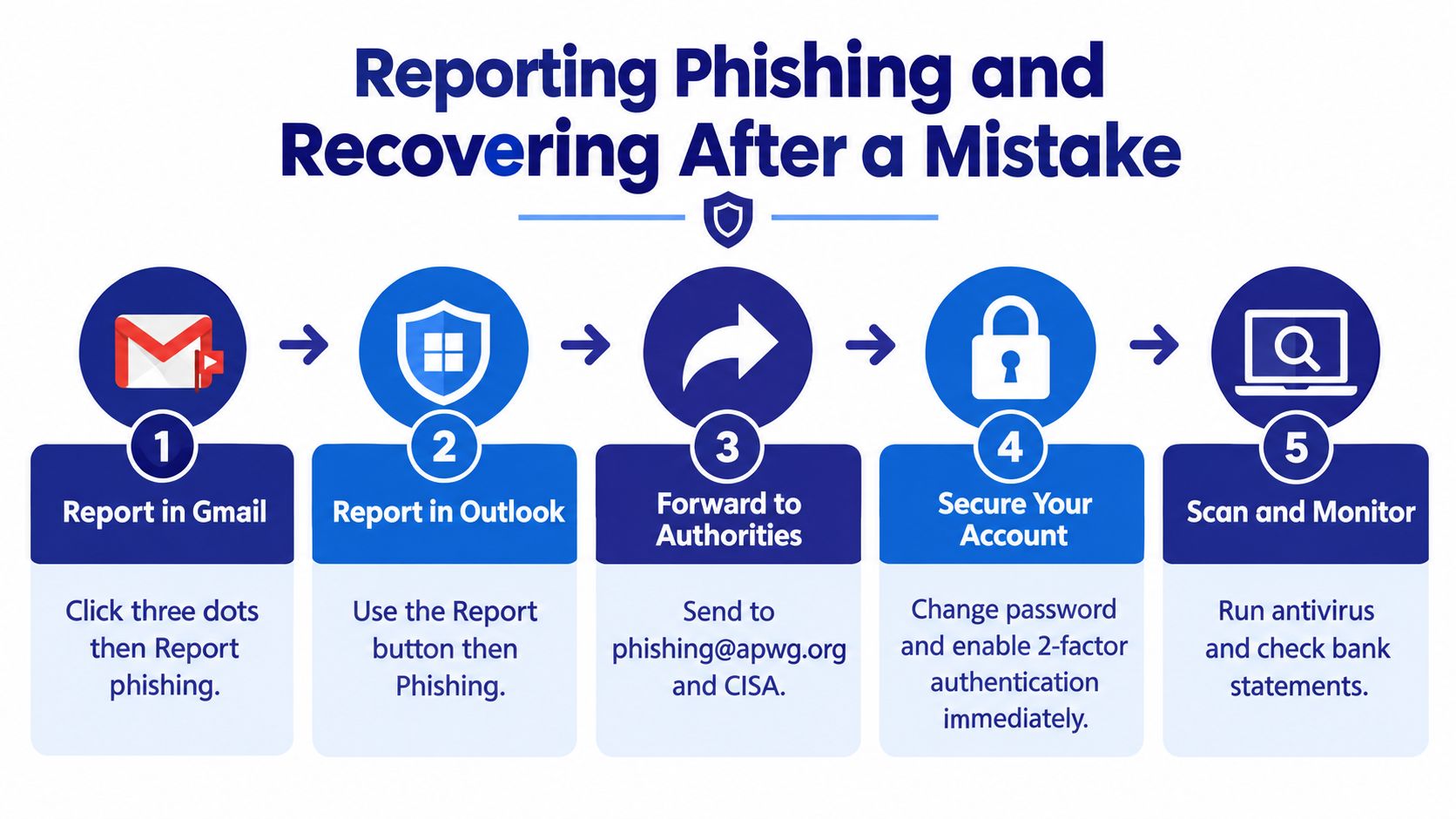
The report buttons to use
Every major inbox gives you a path. Use it.
- In Gmail: Open the message, hit the three-dot menu, then choose Report phishing.
- In Outlook: Use the Report button in the message ribbon, then pick phishing.
- In Yahoo: Open More actions and choose the phishing-report option.
- In iCloud Mail: Forward the message as an attachment to Apple's abuse channel.
Reporting matters because it feeds shared filtering and helps stop the same lure from landing cleanly in someone else's inbox. If you're helping a relative after they clicked, this clicked on link in phishing email guide is a solid step-by-step reference.
The first 30 minutes after a bad click
Don't waste time rereading the message and feeling embarrassed. Act.
- Disconnect the device from Wi-Fi or data if you entered credentials or downloaded something suspicious.
- Use a clean device to change the password for the exposed account.
- Revoke active sessions and sign out other devices.
- Turn on or upgrade MFA if it wasn't already strong.
- Call the bank using the number on the back of the card, not anything in the email, if payment info was involved.
A lot of recovery gets easier when your broader identity footprint is under control. This practical piece on digital footprint security advice is useful for the cleanup mindset after an incident.
Say this: “I clicked a suspicious message and may have entered information. I've changed the password, signed out sessions, and need help checking what else was exposed.”
That script works for a spouse, adult child, or IT admin because it gives facts without spiraling into a long story.
Protecting Your Family From Phishing Together
Households do better with one clear rule than a pile of security tips. Phishing in 2026 is usually an identity attack first. The attacker wants a login, a one-time code, a payment approval, or enough trust to pull off business email compromise against someone who shares access with you.
Set up shared account control first
Start with Apple Family Sharing or Google Family Link if they fit your home. Those tools help with account recovery, device oversight, and security prompts, which matters when a fake invoice, QR code, or account alert is trying to push someone into handing over access.
Then use a shared password manager such as 1Password Families or Bitwarden Families. That is the practical fix. If a parent enters a reused password on a link-based lure, you can help change the right accounts fast instead of playing phone support for an hour.
Do a short monthly review. Five minutes is enough.
Train for the scams people actually get
Use examples that match real inboxes. Package redelivery notices, school payment requests, Medicare or insurance messages, fake shared-document emails, and QR-code prompts are common because they target identity and trust, not just devices.
Give your family one script they can remember:
“If an email wants a login, a code, money, gift cards, bank details, or a fast decision, stop and check with me first. I would rather review ten legitimate messages than fix one stolen account.”
That line works because it removes shame. People report mistakes sooner when they know they will get help instead of a lecture.
Make verification the family habit
Use one household rule: no one approves logins, resets passwords, sends money, or changes account details from an email alone. They confirm in the official app, by typing the known website themselves, or by calling a saved number.
That rule blocks the attacks that keep winning now. Link lures fail when nobody signs in from the message. QR scams fail when nobody scans to “verify” an account. BEC requests fail when money moves only after an out-of-band check.
If you want extra support, the family-plan setup in Gini Help can help household members share scam alerts and compare suspicious messages. The app store links were listed earlier. The useful part is simple. One person spots something off, and everyone else gets warned before they react.
Your Daily Phishing Email Prevention Checklist
You don't need a long security ritual. You need a short routine you can repeat.
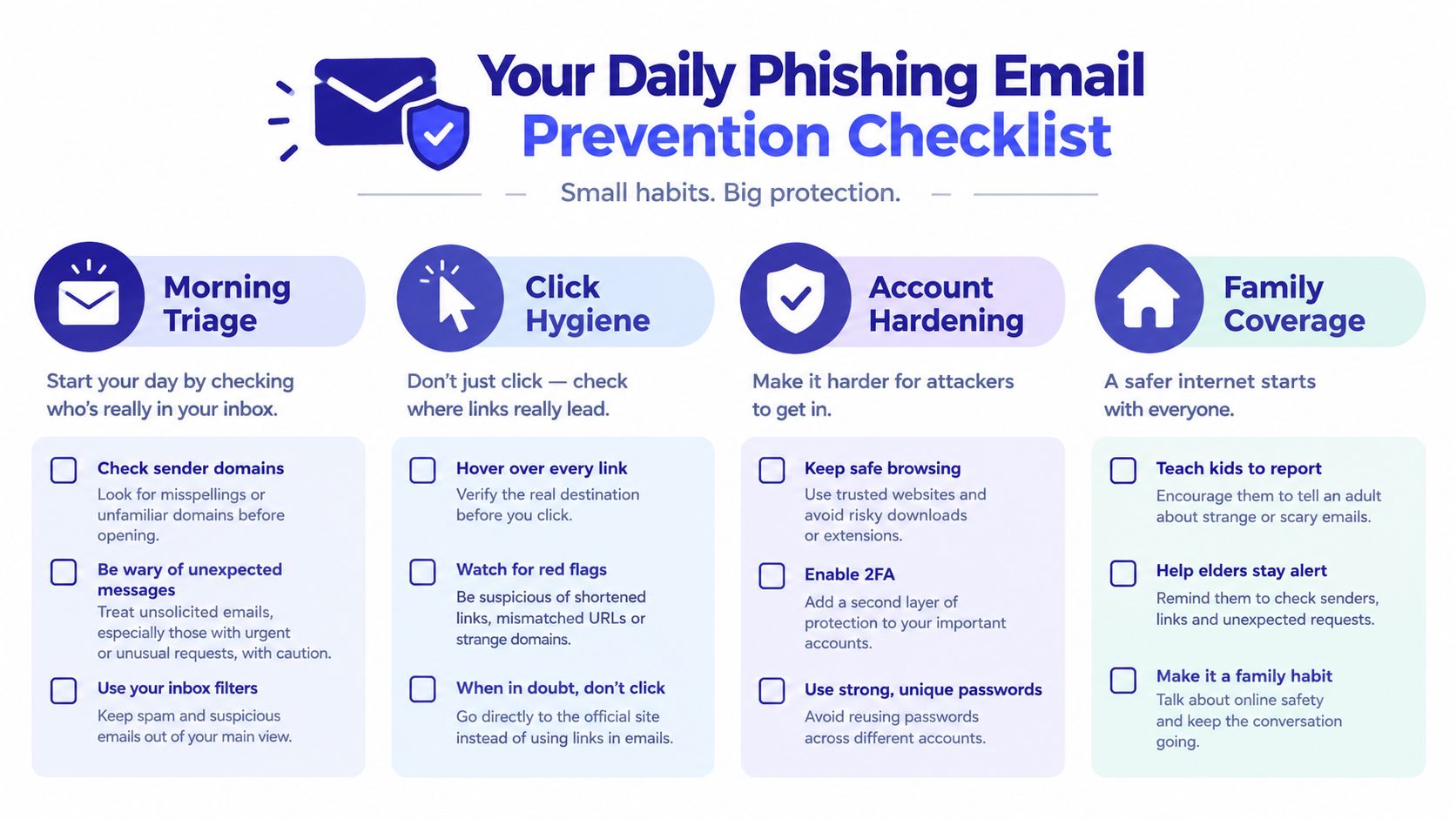
Morning triage
- Scan sender domains (30 sec). Check the address before opening anything urgent.
- Open expected mail first (30 sec). Start with messages you already know are coming.
- Leave surprise requests unread (daily). If it wants a login, payment, or approval, pause.
Click hygiene
- Hover or long-press every link (1 min). No exceptions for banks, payroll, or cloud accounts.
- Ignore QR shortcuts (daily). Go to the app or site yourself instead of scanning from email.
- Treat pressure as a warning (always). Urgency is part of the attack, not proof the request is real.
Account hardening
- Keep passkeys or strong MFA enabled (weekly check).
- Review active sessions (1 min weekly) on your main email and financial accounts.
- Use inbox protections (10 min once, then occasional review) so junk filtering and warnings stay on.
Family coverage
- Tell family to ask before acting (ongoing).
- Share suspicious messages (30 sec). A second opinion prevents a lot of bad clicks.
- Do a five-minute check-in (monthly). That's enough to update passwords, devices, and habits.
A comparative review of anti-phishing training found that trained participants still had a 24.5% failure rate, feedback-only groups failed at 32.08%, and groups with neither training nor feedback failed at 47.5%. It also found repeated reinforcement improved outcomes, with post-training click or give-information rates dropping from 42% to 15% in one condition and from 39% to 12% in another within two days in the HCIS review. That's why checklists work. They reinforce the right behavior at the moment you need it.
If something feels off, stop there and use the reporting and recovery actions from the earlier incident section. Fast reporting beats perfect certainty.
Gini Help gives you one place to screen calls, texts, and emails so scam checks become part of your daily routine instead of another security chore. If phishing email prevention matters to you because you're protecting your own accounts, a parent, or a small team, visit Gini Help and see how its multi-channel screening fits into the habits above.