How to Protect an Email with Password and Keep Hackers Out
By Josh C.
If there's one thing you take away from this guide, let it be this: your email is the master key to your entire digital life. It’s the central hub connecting your bank, your social media, and all your online shopping accounts. Securing it isn't just a good idea—it's the single most important thing you can do to protect yourself online.
Why Your Email Is a Hacker's Favorite Target
Think of your email account less like a mailbox and more like the control room for your online identity. When you forget a password for your banking app or Amazon, where does the reset link go? Straight to your email. This makes your inbox an incredibly valuable prize for cybercriminals. If they get in, they don't just see your messages; they get the keys to the kingdom.
This is why a single compromised email account can create a devastating domino effect, giving hackers access to your most sensitive information.
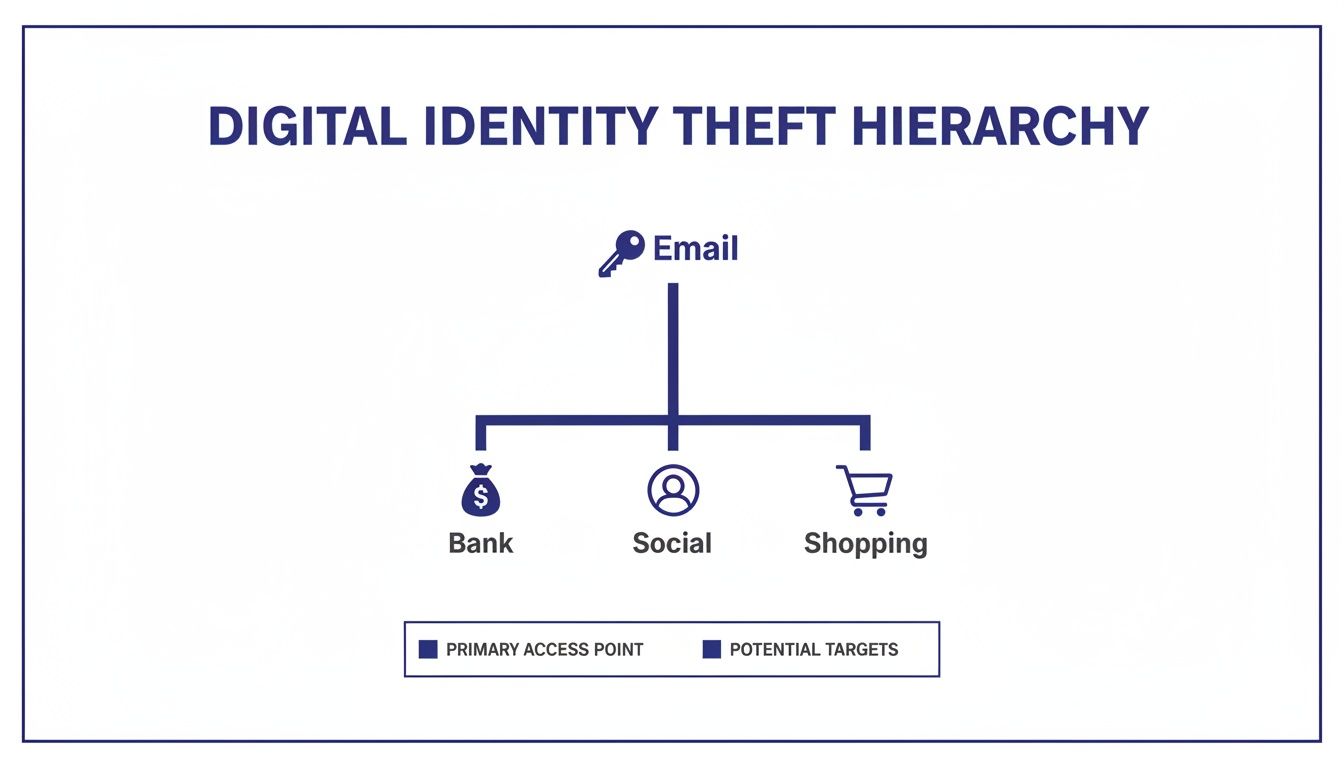
As you can see, your email is often the single point of failure that can lead to widespread identity theft and financial loss. It’s the foundation holding everything else up.
The Alarming Reality of Data Breaches
The headlines are full of stories that show just how fragile our digital security can be. A recent massive data breach, dubbed the "Mother of all Breaches" (MOAB), exposed a staggering 26 billion records, including countless email and password combinations. Research from such breaches consistently reveals a shocking truth: a vast majority of exposed passwords are reused across multiple accounts, turning a single leak into a global email takeover event.
This really hammers home the most dangerous habit in online security: password reuse. Using the same password for your email and other services is like using the same key for your house, your car, and your safe deposit box. Once a thief gets that key, everything you own is at risk.
A strong, unique password for your email account isn't just a recommendation—it's a non-negotiable first line of defense. A weak or reused password is an open invitation for a digital takeover.
The Speed of Modern Attacks
Hackers aren't sitting there guessing passwords one by one. They use automated software that can test billions of combinations in seconds. An eight-character password using common words or predictable patterns can be cracked almost instantly. That's why the advice from a few years ago just doesn't cut it anymore.
To give you a clearer picture, here’s a quick overview of the security layers we'll be covering. Think of it as a roadmap to a fully protected inbox.
Your Email Security Checklist: Key Protection Layers
This quick overview outlines the core security layers we'll cover, giving you a clear roadmap to a fully protected inbox.
| Security Layer | What It Does | Why It's Critical |
|---|---|---|
| Strong Passwords | Creates a complex, unique barrier for your main email account. | This is your front door lock. A weak one can be picked in seconds by automated tools. |
| Two-Factor Authentication (2FA) | Adds a second verification step, like a code sent to your phone. | Even if a hacker steals your password, they can't get in without your phone. |
| Message & Attachment Protection | Secures the content of individual emails with a password or encryption. | Protects sensitive information inside your emails, like financial documents or contracts. |
| Proactive Scam Blocking | Uses smart technology to filter out malicious emails before you see them. | Stops phishing attempts and other scams designed to trick you into giving up your credentials. |
Each of these layers works together to create a robust defense system for your digital life.
Unfortunately, even the strongest password can't protect you from a clever phishing scam. Scammers are experts at crafting emails that look legitimate, hoping you'll click a malicious link and hand over your login details. If you want to get better at spotting these threats, check out our guide on how to identify spam emails.
Ultimately, a truly protected inbox requires both strong access controls and a smart defense system. This is where a service like the Gini Help app becomes invaluable. It provides a critical layer of security by using AI to analyze and block scam emails before they even reach you. It’s a proactive approach that stops threats in their tracks, giving you one less thing to worry about. You can start protecting your inbox today by downloading Gini Help from the Google Play Store or the Apple App Store.
Crafting Passwords That Actually Work
So, you understand why your email is a prime target for crooks. The next move is to lock down the front door. For years, the advice was simple: just add a number and a symbol to a word. But that's old news. That trick doesn't cut it anymore, and we need a better way to protect your email—one that's both seriously secure and something you can actually remember.
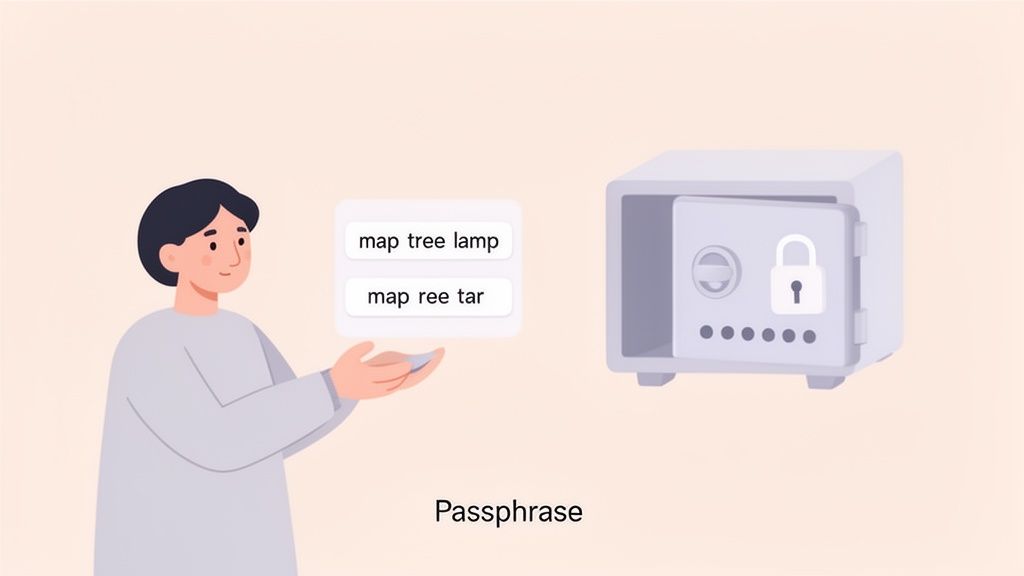
This is where the idea of a passphrase changes the game. Instead of a short, jumbled password like Tr0ub4dor&3, a passphrase is a longer string of memorable words, like PurpleMonkeyDishwasherBattery. It's much longer, which makes it exponentially harder for hacking software to guess, but it's often way easier for a human to recall.
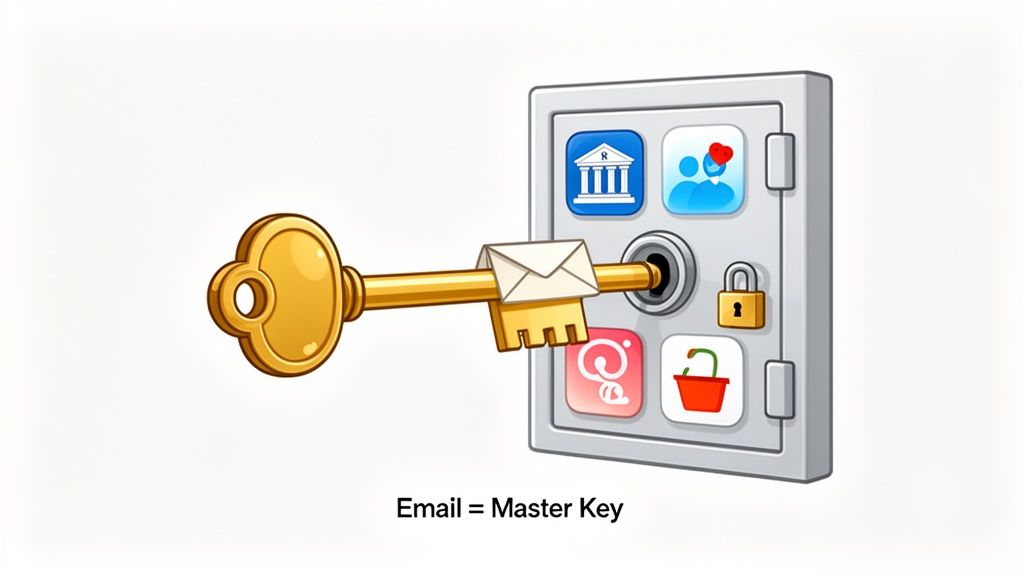
Think of your email as the master key to your entire digital life. That key needs to be impossible to copy. A strong passphrase is that unbreakable key.
The Real Danger of Reusing Passwords
Coming up with a strong password is only half the battle. The single biggest mistake I see people make is using that same password for multiple websites. It’s a habit that puts millions of people at risk every single day.
Recycling passwords isn't just a minor slip-up; it's a massive security hole. Recent research continues to confirm this dangerous trend, showing that a significant majority of people reuse passwords across both work and personal accounts. Data from the 2023 World Password Day report found that 59% of people use the same password for multiple sites, creating a massive security vulnerability. To properly secure your email, you have to break this habit for good.
Your Best Friend in Security: The Password Manager
Let's be realistic. Remembering a unique, complex passphrase for every single online account—email, banking, social media, shopping—is next to impossible. That's why a password manager is an essential tool, not just a nice-to-have.
A password manager is basically a super-secure digital vault that creates, stores, and fills in your passwords for you. The only thing you have to remember is one single, strong password to unlock the vault.
Think of a password manager as a secure bank for all your digital keys. You only need the one key to get into the bank, and it handles safely storing and retrieving all the individual keys to every other account you own.
I hear a lot of the same concerns from people who are hesitant to start using one, but they are easily addressed:
- "Is it safe to put all my passwords in one place?" Absolutely. Reputable password managers use what's called end-to-end encryption. That means only you, with your master password, can ever see your data. Not even the company that makes the software can get in.
- "Are they hard to use?" Not at all. Modern password managers are built to be user-friendly. They plug right into your web browser and phone, automatically filling in login forms and making your life much easier.
- "Are they expensive?" Many of the best ones, like Bitwarden, offer excellent free versions with all the core features you need to get started.
Getting Started with a Password Manager
Setting one up is incredibly simple. First, you'll create one very strong master password. This is the only one you need to memorize, so make it a good one! A long passphrase like FourHappyTurtlesWalkedSlowly is perfect.
Once you’re in, the password manager will help you go through your accounts and replace all your old, weak, and reused passwords with long, randomly generated ones. You won't even have to know what they are; the software takes care of everything.
To really round out your defense, it helps to understand general password hygiene. You can learn more about the top 10 best practices for password security.
But remember, even the strongest password can't protect you if a scammer tricks you into handing it over. Phishing emails are designed to fool you, bypassing your defenses by playing on human psychology. This is why a proactive shield is so important. The Gini Help app uses AI to analyze and block malicious emails before they even reach you, adding a critical layer of protection that a password alone just can't provide.
Ready to add this essential shield? Download Gini Help today from the Google Play Store or the Apple App Store.
Your Digital Bodyguard: Activating Two-Factor Authentication
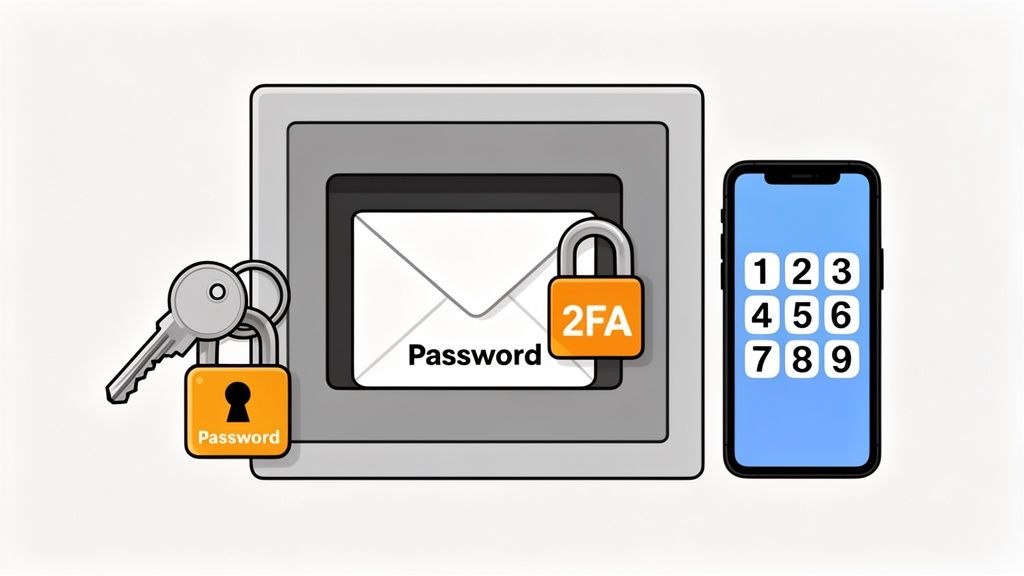
A strong, unique password is a fantastic front door lock. But what happens if a thief manages to get a copy of your key? That’s where Two-Factor Authentication (2FA) comes in. Think of it as a mandatory second ID check before anyone can enter your email account, even if they have your password.
It’s like a bank safe that requires both a key (your password) and a secret PIN (your 2FA code) to open. Without both, a would-be intruder is stopped cold. The data doesn't lie: industry research from companies like Google confirms that enabling 2FA can block up to 100% of automated bot attacks, making it one of the single most powerful steps you can take.
Adding this second layer of security is simply non-negotiable for protecting your digital life.
Understanding Your 2FA Options
When you go to enable 2FA, you'll usually see a few different choices. It's worth knowing the difference, as not all methods offer the same level of protection. Here’s a quick breakdown of the most common ones, from least to most secure.
SMS Text Message Codes: This is the one most people are familiar with. You try to log in, and your email provider texts a one-time code to your phone. It’s definitely better than nothing, but it has a known weakness called "SIM-swapping," where a scammer tricks your mobile carrier into moving your number to their phone.
Authenticator Apps: This is the method I strongly recommend for almost everyone. Apps like Google Authenticator or Microsoft Authenticator generate a fresh, time-sensitive code every 30-60 seconds right on your phone. Because the code is created offline, it can't be intercepted like a text message can.
Physical Security Keys: For the ultimate in security, there are physical keys. This is a small USB device (a popular brand is YubiKey) that you plug into your computer to approve a login. It’s nearly impossible for a phishing attack to defeat, but it's often more than what a casual user needs.
For the best balance of security and convenience, an authenticator app is your ideal choice. It offers a huge security boost over SMS codes without the extra cost or hassle of a physical key.
How to Turn On 2FA on Major Email Platforms
Flipping the switch on 2FA is usually a quick trip into your account's security settings. While the exact clicks vary a bit, the general path is very similar everywhere.
- Gmail (Google Account): Log in to your Google Account, head to the "Security" tab, and look for the "2-Step Verification" section. From there, just follow the on-screen steps to add your phone number or link an authenticator app.
- Outlook (Microsoft Account): Sign in to your Microsoft Account and find the "Security" dashboard. Choose "Advanced security options," and you'll see the option to "Turn on" two-step verification.
- Yahoo Mail: Go to your Yahoo Account Info page and click on "Account security." You can then toggle on "Two-step verification" and pick your method.
Now, while 2FA is an incredibly powerful shield against someone trying to break into your account, it doesn’t stop a well-crafted phishing email from landing in your inbox. Scammers are getting smarter, using urgent warnings and fake security alerts to trick you into handing over your password willingly.
This is exactly why a complete security plan needs an intelligent defense system working in the background. The Gini Help app acts as that crucial safety net. It uses AI to spot and block these deceptive threats before you ever have a chance to be fooled by them. It perfectly complements your password and 2FA by filtering out the malicious emails designed to get around them.
Ready to add this essential layer of protection? You can download Gini Help from the Google Play Store or the Apple App Store to complete your email security setup.
Protecting Specific Emails and Sensitive Attachments
A strong account password is like the main gate to your castle, but sometimes you need to lock up individual treasures inside. Not every email needs to be under lock and key, but when you're sending something sensitive—think tax forms, medical records, or business contracts—an extra layer of protection is non-negotiable.
This is where you can go beyond just securing your account and learn how to protect specific messages. Thankfully, many modern email providers have built-in tools for this very purpose, giving you more control over who sees your message and what they can do with it.
Using Built-in Email Protection Tools
You might be surprised to find that your email service already has powerful security features just waiting to be used. Instead of attaching a sensitive file to a standard email and just hoping for the best, you can use these tools to lock it down tight.
Let's walk through how the big players handle this.
Gmail's Confidential Mode: When you’re writing a new email in Gmail, look for a little icon at the bottom that looks like a lock with a clock on it. That’s Confidential Mode. Clicking it lets you set an expiration date for the email and even require the recipient to enter a passcode sent to their phone via SMS. It also prevents them from forwarding, copying, printing, or downloading your message.
Outlook's Encryption and Permissions: Outlook gives you encryption options right in the new message window. Look for an "Encrypt" button under the "Options" tab. You can choose "Encrypt-Only" or go a step further with "Do Not Forward." This is incredibly useful for keeping a conversation contained, as it physically stops the recipient from passing your email along to anyone else.
Imagine you’re sending a client an invoice with your banking information. Using Gmail’s Confidential Mode with an SMS passcode means that even if your client's email gets hacked, the thief can't get to your financial details without also having physical access to their phone.
Password Protecting Your Attachments
Sometimes the real sensitive stuff isn't in the email body but in the files you attach. Adding a password directly to the document itself creates a powerful, separate line of defense.
If you need to send a contract or a financial statement, you might want to learn how to make a PDF password protected before you even attach it. This way, even if someone manages to intercept the email, they still can't open the file without the password. Most document programs, like Microsoft Word, Google Docs, and Adobe Acrobat, have this feature built right in.
Pro Tip: Never send the password in the same email as the locked attachment. That's like leaving the key in the lock! Instead, send the email and then share the password through a different channel, like a text message or a quick phone call. This method is called out-of-band communication, and it ensures a hacker can't get both the file and the key from a single compromised account.
If you’re often dealing with private information, our guide on how to send secure email dives into even more advanced strategies to keep your communications safe.
Comparing Email Protection Features
To make it easier to see what’s available at a glance, this table breaks down the key security features offered by the most popular email providers. It’s a quick way to compare which tool might be best for the specific document or message you need to send.
| Email Provider | Feature Name | How It Protects Your Message | Ideal For |
|---|---|---|---|
| Gmail | Confidential Mode | Sets expiration dates, disables forwarding/printing, can require an SMS passcode. | Sending personal information like financial statements or medical details to a trusted individual. |
| Outlook | Encrypt & Do Not Forward | Encrypts the message content and prevents the recipient from forwarding, printing, or copying it. | Sharing confidential business documents, legal contracts, or internal company memos. |
| Yahoo Mail | N/A (requires third-party) | Yahoo doesn't offer a built-in confidential mode. You'll need to use attachment passwords. | Users who are comfortable password-protecting documents before attaching them. |
| iCloud Mail | Mail Drop | Encrypts large attachments sent via iCloud link, but not the email body itself. | Securely sending large files like videos or design portfolios that exceed normal size limits. |
As you can see, the options vary, so it pays to know what your email provider can (and can't) do for you.
These manual methods are great for specific situations, but they can't protect you from threats you don't see coming. Many of today’s biggest email risks aren't brute-force attacks but clever phishing scams designed to trick you into handing over your information. Credential phishing remains a massive problem, and scammers are always finding new ways to slip past traditional spam filters.
This is where a proactive shield makes all the difference. While you focus on locking down specific messages, the Gini Help app works silently in the background. It uses AI to spot and block malicious emails before they ever reach your inbox, acting as a smart guard that complements your own security habits.
Protect your inbox from every angle. Download Gini Help from the Google Play Store or the Apple App Store.
Moving Beyond Passwords to Proactive Scam Defense
Setting up a strong password and turning on two-factor authentication are fantastic first moves. Think of them as putting a heavy-duty deadbolt on your digital front door. But here’s the catch: a strong lock won't stop a convincing con artist from tricking you into opening the door yourself.
That’s exactly what modern email scams do. A good password stops someone who is trying to guess their way into your account. It does absolutely nothing to stop a scammer who tricks you into giving away your information willingly. Today's cybercriminals are less like burglars and more like expert manipulators.
The Rise of Intelligent Scams
Scammers have gotten incredibly good at what’s called social engineering. They craft emails that look so legitimate they sail right past traditional spam filters. Why? Because technically, they aren't spam—they often don't have suspicious attachments or links that old-school filters are trained to spot.
Instead, these emails play on human psychology. They use a few common tricks:
- Urgency: They create a sense of panic with fake alerts like "Your account is about to be suspended!"
- Authority: They pretend to be someone you trust, like Amazon, your bank, or even the IRS.
- Familiarity: They might use personal details they found on your social media to make the scam feel tailor-made for you.
Recent reports from cybersecurity firms show a dramatic increase in "zero-click" attacks and sophisticated social engineering. For example, the FBI's Internet Crime Complaint Center (IC3) reported that phishing was the most prevalent threat in 2023, with victims losing millions. This is precisely why a strong password isn't enough anymore. You need an intelligent shield.
Why You Need a Proactive Defense Layer
This is where a service like Gini Help comes in, and it works on a completely different level than a normal spam filter. Instead of just checking for known red flags, its AI digs deeper to understand the intent behind an email.
It’s constantly asking questions that basic filters can't:
- Is the language in this email designed to rush me or make me panic?
- Is the sender really who they claim to be?
- Is this request for my personal information out of the ordinary?
By catching the subtle signals of a scam, Gini Help can identify and block these sophisticated phishing attacks before they ever land in your inbox. It adds a crucial layer of protection that passwords and 2FA simply can't provide on their own.
A strong password protects your account from being broken into. An AI scam blocker protects you from being tricked into handing over the keys. You need both for complete security.
If you'd like to get better at spotting these threats on your own, our guide on how to avoid email scams is packed with practical tips you can start using today.
Adding this proactive shield is the final piece of the puzzle for truly securing your email. The app was designed to be simple, putting powerful AI protection in your hands without any confusing tech jargon. It just works quietly in the background with the email you already use.
Ready to secure your inbox from every angle? You can download the Gini Help app from the Google Play Store and the Apple App Store.
Common Questions About Email Security
It's completely normal to have a few questions, even after you've tightened up your email security. Let's tackle some of the most common concerns I hear from people, clearing up any confusion and giving you the confidence that you’re on the right track.
"I Think My Email Was Hacked. What Do I Do Right Now?"
First, don't panic, but do act quickly. If you're seeing suspicious activity—like emails in your sent folder you never wrote or alerts about logins from strange places—time is of the essence.
Your immediate priority is to try and log into your account and change your password. Don't just tweak your old one; create a brand-new, long, and completely unique passphrase. If you can still get in, this is your first and most critical move.
Next, if you haven't already, turn on Two-Factor Authentication (2FA). This single step will likely lock the intruder out for good, since they won't have the code from your phone. Once you've secured the account, take a deep breath and look through your settings. Check your sent mail, filters, and recovery information to see if the hacker changed anything.
Finally, make a list of other important accounts linked to that email (banking, social media, shopping sites) and start changing those passwords too.
"Are Password Managers Really Safe to Use?"
This is a great question, and I get it. The thought of putting all your digital keys in one basket can feel a bit unnerving. But here's the reality: a reputable password manager is one of the safest things you can use.
These tools are built on a principle called zero-knowledge architecture. In simple terms, this means all your sensitive information is encrypted on your device before it's ever sent to their servers. The only key that can unlock it is your one master password, which you—and only you—know. The company itself can't access your vault. Their own employees can't see your passwords.
Think of a high-quality password manager as a personal bank vault. The bank built the vault, but they don't have a copy of your key. It's far, far safer than the alternative of reusing the same weak password everywhere.
When you weigh the incredibly small risk of a top-tier password manager getting breached against the near-certainty of being compromised by reusing passwords, the choice becomes very clear.
"If I Have a Strong Password and 2FA, Am I Immune to Scams?"
Unfortunately, no. A strong password and 2FA are fantastic lines of defense, but they're designed to stop a specific type of attack—someone trying to guess or force their way into your account. They can't protect you from being tricked.
This is where phishing scams come in. Criminals are getting incredibly good at crafting fake emails that look exactly like they came from your bank, Netflix, or another service you trust. They create a sense of panic—"Your account is locked!"—to rush you into clicking a link and entering your login details on a fake site they control. Since you typed in the password yourself, 2FA can't stop them from stealing it.
This is exactly why having multiple layers of defense is no longer a "nice-to-have"; it's a necessity. You need strong habits and tools that can spot and block these deceptive emails before you're ever tempted to click. The Gini Help app is designed to be that proactive tool, identifying and stopping these scams for you.
"What Is the Single Most Important Thing I Can Do Today?"
If you do just one thing after reading this guide, make it this: Enable Two-Factor Authentication using an authenticator app.
While a strong, unique password is the foundation, 2FA is the move that provides the biggest security boost for the least amount of effort. Study after study confirms that it blocks the overwhelming majority of automated hacking attempts. It's a simple action that delivers a huge return in security and, just as importantly, peace of mind.
These defensive steps build a solid foundation. But to truly guard your inbox against today's smarter, AI-driven phishing attacks, you need a proactive shield.
The best security strategy is one where your good habits are backed up by smart technology. Gini Help acts as that crucial layer, using AI to identify and block sophisticated scams before they ever land in your inbox. It’s the perfect partner for your strong passwords and 2FA, creating a truly comprehensive defense.
Ready to add this essential shield? Download the Gini Help app from the Google Play Store or the Apple App Store.