How to Report Spam in Gmail and Stop Scams
By Josh C.
People aged 60 and over reported approximately $2.4 billion in fraud losses in 2024, about four times the roughly $600 million reported in 2020. During the same period, older adults' reported impersonation-scam losses above $100,000 rose from $55 million to $445 million, according to the Federal Trade Commission's report on protecting older adults. Reporting a suspicious Gmail message isn't just inbox housekeeping. It's one of the simplest actions you can take to help stop fraud before someone clicks.
Why Reporting Email Spam is a Security Priority
Deleting a suspicious email removes it from your view. Reporting it tells Gmail what it is. When you select Report spam, Gmail moves the message to the Spam folder and uses the classification to identify similar messages more efficiently in the future. Repeated reports help Gmail recognize recurring spam patterns, so your decision contributes to a wider defensive system.
Google says Gmail blocks 99.9% of spam, malware, and dangerous links before they reach users' inboxes, while its AI-enhanced filtering blocks nearly 10 million spam emails every minute, as documented in Google's Gmail spam-filter overview. Those protections are powerful, but no filter catches everything. A message that reaches your inbox may be a new variation, a carefully disguised impersonation attempt, or a campaign that hasn't generated enough feedback yet.
Practical rule: If a message is clearly unwanted or suspicious, report it instead of simply deleting it.
The financial consequences explain why this matters most for people who may be targeted by impersonation, investment, technology-support, or family-emergency scams. Older adults can also be pressured into acting quickly, which makes a clear reporting habit more valuable than relying on perfect judgment under stress. A useful distinction is covered in this guide to scam versus spam, because the correct response depends on whether the message is merely unwanted or actively deceptive.
Reporting also creates useful sender-quality signals at scale. Google defines a bulk sender as an entity sending close to 5,000 or more messages to personal Gmail accounts within 24 hours. Google recommends keeping the user-reported spam rate below 0.1% and preventing it from reaching 0.3% or higher, with measurements updated daily in Google Postmaster Tools. These are enforcement benchmarks, not guarantees that every unreported message will reach the inbox, but they show why complaint signals influence email delivery.
Executing the Report Workflow on Desktop and Mobile
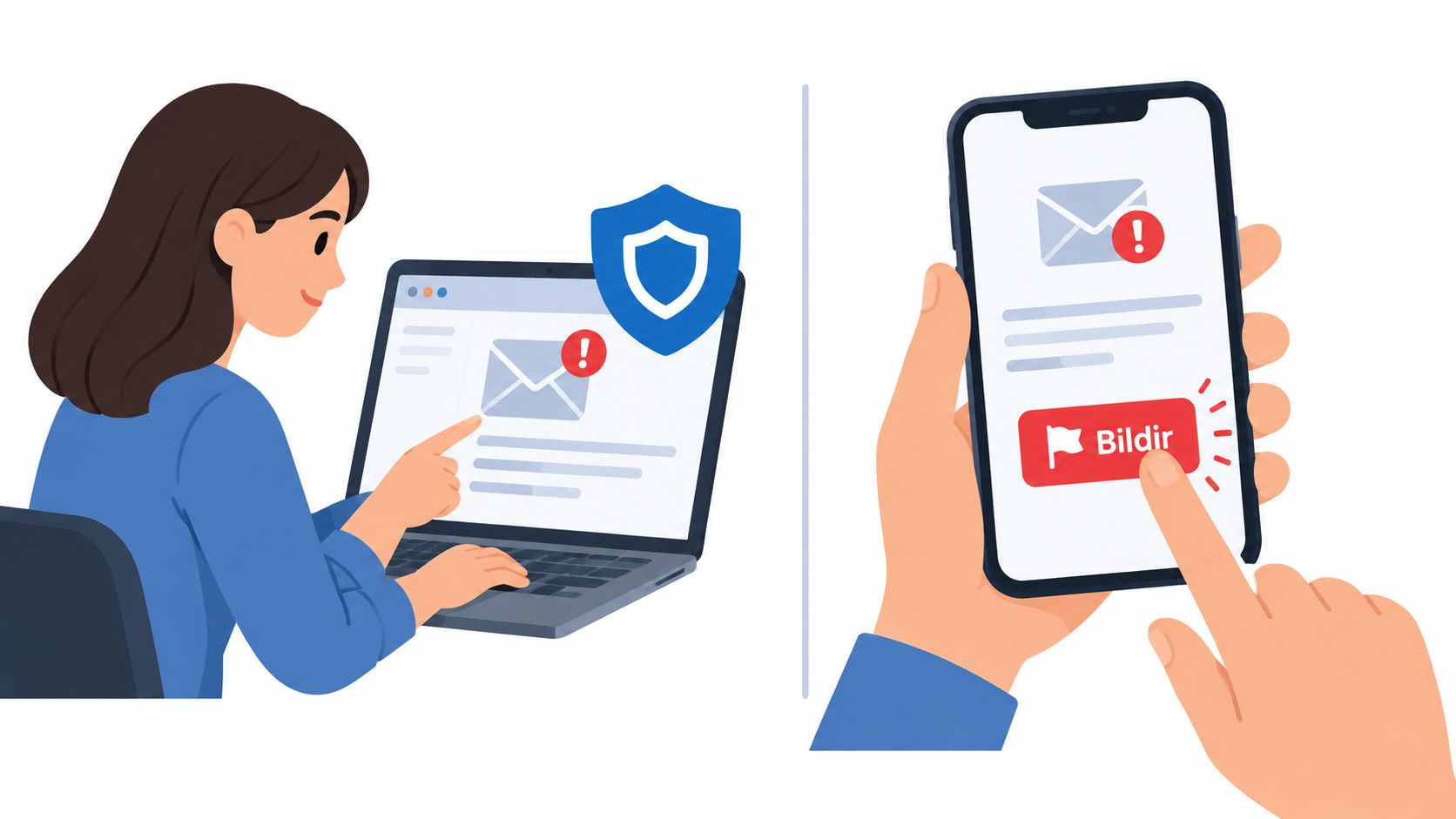
Before touching the message, stop. Don't click a link, open an attachment, reply, or use the unsubscribe link if the email appears fraudulent. Those actions can expose you to malware, confirm that your address is active, or send you to a convincing but fake website. Preserve the sender address and subject if the message may need investigation later.
On a computer, select the unwanted message in Gmail and click Report spam in the toolbar. Gmail moves it to Spam and uses your report as a signal for future filtering. If the message appears to be credential theft, impersonation, or another targeted deception, open it, select More beside Reply, and choose Report phishing instead.
The distinction matters. Ordinary unsolicited advertising belongs in the spam workflow. A message asking for your password, payment details, security code, or urgent account action deserves the more specific phishing classification.
On Android, Gmail supports two practical routes. To report one opened message, tap the three-dot More menu in the upper-right corner and select Report spam. To report several messages from the inbox, select each sender's profile picture, tap More, and choose Report spam, as explained in Google's Android Gmail reporting guidance. The buttons may appear in different places depending on whether you're inside the message or working from the message list.
If your household uses shared protection tools, review the safety implications before connecting an account. Guidance on connecting a Gmail account for email protection can help you understand the access involved and choose settings deliberately.
The workflow is short, but the order matters. Report first, investigate safely afterward. Don't forward a suspicious message casually, since forwarding can expose others to the same content.
Distinguishing Between Routine Spam and Dangerous Phishing
Spam and phishing overlap, but they aren't interchangeable. Spam is usually unwanted bulk mail, such as unsolicited marketing or nuisance promotions. Phishing is an attempt to deceive you into surrendering information, money, access, or control, often by impersonating a bank, delivery company, employer, government agency, or person you know.
Use this decision guide before choosing the button:
| Email Characteristic | Classification | Action to Take |
|---|---|---|
| Unsolicited promotion with no request for passwords or payment | Routine spam | Select Report spam |
| Urgent request for credentials, payment, security codes, or account access | Dangerous phishing | Select Report phishing |
| Unexpected attachment or link that could install malware | Dangerous phishing | Don't open it, then select Report phishing |
| Legitimate message incorrectly placed in Spam | False alarm | Select Not spam |
| Legitimate message incorrectly classified as phishing | False alarm | Use Report not phishing |
For suspected phishing on a computer, Gmail says to open the email, select the menu next to Reply, and click Report phishing. If a legitimate email was classified incorrectly, the same menu provides Report not phishing, according to Google's phishing-reporting instructions.
A false positive isn't a reason to stop reporting. It's a reason to verify the sender through a trusted route before restoring the message. Don't use the phone number or link inside an email you're questioning. Instead, open the organization's official website yourself or contact the person through a known number.
Teams building automated defenses can also benefit from technical background on email automation and AI classification from CodeWords. For everyday Gmail users, though, the safest decision is simple: treat a request for secrets or money as phishing, not ordinary clutter.
Containment Steps After Accidental Interaction
A spam report doesn't undo a click. If you entered a password, downloaded an attachment, sent money, or gave someone remote access, treat the event as an active incident and act quickly.
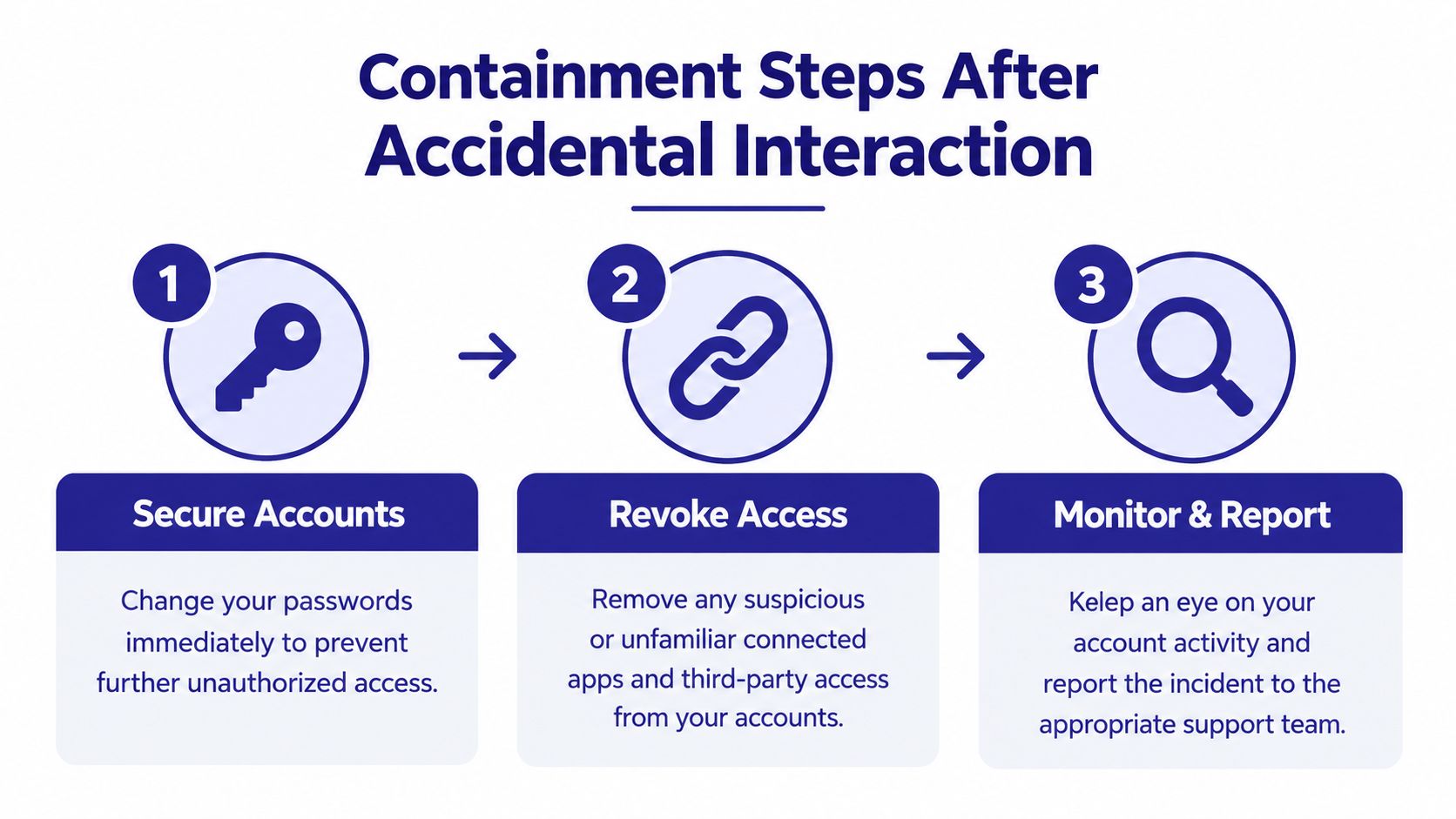
Secure the accounts that may be exposed
Change the exposed password immediately from a trusted device. If you reused that password anywhere else, change it there too, starting with your email account because access to Gmail can enable password resets for other services.
Turn on multifactor authentication. A stolen password is less useful to an attacker when the account requires an additional approved factor. Review recent account activity, signed-in devices, recovery addresses, and Gmail settings for changes you didn't make.
Pay particular attention to forwarding rules, filters, and connected applications. Attackers may try to keep access after you change a password by adding forwarding or authorizing a third-party application.
Revoke access and protect money
Remove suspicious connected apps and sign out unknown sessions. If you downloaded a malicious attachment, disconnect the affected device from networks when practical and run a current security scan. Don't continue using a compromised device for banking or password changes until you've assessed it.
If money or payment details were involved, contact your bank, card issuer, or payment provider through an official website or the number printed on a card. Don't call a number supplied in the suspicious email. Tell the provider what happened and ask what protective actions are available.
Preserve evidence and report the incident
Keep the original email, sender address, subject, timestamps, and message headers. Don't alter the only copy before documenting it. The message may help your email provider, bank, employer, law enforcement, or a national cybercrime authority understand the attack.
Google's consumer phishing guidance makes an important distinction: reporting spam in Gmail isn't the same as reporting fraud to the appropriate authority. If you disclosed credentials, sent money, or opened a malicious attachment, change exposed passwords, enable multifactor authentication, and report the incident to local law enforcement or a national cybercrime authority.
If you're embarrassed, act anyway. Scammers depend on silence, and early reporting gives banks, providers, and investigators more options.
Upgrading to Proactive Multi-Channel Scam Protection
Email is only one route into a person's life. A scam may begin with a message, continue through a phone call, and finish with a text containing a payment link. That's why relying only on manual inbox cleanup leaves a gap. You need a consistent way to evaluate threats across the channels you use.
Gini Help is one option for that broader approach. It screens calls, texts, and emails in one app and provides warnings about phishing, spoofing, malicious links, and suspicious requests. Its Live Call Analysis can provide a risk score and haptic warnings during calls you answer, while its call screening can assess an unknown caller before deciding whether to connect the call.
The practical value is simplicity. Older adults, caregivers, busy professionals, and non-technical users shouldn't need to inspect every phone number, sender address, attachment, and message header alone. A service that combines Gmail, Outlook, Yahoo, iCloud, SMS, and calls can reduce the chance that a scammer merely changes channels after one route is blocked.
For a deeper perspective on coordinating signals across different sources, see this overview of integrated threat intelligence. It's especially relevant for families protecting someone who receives suspicious calls and messages but may not recognize that they're part of the same campaign.
Download Gini Help from Google Play or the App Store. Use it as an additional layer, not as a replacement for Gmail's own Report spam and Report phishing actions. Gmail reports improve the provider's filtering, while multi-channel screening helps you evaluate threats before they become a conversation or transaction.
Building Long-Term Email Security Habits
Safe email use depends on repeated, boring actions. Verify the full sender address, not just the display name. Hover over links on desktop, or press and hold carefully on mobile, and check whether the destination matches the organization you expect. If a message creates urgency, pause and verify through a trusted channel.
Use the right Gmail button every time:
- Routine spam: Report it as spam rather than deleting it.
- Credential theft or impersonation: Report it as phishing.
- Legitimate message: Restore it with Not spam or Report not phishing after verification.
- Accidental interaction: Change passwords, enable multifactor authentication, protect payment accounts, and report the incident.
Review forwarding rules, filters, signed-in devices, and connected apps regularly. Keep suspicious emails available as evidence when an incident needs investigation, and involve a trusted family member or security professional if the situation feels confusing.
Scammers are persistent, but you don't need perfect technical knowledge to make their work harder. Pause, classify, report, and contain. Add a multi-channel safety layer when scams reach you by phone and text as well as email.
Gini Help screens calls, texts, and emails for suspicious activity and adds warnings when a message or live conversation presents scam indicators. Visit Gini Help to explore a practical layer of protection alongside Gmail's built-in reporting tools.