How to Gmail Report Phishing Email in 2026
By Josh C.
Click the three-dot menu next to Reply in the email preview pane and select Report phishing. Gmail may remove the message and use your report to improve detection, but it won't notify your family, employer, or bank.
You're probably looking at a message that appears to come from a bank, delivery company, employer, or even someone you know. It asks you to verify an account, open an invoice, or reset a password, and the urgency is designed to make you act before you think. Don't click anything inside it. Report the message through Gmail, then decide whether someone else needs to be alerted.
Google reported that Gmail blocks more than 100 million harmful emails every day and prevents more than 99.9% of spam, phishing, and malware from reaching users' inboxes (Google Workspace explains Gmail's protection). Strong filtering helps, but reporting still adds a useful signal when a suspicious message reaches you.
Finding the Report Phishing Button
The safest time to report a suspicious message is before you delete it. Open the actual email, not just the inbox row, and confirm that you're viewing the message you intend to flag.
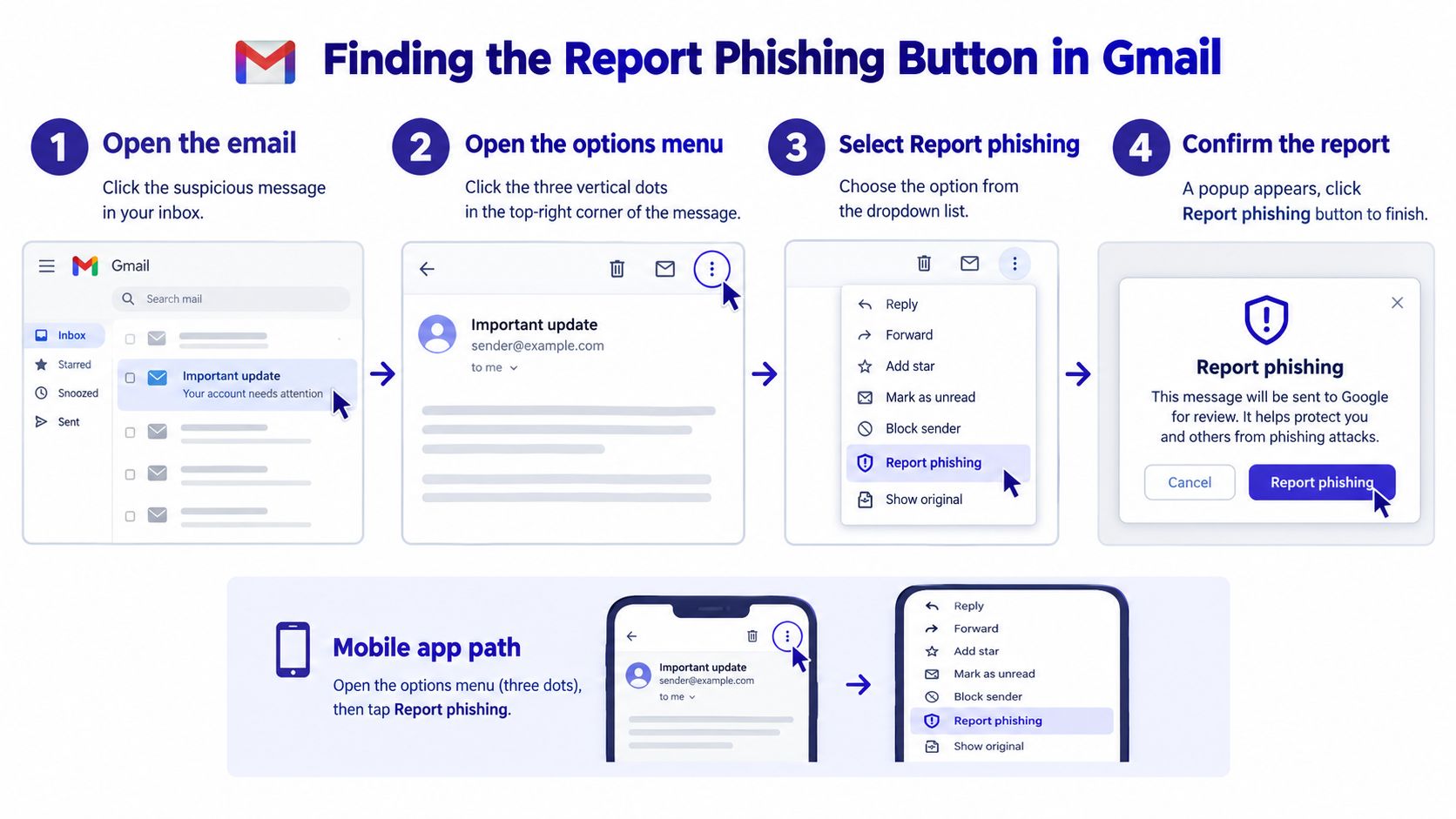
Desktop Gmail
In Gmail on a computer:
- Open the suspicious email.
- Find the three-dot More menu beside the Reply control in the message view.
- Select Report phishing.
- Confirm the report when Gmail displays the prompt.
The message-level control matters. Deleting an email only hides it from your mailbox. Marking it as spam handles unwanted bulk mail, but a suspected impersonation, credential request, or fraudulent payment demand deserves the phishing workflow. Gmail can use that report to improve its filtering systems.
Android and iPhone
In the Gmail mobile app, open the message and tap the three-dot menu associated with the message. Choose Report phishing, then confirm. The exact screen arrangement can vary between Android and iOS, so make sure you're using the message menu, not a general inbox menu.
Before tapping anything, check these basics:
- Correct message: The suspicious email is open in full.
- No interaction: You haven't clicked its links, opened unexpected attachments, or replied.
- Visible details: You can inspect the sender and any reply-to address.
- Evidence preserved: You know whether your employer or security contact needs the original message before Gmail processes it.
Practical rule: Deleting removes the immediate temptation. Reporting creates a security signal.
Step-by-Step Reporting on Desktop and Mobile
On a desktop, place your cursor over the suspicious email in the inbox and click once to open it. Avoid clicking any button, image, attachment, or link inside the message. You only need Gmail's own controls.
Look beside Reply in the opened message. Click the three vertical dots, choose Report phishing, and read Gmail's confirmation prompt before selecting the report option. If the email is legitimate marketing, don't use this control. Mark it as spam instead.
Don't investigate a suspicious message by testing its links. A link can redirect you before you learn where it leads.
Desktop sequence
Use this physical path:
- Open: Click the suspicious message.
- Inspect: Look at the sender, reply-to address, and visible request without interacting with the content.
- Menu: Click the three-dot More menu beside Reply.
- Report: Select Report phishing.
- Confirm: Approve the report in Gmail's prompt.
Gmail's documented workflow specifically recommends using the message-level control instead of merely deleting or marking the email as spam (Google's Gmail phishing instructions).
Android sequence
On Android, tap the suspicious message in the Gmail app. Keep your finger away from links and attachments, then tap the three-dot menu for the open message. Select Report phishing and confirm.
If Gmail has classified a legitimate message incorrectly, Google provides a Report not phishing path. Use it when appropriate. That correction helps keep ordinary business messages and newsletters separate from actual fraud.
On iPhone, follow the same principle in the Gmail app, but look carefully for the menu attached to the opened message. Don't confuse it with the menu for the entire mailbox or conversation. If the account belongs to an employer or school, reporting to Google may not be the same as notifying the organization's security team.
What Gmail Does After You Report
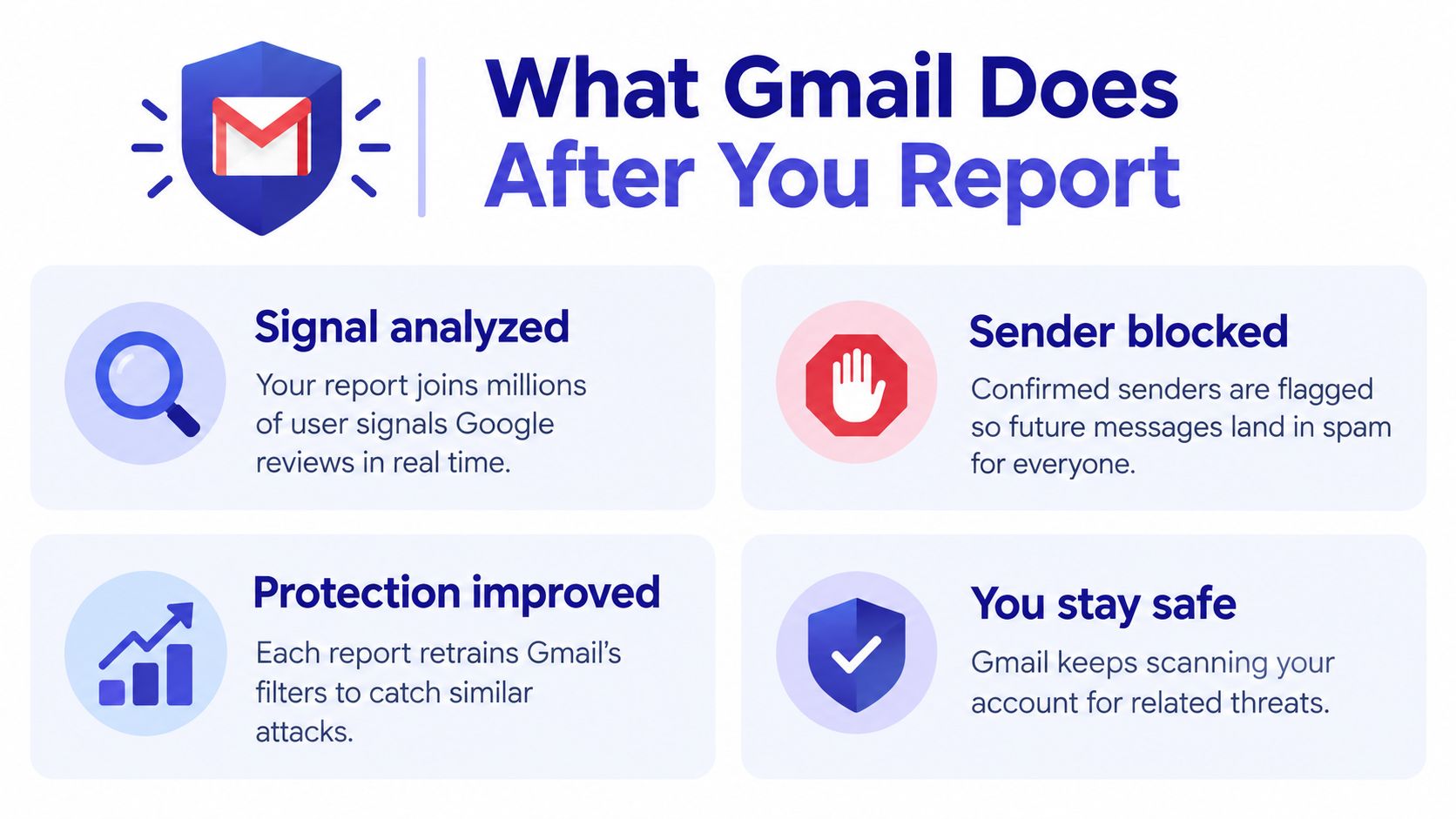
Gmail treats your action as a signal about the message. It may remove the email from your inbox and use the report to improve phishing and spam detection. That helps Google identify patterns across suspicious senders, links, wording, and delivery behavior.
Your report doesn't guarantee that every related message will disappear immediately, and it doesn't prove that the sender has been stopped. Attackers can change domains, accounts, and message content. The value is cumulative, because individual reports help security systems recognize campaigns that automated filters may not have classified yet.
The broader threat justifies taking a suspicious Gmail message seriously. Phishing and spoofing was the most frequently reported crime category in the FBI's 2025 data, with 191,561 complaints, nearly one-fifth of all IC3 complaints (2025 phishing and spoofing figures summarized by HIPAA Journal).
A report is useful, but it's not a personal investigation. Gmail generally won't tell you whether the sender was prosecuted, whether another recipient clicked the link, or whether your employer's mailbox was affected. If the message impersonates a service you use, take a separate action through that service's verified website or support channel. For practical examples of warning signs and response choices, review this email scam alert guide.
Proven Strategies to Strengthen Your Email Defense
Reporting comes after judgment, not before it. First decide whether the message shows signs of impersonation or credential theft, then use Gmail's reporting control without touching the dangerous content.
Inspect the sender's full domain, not only the display name. A message that says “Your Bank” may come from an unrelated domain, and a familiar name doesn't prove authenticity if the sender's account has been compromised. Check the reply-to address separately because it may point somewhere different.
Be cautious with urgency. Requests to bypass normal procedures, pay an invoice immediately, confirm a password, or provide sensitive information deserve independent verification. Open the institution's known website or call a trusted number from a statement, card, or official account. Don't use the contact details in the suspicious email.
- Links: Hover over desktop links without clicking, or avoid them entirely on mobile. Compare the destination with the organization's known domain.
- Attachments: Don't open unexpected files, including documents that ask you to enable content or sign in.
- Authentication indicators: Treat verification marks and sender labels as clues, not proof.
- Conversation history: A familiar thread can still be dangerous if an account was taken over.
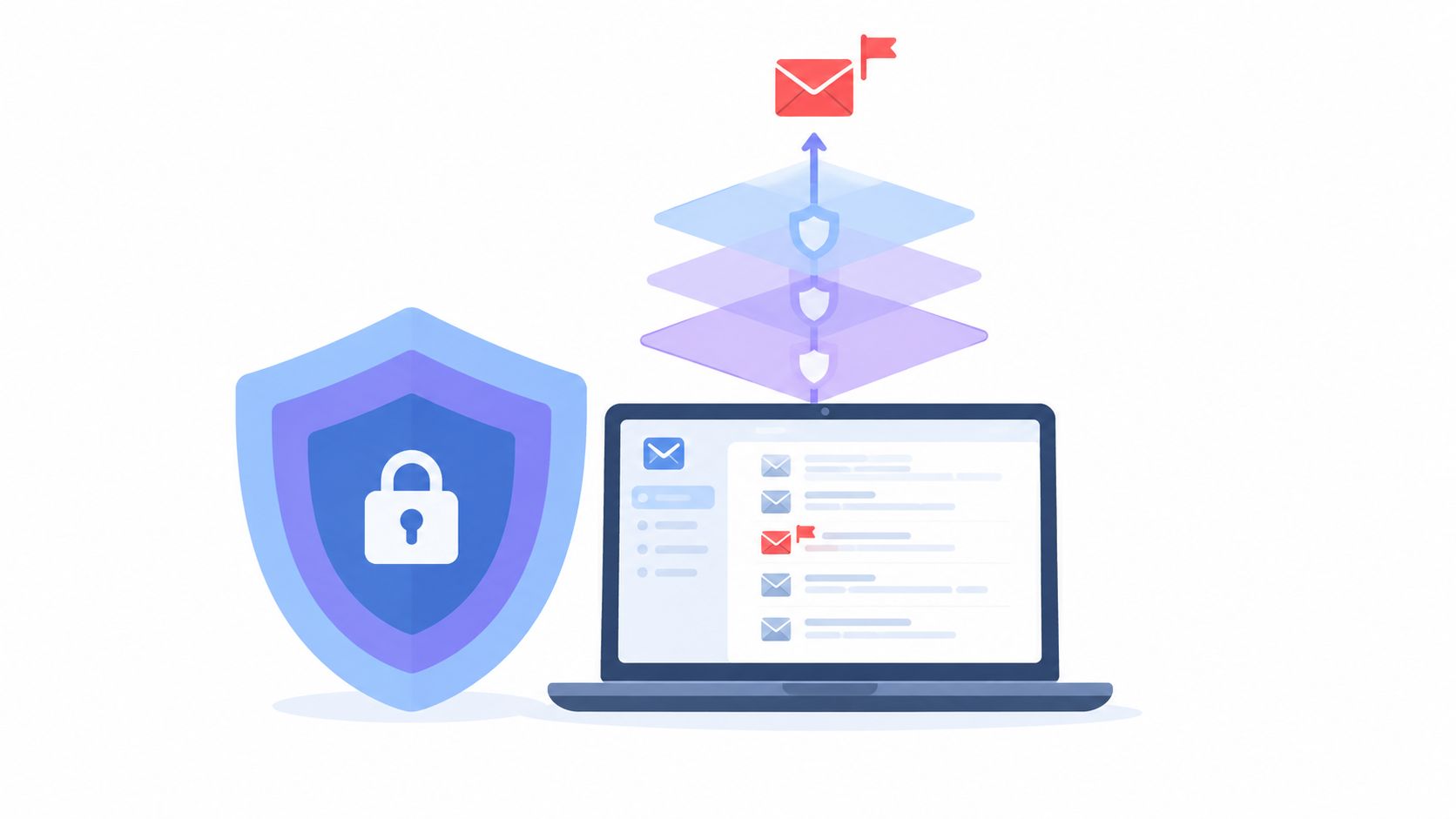
Gini Help is one additional option for people who want protection across more than one channel. The service screens connected email, calls, texts, and messages for indicators such as suspicious senders, dangerous links, urgent scam language, and requests for sensitive information. It can display a warning in the app and let the user choose an action, including reporting the email. Download Gini Help on Google Play or Gini Help on the App Store.
Gmail's control remains important because it reports directly within the mailbox. A separate screening layer can be useful for older adults, caregivers, and busy professionals who receive suspicious requests through email, phone, and SMS. For more targeted impersonation tactics, this guide to stopping spearphishing attacks offers additional defensive context. You can also review this resource on phishing email detection for signs that commonly trigger concern.
Critical Next Steps After Identifying Phishing
Clicking Report phishing is not the end of the response. Gmail doesn't automatically alert your family caregiver, employer, bank, or law enforcement. Personal Gmail, school or work Google Workspace, family-managed accounts, and shared devices can have different owners and escalation paths.
Workspace administrators may have separate investigation tools to locate other recipients and remove malicious messages across a domain. That doesn't mean a personal report has notified the administrator. If the message targets a workplace, tell the organization through its established security channel.
Use this escalation protocol when the email involves an account, payment, or impersonated institution:
- Preserve evidence first when needed. If investigation matters, retain the original message or forward it as an attachment to your organization's security team before reporting. Keep the timestamp, sender, reply-to address, URLs, headers, screenshots, and transaction records. Don't forward the message repeatedly or interact with the attacker.
- Report it in Gmail. Use the message-level Report phishing control, as described above.
- Contact the impersonated organization. Use a phone number, website, or app you already trust. Tell the bank, employer, government agency, or service that someone is impersonating it.
- Protect exposed accounts. If you entered credentials, change them through the legitimate site and review account activity. If payment information was disclosed, contact the financial institution immediately.
- File an IC3 complaint when appropriate. Use the FBI's Internet Crime Complaint Center when the incident involves fraud, compromise, or financial loss.
The scale of documented harm is substantial. The FBI's 2025 report recorded 1,008,597 complaints and approximately $20.877 billion in reported losses, while phishing and spoofing generated 191,561 complaints (FBI 2025 report figures summarized by Adams and Reese). Reporting Gmail's message won't reverse a transaction, but preserving evidence and escalating quickly can improve the response. For a deeper look at account takeover fraud detection signals, focus on unusual login activity, unexpected password changes, and unauthorized requests. This scammer reporting guide can help organize the next call or report.
Building a Lasting Habit of Email Vigilance
A suspicious email should trigger a simple routine: pause, inspect, report, and escalate. That routine works whether the message claims to be from a bank, a relative, a delivery service, or a manager. Familiar branding and a familiar name should never override the need to verify an unusual request.
Older adults often face the worst consequences when a convincing message creates urgency. The safest response is deliberately boring: don't click, don't reply, don't call the number inside the email, and don't let embarrassment stop you from asking someone you trust to review it.
A report protects more than your inbox, but only a separate alert protects the people and accounts connected to the incident.
Build the habit into daily use. Keep account recovery details current, use multifactor authentication where available, and verify important requests through an independent channel. Remember that scammers also use calls and text messages, so email awareness alone won't cover every route into an account.
When a suspicious Gmail message arrives, you don't need to diagnose the entire attack. Open the message safely, choose Report phishing, then notify the right human or institution if the message could affect anyone else. Install a protection tool that can screen messages across channels, and make sure family members know whom to call before a crisis occurs.
Gini Help screens calls, texts, and emails for scam indicators and can warn you about suspicious messages before you act on them. Visit Gini Help to add cross-channel protection to your Gmail safety routine and give a trusted family member a clearer way to support you.