Gmail Spam Filter Not Working: How to Fix It
By Josh C.
You open Gmail expecting an invoice, a password-reset message, or a note from family. Instead, the inbox is full of convincing junk, while the message you needed is sitting in Spam. That's when searches for “Gmail spam filter not working” lead to looking for a switch to turn the filter back on.
Usually, that switch doesn't exist because Gmail's filter isn't off. Gmail makes several decisions about each message, and any one of them can produce the wrong result. The practical fix is to identify whether Gmail missed spam, misclassified legitimate mail, or followed a rule you didn't know was active.
When Gmail's Spam Filter Feels Broken
An older user might miss a genuine appointment confirmation because Gmail sends it to Spam, then see a polished fake delivery notice arrive in the Inbox. The experience feels random, especially when the legitimate sender has been trusted before. It's frustrating, but it doesn't automatically mean Gmail's protection has stopped working.
Google reported that, by July 2015, unwanted mail reaching inboxes had fallen to roughly 0.1%, while legitimate messages misclassified as spam had fallen to approximately 0.05%. Those figures came from a major improvement in Gmail's machine-learning filtering, but they also show the important limitation: a strong filter can still make mistakes. Google's reported Gmail filtering results describe a system with a small but real failure rate, not a perfect wall.
For a high-volume mailbox, small error rates become visible. A person who receives a large stream of messages may eventually see unwanted mail in the Inbox and wanted mail in Spam. One missed phishing message can matter more than thousands of correctly classified messages, while one missing invoice or password-reset email can create an urgent problem.
The right diagnosis: “Not working” usually means Gmail made a classification decision you need to investigate, or another rule redirected the message.
That distinction changes what you should do next. If unwanted messages reach the Inbox, you're investigating false negatives. If genuine messages disappear into Spam, you're investigating false positives. If messages vanish from both places, look at filters, forwarding, delegated access, or an organizational policy.
Gmail also has to respond to senders that change domains, wording, links, infrastructure, and authentication behavior. Legitimate bulk senders can resemble suspicious mail, while attackers can make fraudulent messages look routine. If you manage outreach or need to understand how tracking affects sender workflows, a practical guide to email tracking software for sales teams can provide useful context.
The Four Layers Gmail Uses to Route Every Message
Gmail doesn't make one simple spam decision. It evaluates several signals, then routes the message through different parts of the mailbox. Understanding those layers prevents the most common mistake, changing settings before identifying the actual failure.
Authentication establishes identity
Gmail checks whether the sending system is authorized to send for the claimed domain. SPF, DKIM, and DMARC provide different authentication signals, but none of them proves that the message's purpose is honest. A scammer may send from an authenticated domain, or compromise a legitimate account.
Classification estimates risk
Gmail's spam classifier assesses the message's sender history, content, links, attachments, and other signals. It treats spam as a probability problem. A message can pass authentication and still look suspicious, or fail to look suspicious enough despite being malicious.
Categories affect visibility
Inbox categories such as Promotions and Updates aren't the same as Spam. A message in Promotions may be legitimate but less visible, while a message in Spam has been classified as unwanted or dangerous. Check the actual folder before assuming Gmail deleted anything.
Your actions provide feedback
When you report spam, report phishing, or mark a message as “Not spam,” Gmail receives a preference signal. Google's explanation of Gmail spam and authentication confirms that authentication and user actions work together. An Inbox delivery therefore doesn't prove that the spam filter is disabled. It may reflect a classification error, a trusted relationship, or an account problem.
For senders, recipient reactions matter too. Strong list hygiene best practices reduce the chance that unwanted messages generate complaints and damage future delivery.
The useful question is not “Why did Gmail let this through?” Ask instead: Which layer produced the result? That answer determines whether you should rescue a message, remove a filter, report phishing, inspect authentication, or secure the account.
Rescuing Legitimate Mail From the Spam Folder
Start with the false-positive path if real messages are repeatedly landing in Spam. Don't create a broad allowlist immediately. First teach Gmail which sender you trust, then test whether the result improves.
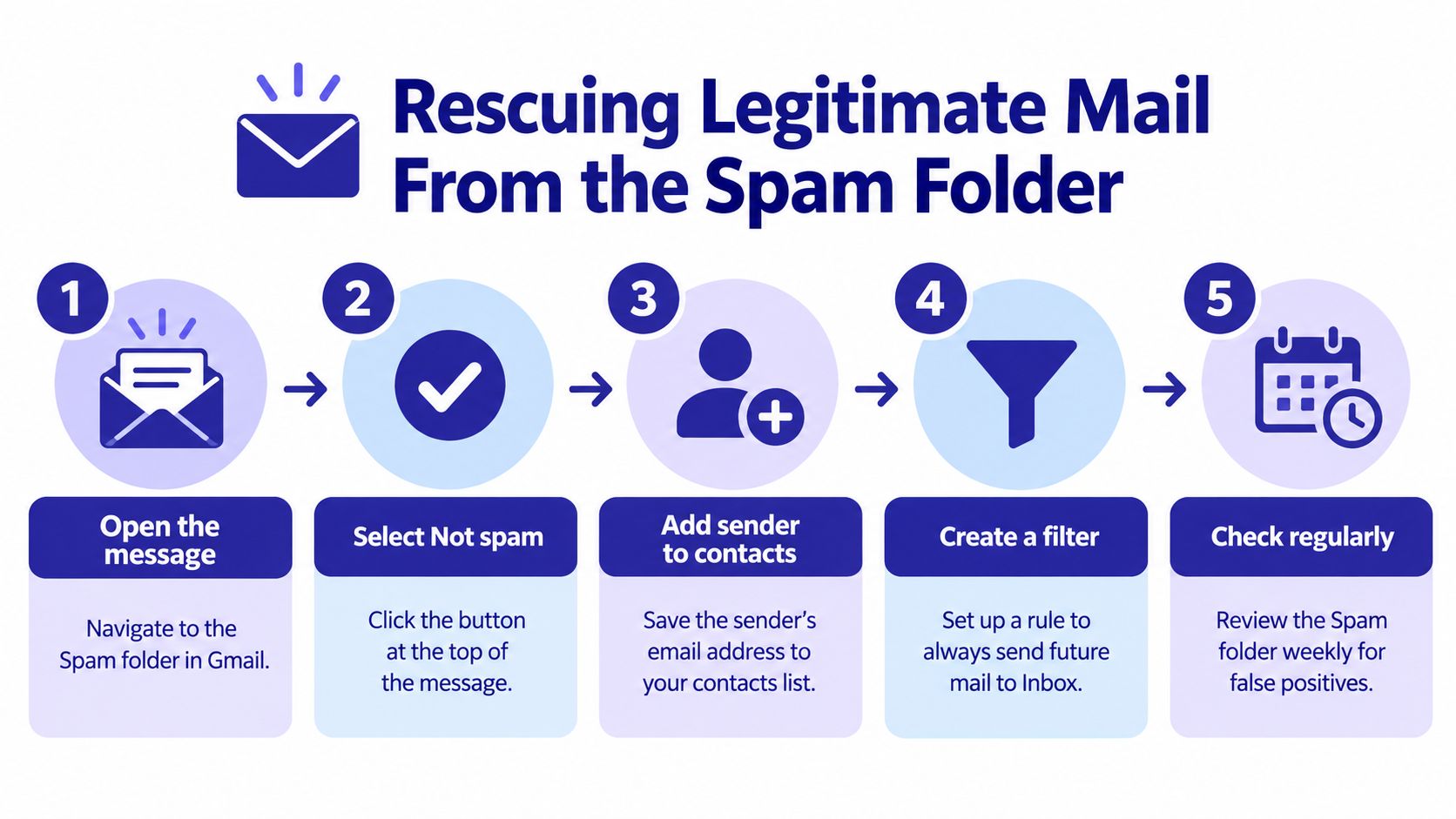
Use the narrow rescue sequence
Open Spam. Find the missing message and open it rather than deleting the whole folder.
Select “Not spam.” Gmail moves the message out of Spam and uses that action as feedback about your preference.
Add the sender to Contacts. Save the actual email address, not just the display name. Google says this reduces the likelihood of future misclassification.
Create a targeted filter. In Gmail settings, create a filter using the exact sender address or a carefully chosen domain. Select “Never send it to Spam.” Avoid allowing an entire high-risk domain when you only trust one address.
Test with fresh messages. Ask the sender to send controlled test messages over several days. Record the sender, subject pattern, authentication status when available, and whether each message reached Inbox or Spam.
Google's guidance supports opening a misclassified message, selecting “Not spam,” and adding the sender to Contacts because those actions help Gmail learn the recipient's preference. You can also follow this Gmail spam filter check when you want a compact review of the main checks.
Workspace needs tighter control
Google Workspace administrators can create an allowlist for a specific organizational unit under Gmail's Spam, Phishing and Malware settings. Approved messages can be delivered to the Inbox, but Gmail's spam scanning itself can't be disabled. Keep the exception narrow, review it periodically, and avoid treating an allowlist as a substitute for sender verification.
A safe rule: Rescue the exact sender first. Broaden the exception only when you understand every message that the broader rule will permit.
If the same sender still disappears, stop adding exceptions. The message may be diverted by a client rule, forwarding service, or Workspace policy rather than Gmail's classifier. That requires a configuration audit, not another “Not spam” click.
Auditing Filters, Forwarding, and Delegated Access
A Gmail message can be redirected without ever behaving like a normal Spam-folder mistake. A filter may archive it, delete it, label it, forward it, or move it somewhere you rarely check. A mail client can apply its own rule after Gmail receives the message, and another person with account access may have changed the settings.
Google Workspace support warns that a client-side rule, forwarding service, or Workspace policy can divert mail independently of Gmail's spam scanning, which can't be disabled. Read the official troubleshooting guidance on valid messages marked as spam before changing broad protection settings.
Check Gmail's own rules
Open Gmail on a computer, select Settings, choose See all settings, then open Filters and Blocked Addresses. Review each rule and look for actions that can hide messages:
- Display-name matches: A filter that matches “Bank Support” may catch unrelated senders using the same visible name.
- Broad domain matches: A domain rule can include newsletters, compromised accounts, and messages you never intended to trust.
- Silent archiving: “Skip the Inbox” can make a message appear missing when it's in All Mail.
- Automatic deletion: A delete action sends matching messages out of the normal reading flow.
- Unexpected forwarding: A rule may send copies to an address you don't recognize.
Don't delete every rule at once. Disable one suspicious filter, send a fresh test, and observe the result. If the test succeeds, edit the rule so it matches the exact address or a precise subject pattern.
Review forwarding and access
Open Forwarding and POP/IMAP and remove unfamiliar forwarding destinations. Check whether a forwarding address was added during a previous account setup or by someone who should no longer access the mailbox.
Also review delegated access and recent account activity. An unfamiliar delegate, sign-in, or device can explain why filters changed or why the account is sending messages that appear trustworthy to Gmail. Change the password, secure the account, and review connected applications if you find activity you can't explain.
A compromised account deserves priority over filter tuning. If Gmail sees messages sent from your account, the traffic may carry a level of trust that ordinary spam doesn't have. Protect the account first, then reassess the mailbox routing.
Why Reporting Spam Is No Longer Enough
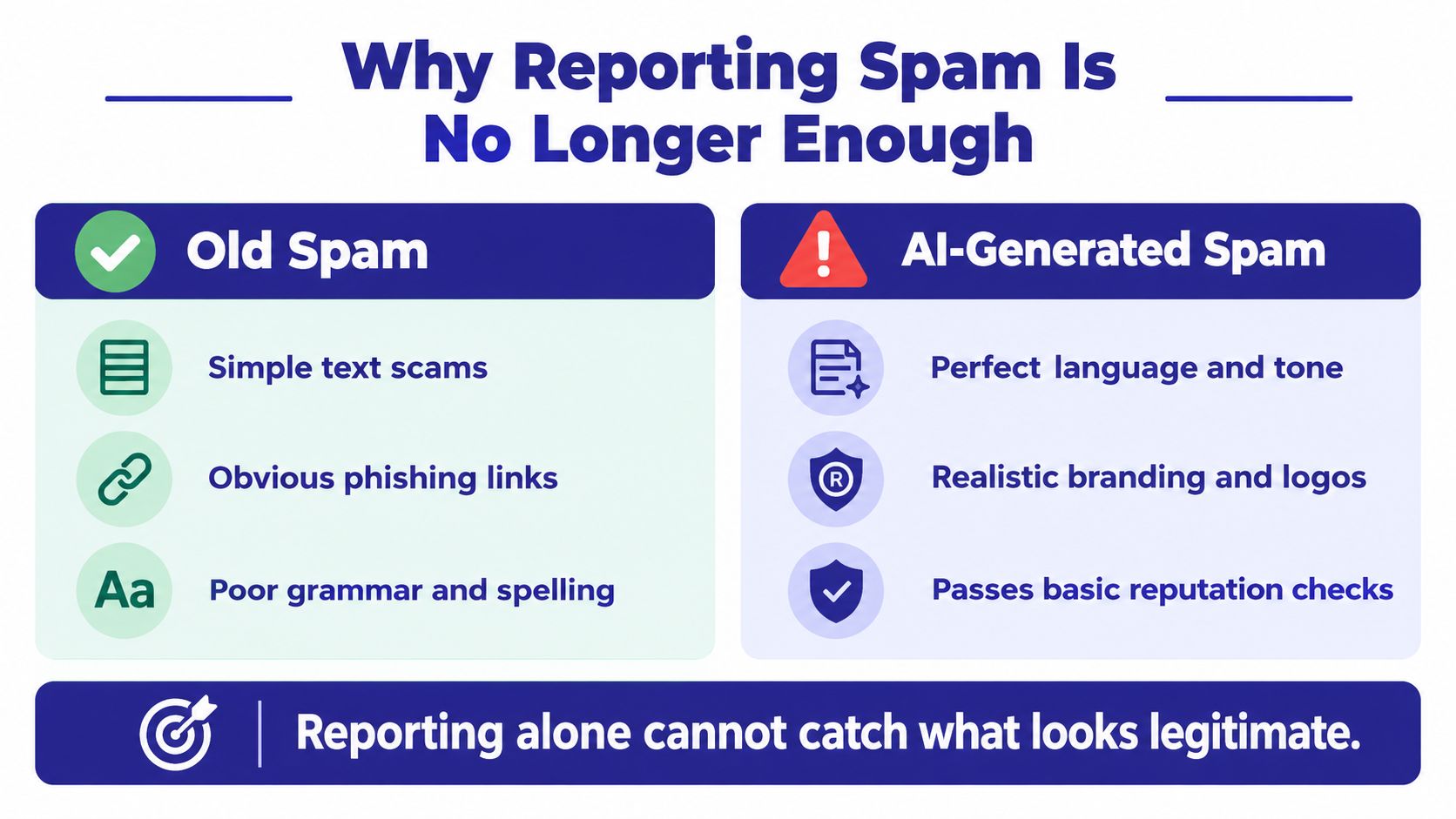
Clicking Report spam is useful, but it isn't a complete defense. Gmail uses that feedback to improve future classification, yet attackers can rotate addresses, domains, wording, and infrastructure. Reporting one message may remove that copy without stopping the next campaign.
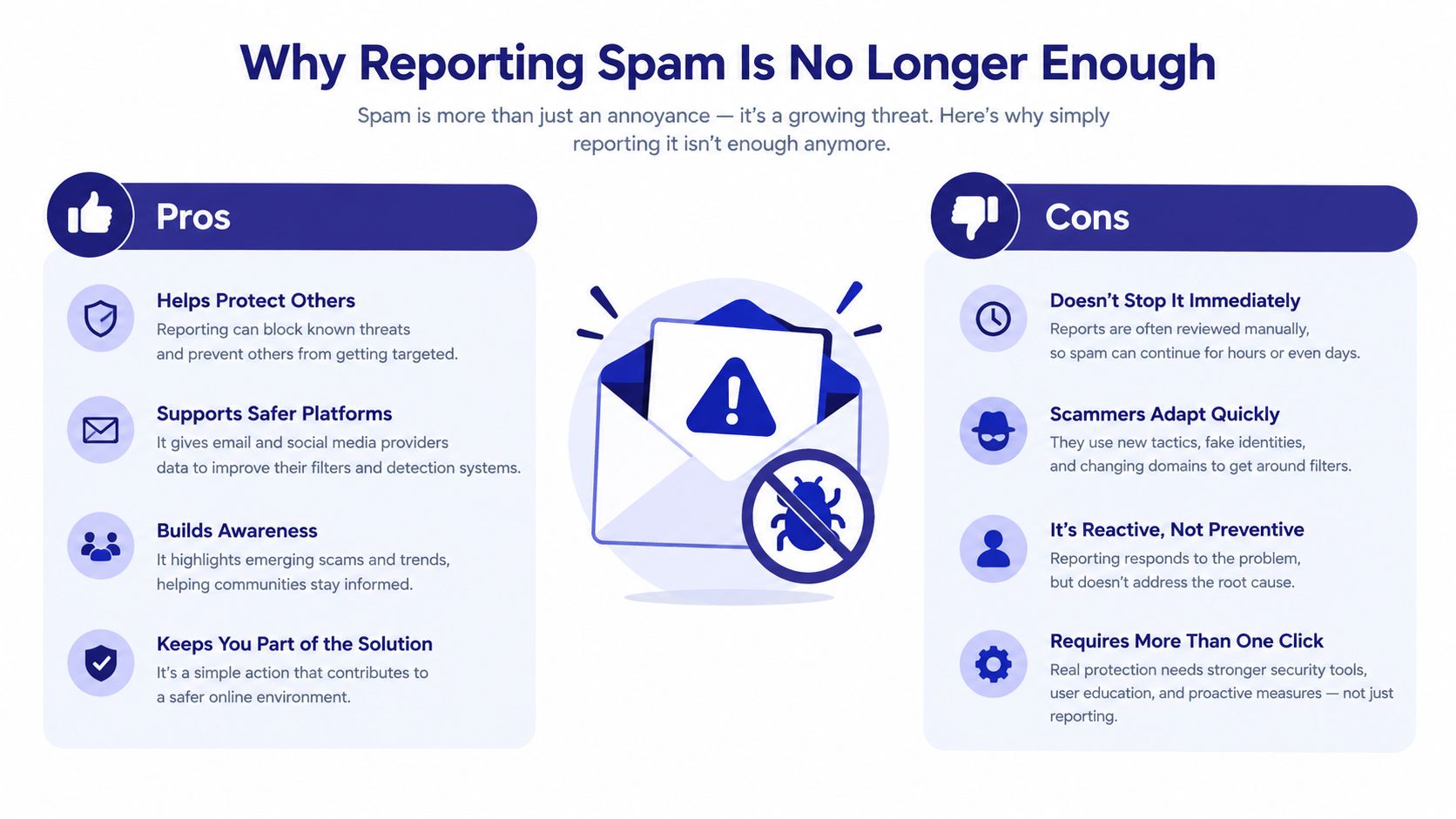
Recent industry analysis estimated that spam represented about 51.8% of worldwide email traffic in 2025 and reported a 14-fold increase in AI-generated phishing emails capable of bypassing conventional filters. Those figures are directional industry estimates, not a universal measurement, but they match what users now see: fraudulent messages can have clean grammar, convincing branding, and a plausible reason to contact you. The industry compilation on spam and AI-generated phishing provides the underlying context.
Inspect the real sender
Never trust the display name alone. “Microsoft Billing,” “Your Bank,” or “Family Member” can appear in the From line while the actual address uses an unrelated domain. Open the message details and inspect the complete sender address before deciding that the email is safe.
Authentication answers a limited question: Was this message authorized by the sending domain? It doesn't answer whether the sender is honest, whether the account was compromised, or whether the request is appropriate.
Be especially careful with:
- Unexpected invoices: Do not open attachments or follow payment links just because the branding looks familiar.
- Password notices: Open the service through a saved bookmark or manually typed address instead of using the email link.
- Urgent account warnings: Verify the issue inside the official app or website.
- Requests for secrecy: Contact the person or organization through a known phone number or another established channel.
Authentication is identity evidence, not a character reference.
Report confirmed spam as spam. Use Report phishing when a message impersonates a trusted person or organization, especially if it asks for credentials, money, or sensitive information. For a focused walkthrough, use this guide to report spam in Gmail. The goal isn't merely to train Gmail. It's to stop you from treating a polished message as safe because it passed a basic technical check.
A 7-Day Plan to Measure Real Improvement
Stop relying on memory. A mailbox feels chaotic when you remember the most alarming failures and forget the many messages Gmail routed correctly. A small labeled sample gives you evidence about what's going wrong.
Build your baseline
Collect 50 to 100 recent messages and label each one as spam, phishing, newsletter, or legitimate. This sample can include messages from Inbox and Spam. Then calculate:
- False-negative rate: Spam that reached Inbox divided by total spam in the sample.
- False-positive rate: Legitimate mail sent to Spam divided by total legitimate mail in the sample.
For each suspicious message, read Gmail's “Why this message is in Spam?” explanation. Inspect the sender, links, attachments, and authentication headers. If you receive mail from a custom domain, verify SPF, DKIM, and DMARC with the sender or administrator. Recipient providers make the final delivery decision, not the sender.
Work in daily passes
Day one: Label the sample and separate false positives from false negatives.
Day two: Rescue legitimate messages with “Not spam” and Contacts. Report confirmed spam and phishing separately.
Day three: Audit filters, blocked addresses, forwarding, and delegated access. Disable suspicious rules one at a time.
Day four: Review new messages and record where each one lands. Don't judge the change from a single email.
Day five: Inspect custom-domain authentication and ask recurring senders to correct authentication problems.
Day six: Remove broad allowlists and replace them with exact sender or domain rules where appropriate.
Day seven: Build a fresh sample and compare the two error rates. If the same organization-wide problem continues, escalate it to the Workspace administrator.
For senders, Google recommends keeping the user-reported spam rate below 0.1% and says bulk senders above 0.3% are ineligible for mitigation until the rate remains below that threshold for seven consecutive days. These are sender-level controls, not a promise that every recipient will receive identical routing. Google's sender requirements explain why a newsletter or business sender may suddenly see delivery problems.
If you want more background on modern classification, read about AI email filtering, but keep the measurement routine as your source of truth.
Layered Protection Beyond Gmail
Gmail is useful for mailbox-level protection, but it can't verify every phone call, text message, or conversation that follows an email. Someone may receive a phishing email, then a convincing phone call from the supposed bank, followed by a text asking for a security code. Treating each channel separately leaves an obvious gap.
The risk is particularly serious for older adults. The U.S. Federal Trade Commission reported that fraud losses among adults aged 60 and over rose from approximately $600 million in 2020 to $2.4 billion in 2024, about a fourfold increase. The FTC also reported approximately $159 million in tech-support scam losses among older consumers. The FTC's report on protecting older adults shows why email filtering belongs inside a broader safety routine.
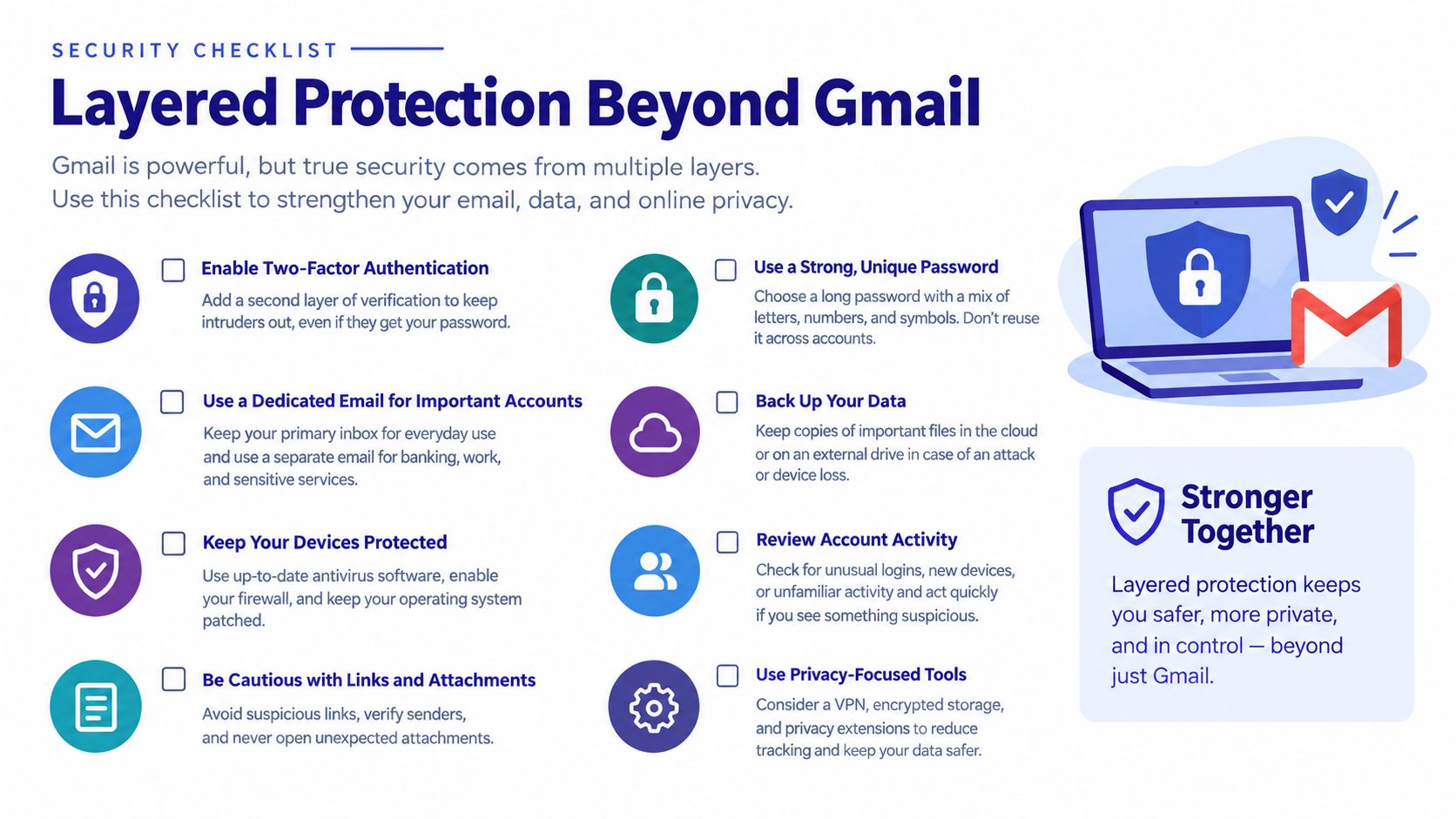
Keep this checklist close:
- Verify the actual domain: Don't rely on logos or display names.
- Confirm sensitive requests independently: Use a known website or phone number.
- Review account access: Check forwarding, filters, delegates, and recent activity.
- Escalate recurring failures: Ask a Workspace administrator to inspect organization-wide policies.
- Protect every channel: Consider a service that screens email, calls, and SMS together.
Gini Help is one option for cross-channel protection. It screens calls, texts, and emails, flags suspicious messages with explanations and recommended actions, and can analyze live calls for scam indicators. You can download Gini Help on Google Play or get it from the App Store.
Gini Help adds a protection layer for people who need more than Gmail's folder-level filtering, including older adults, caregivers, and anyone receiving coordinated scams across email, phone, and SMS. Visit Gini Help to see how its cross-channel scam screening can support the Gmail checks in this guide.