What to Do if You Get a Phishing Email: Step-by-Step Guide
By Josh C.
Your inbox pings with a message from your bank. Your name is correct, the logo looks familiar, and the subject warns that your account needs urgent attention. You click before thinking, or perhaps you only open the message and now can't remember whether you followed a link. That uncertainty is common, and it doesn't mean you've lost control of your accounts.
The right response depends on what you did, not on how convincing the email looked. Stop the interaction, preserve evidence, report the message, and then follow the appropriate recovery path. This guide explains what to do if you get a phishing email, including the often-missed middle ground between deleting an untouched message and responding to a confirmed compromise.
The First Seconds After Receiving a Phishing Email
You're reviewing email between meetings when a message appears to come from your payroll provider. It uses the company's colors, addresses you by name, and says your payment details must be confirmed immediately. Your first impulse is understandable: click the button, reply to ask whether it's real, or forward it to a colleague.
Those reactions are exactly what attackers want. Urgency narrows attention, authority discourages skepticism, and a familiar logo creates false reassurance. Even a message that looks professional can be designed to push you into a rushed decision.
Practical rule: A suspicious email deserves no immediate action. Pause before you inspect it.
CISA assessment data shows that 84% of employees who acted on malicious email did so within the first 10 minutes, while only a minority reported the attempts, as documented in NIST's phishing guidance. Speed helps the attacker. A short pause gives you time to check the request outside the message.
Replace instinct with a pause
Don't click, reply, call, download, or forward the email in the first moment. Close the preview pane if necessary, take a screenshot without selecting links, and open a separate browser window for verification. If the message claims to be from a bank, visit the bank through a saved bookmark or manually typed address, not through the email.
Teams can also reduce these reflexive mistakes with practical education that uses realistic examples and rehearsed reporting habits. For organizations in Australia, phishing awareness training in Melbourne can help employees practice recognizing pressure tactics without waiting for a real incident.
Your immediate objective isn't to prove whether the email is fraudulent. It's to prevent the message from controlling your next action. Treat unexpected urgency as a reason to slow down, especially when the request involves credentials, money, personal information, or an authentication code.
The Immediate No-Contact Workflow
If you haven't interacted with the suspicious email, you're in the strongest position. Keep it that way by following a strict no-contact process.
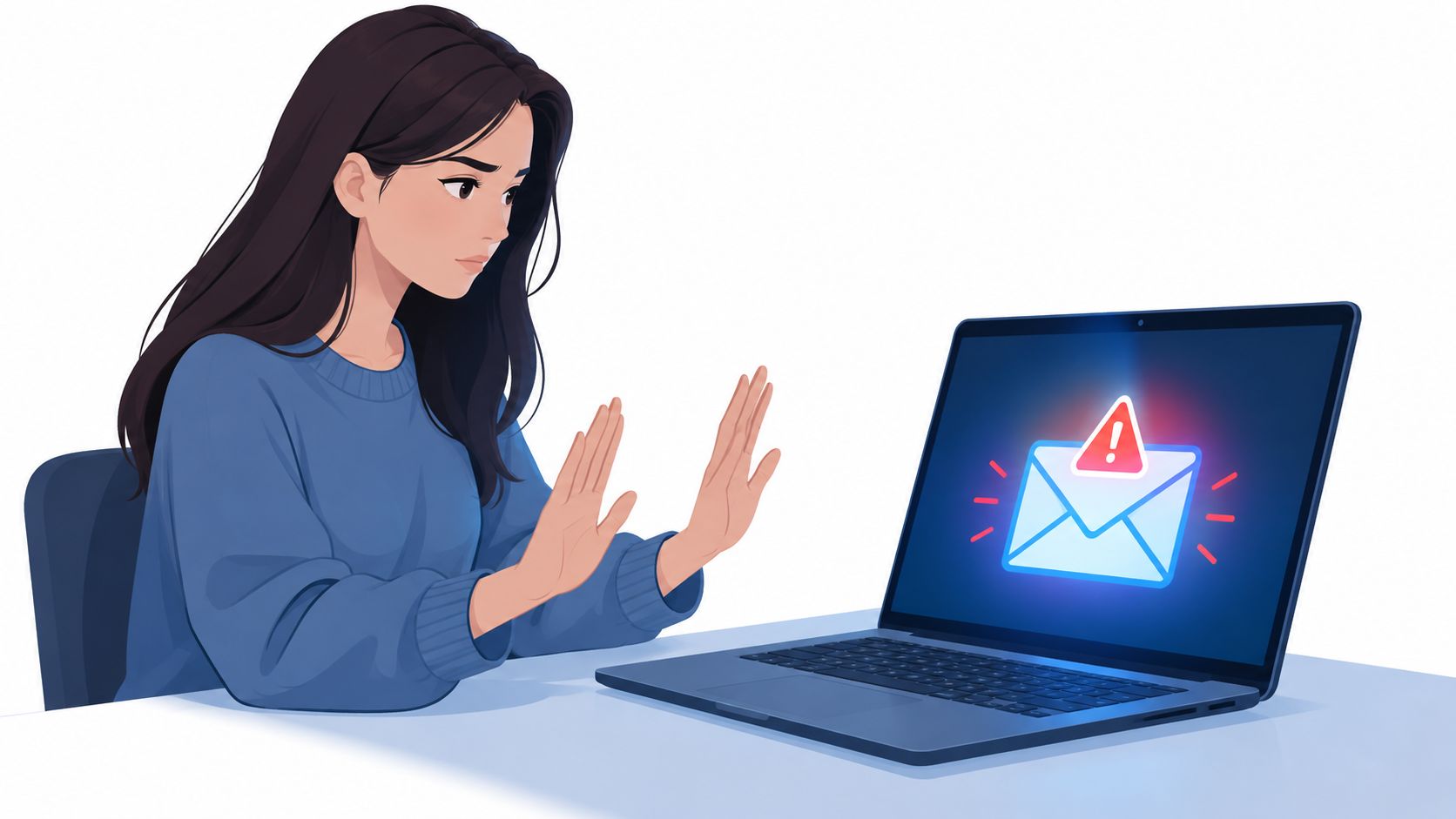
Start with what you must not do:
- Don't click links: A link can lead to a credential-harvesting page or trigger malicious content.
- Don't open attachments: An unexpected document or archive may contain malware.
- Don't reply: A response confirms that your address is monitored and may invite further manipulation.
- Don't call supplied numbers: The phone number may connect you directly to the attacker.
- Don't use unsubscribe links: In a suspicious message, that link can confirm an active address or lead somewhere unsafe.
Preserve the original message before deleting or quarantining it. Keep the sender address, subject, date, timestamps, headers, URLs, and attachment names. Don't edit the email or forward it in a way that strips its technical details, because responders may need the original evidence.
Verify the request independently
Use a known-good route. Type the organization's established website address into your browser, open its official app, or call a number printed on a legitimate statement. Don't use contact information supplied in the message. If the request isn't visible through the trusted channel, treat the email as fraudulent.
After evidence capture, use your email provider's built-in phishing-report function. In a workplace, notify the IT or security team through its approved channel, then quarantine or delete the message according to company policy. Administrators should search mail logs for matching messages and remove copies from other recipients where appropriate.
A useful way to remember the sequence is stop, preserve, verify, report, then delete. Reporting first gives the provider or security team a chance to block related messages and protect other recipients.
The short video below reinforces the same no-contact response and reporting habits.
How to Report Phishing Emails Properly
Deleting a suspicious message removes it from your inbox, but it doesn't help your provider identify the campaign. Reporting creates useful signals for email services, employers, and authorities.
First, preserve the original message and its technical details. Record the sender address, subject, date, timestamps, headers, links, attachment names, and any screenshots that show the request. Don't rewrite the message before reporting it, and don't casually forward it if forwarding will remove headers or alter the original structure.
Use the right reporting channel
Use the email provider's phishing-report option, usually available from the message toolbar or sender menu. In Microsoft Outlook, Gmail, Apple Mail, and other services, the built-in function can send relevant message data to the provider while marking the email for removal.
If the email impersonates a company, notify that organization through its official website. The FTC also recommends forwarding phishing email to the Anti-Phishing Working Group and reporting it to the FTC, rather than engaging with the sender.
For a practical Gmail-specific walkthrough, use this guide to reporting a phishing email in Gmail, then follow your employer's incident process if the account is managed by an organization.
The scale of the problem justifies reporting even when you haven't lost money. The FBI's 2024 Internet Crime Report recorded 859,532 internet-crime complaints and more than $16.6 billion in reported losses, with phishing and spoofing leading the listed categories at 193,407 reports (FBI annual Internet Crime Report). These figures represent reported complaints, not every incident.
Escalate serious incidents
If the message involves an active compromise, payment fraud, or a broad organizational campaign, escalate through your security team and the appropriate authority. In the United States, CISA lists report@cisa.gov and a 24/7 response line at (888) 282-0870 for phishing-related escalation, as described in its phishing reporting guidance.
Warn likely recipients through a separate trusted channel. Don't forward the suspicious email to colleagues as a warning unless your security team tells you how to preserve the original safely. Send a plain message explaining the subject and sender, or ask IT to distribute the warning.
Reporting turns an isolated nuisance into actionable intelligence. It helps providers detect related messages, helps organizations remove matching copies, and gives investigators evidence about changing campaigns.
When You Clicked Something and Feel Uneasy
The most confusing situation isn't always a confirmed breach. You may have clicked a link but entered nothing, downloaded a file without noticing a change, or approved an MFA prompt before realizing the request was fake. Don't guess. Classify the interaction and take the matching response.
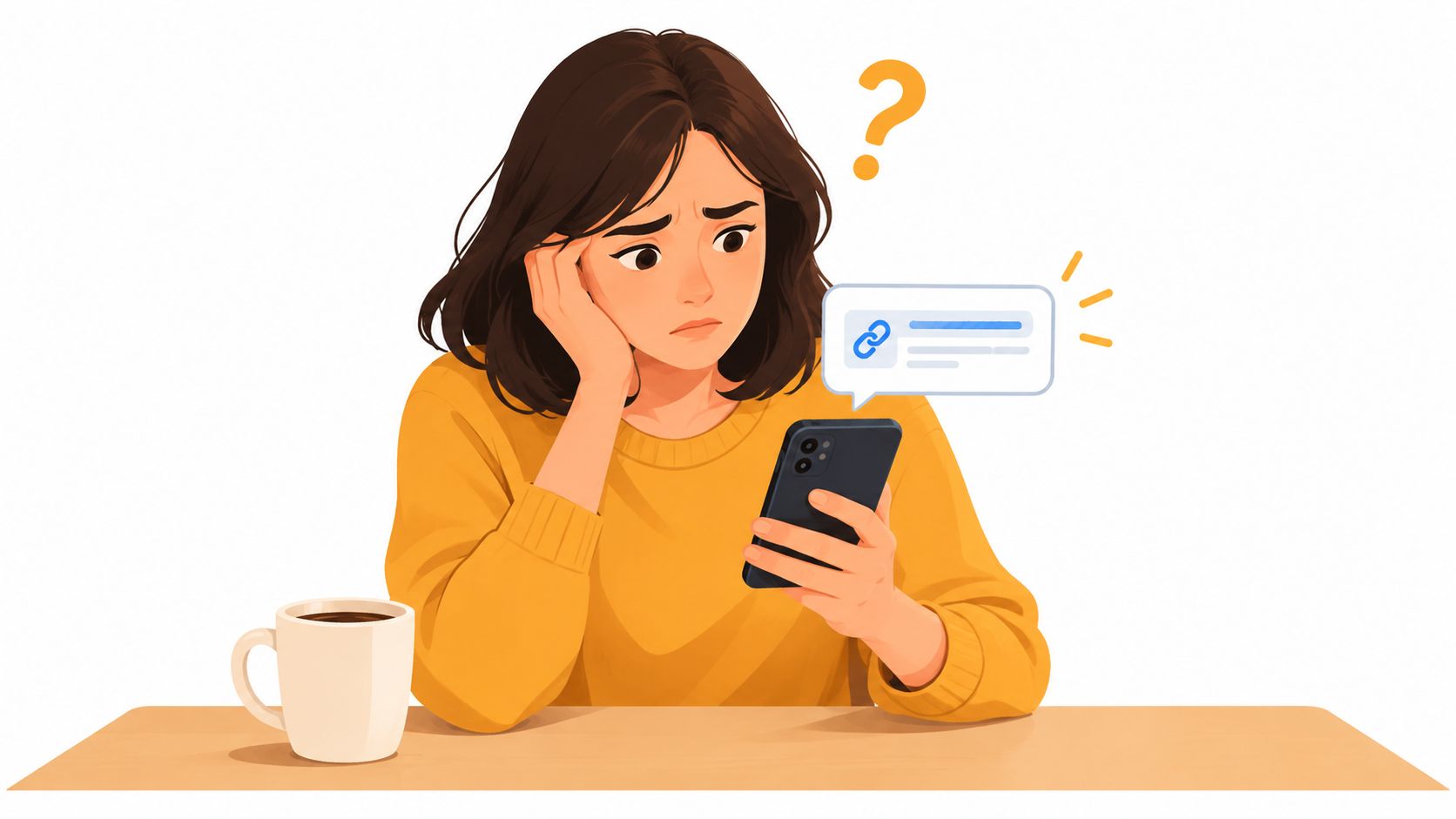
Use this triage decision tree
Only opened the email: Close it, report it, and delete it after preserving evidence. Opening a message doesn't automatically mean your credentials were exposed, but unexpected content still deserves caution.
Clicked a link, entered nothing: Close the page. From a known-clean device, review recent sign-ins, recovery details, active sessions, and mailbox forwarding rules. Change the relevant password if the page was suspicious, enable multifactor authentication, and sign out other sessions where the service allows it.
Downloaded or opened an attachment: Disconnect the device from Wi-Fi or Ethernet if malware may have run. Contact your employer's help desk or security team through an out-of-band channel, preserve the email, and run updated security software and a scan. The FTC's phishing guidance recommends updating security software, running a scan, and removing anything detected after a link or attachment may have delivered malware.
Entered credentials: Treat the account as exposed. Use a known-clean device to change the password anywhere it was reused, enable or confirm multifactor authentication, revoke active sessions and OAuth access, and inspect forwarding rules. Tell your security team immediately if it's a work account.
Approved an MFA prompt or remote-access request: Escalate immediately. An attacker may already be attempting to enter the account. Revoke sessions, contact the account provider or employer, and review recent activity rather than waiting for symptoms.
Financial or identity information requires a separate response. Contact the bank or affected service immediately, monitor transactions, and place fraud alerts where applicable. Don't change passwords on a potentially compromised device, and don't delete evidence before responders capture it.
People who handle sensitive documents should also review the material they opened and remove unsafe links from copies before sharing them. A practical guide for students and legal teams can help with document cleanup, but it doesn't replace malware scanning or incident response.
For a focused checklist after clicking, use this guide to what to do after clicking a phishing link. The key distinction is simple: a click creates uncertainty, credential submission creates exposure, and execution or approval can create an active incident.
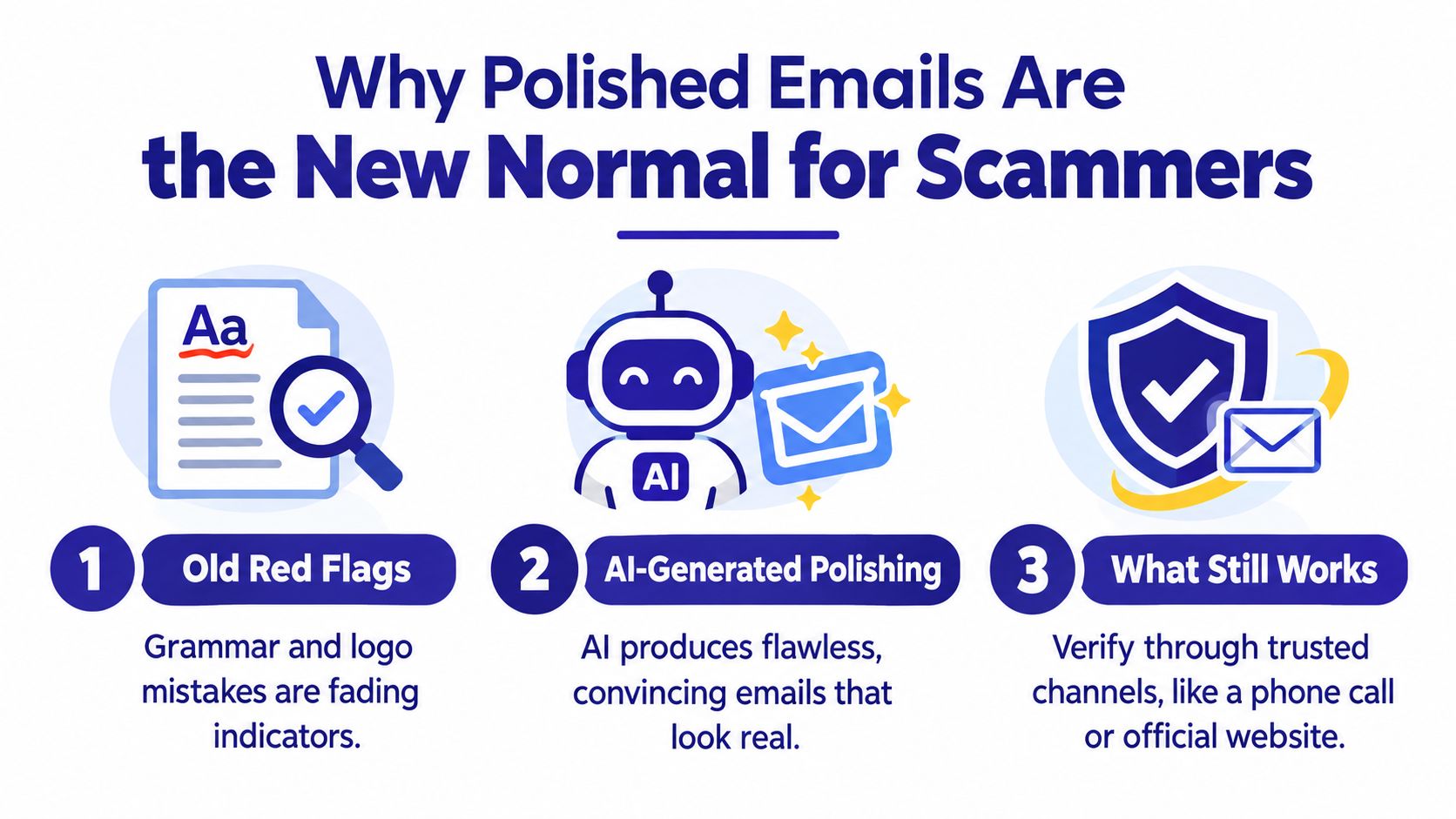
Why Polished Emails Are the New Normal for Scammers
Bad grammar and distorted logos used to be useful warning signs. They still matter when present, but their absence proves nothing. A professional tone, correct branding, personalized details, and a familiar display name can all appear in a fraudulent message.
A 2025 phishing-threat report found that 82.6% of analyzed phishing emails showed some use of AI, while polymorphic campaigns accounted for 76.4% of all campaigns (Security Today's report). These figures describe analyzed samples, not every phishing email, but they show why visual polish is a weak safety test.
Judge the request, not the writing
Ask what the sender wants you to do. A request to sign in, transfer money, disclose a security code, open a file, or bypass normal approval deserves independent verification, even if every sentence looks flawless.
This approach matters for older adults, caregivers, and busy professionals. A polished message can lower suspicion precisely when the recipient is tired, distracted, or managing a genuine account problem. Professional appearance should never outweigh a request that breaks the normal process.
Conversation phishing adds another layer. The attacker may begin with a harmless-looking exchange, build familiarity, and later request payment, credentials, or an MFA code. Don't treat an ongoing thread as automatically safe. Verify any sensitive change through a separate channel, including when the message appears to come from a known contact.
The reliable defense is procedural:
- Pause: Don't let urgency set the timetable.
- Verify: Open the official app or type the known website address yourself.
- Confirm: Use a separate phone number or trusted contact.
- Report: Preserve evidence and notify the provider or security team.
- Act: Only complete the request after independent confirmation.
Grammar can improve. Logos can be copied. Independent verification remains the dependable test.
Protecting Yourself Long-Term with AI-Powered Scam Shield
Long-term protection should reduce rushed decisions, not replace them. Use multifactor authentication, unique passwords, automatic software updates, and your email provider's security controls. Families and small businesses also need a shared rule for unusual payment or access requests: stop, verify through an independent channel, and act only after confirmation.
Gini Help adds a review layer across calls, texts, and emails. It screens messages from Gmail, Outlook, Yahoo, and iCloud, looking for warning signs such as urgent language, dangerous links, unfamiliar sender addresses, and requests for sensitive information. Its Live Call Analysis can provide a risk score and warnings while you are on a call.
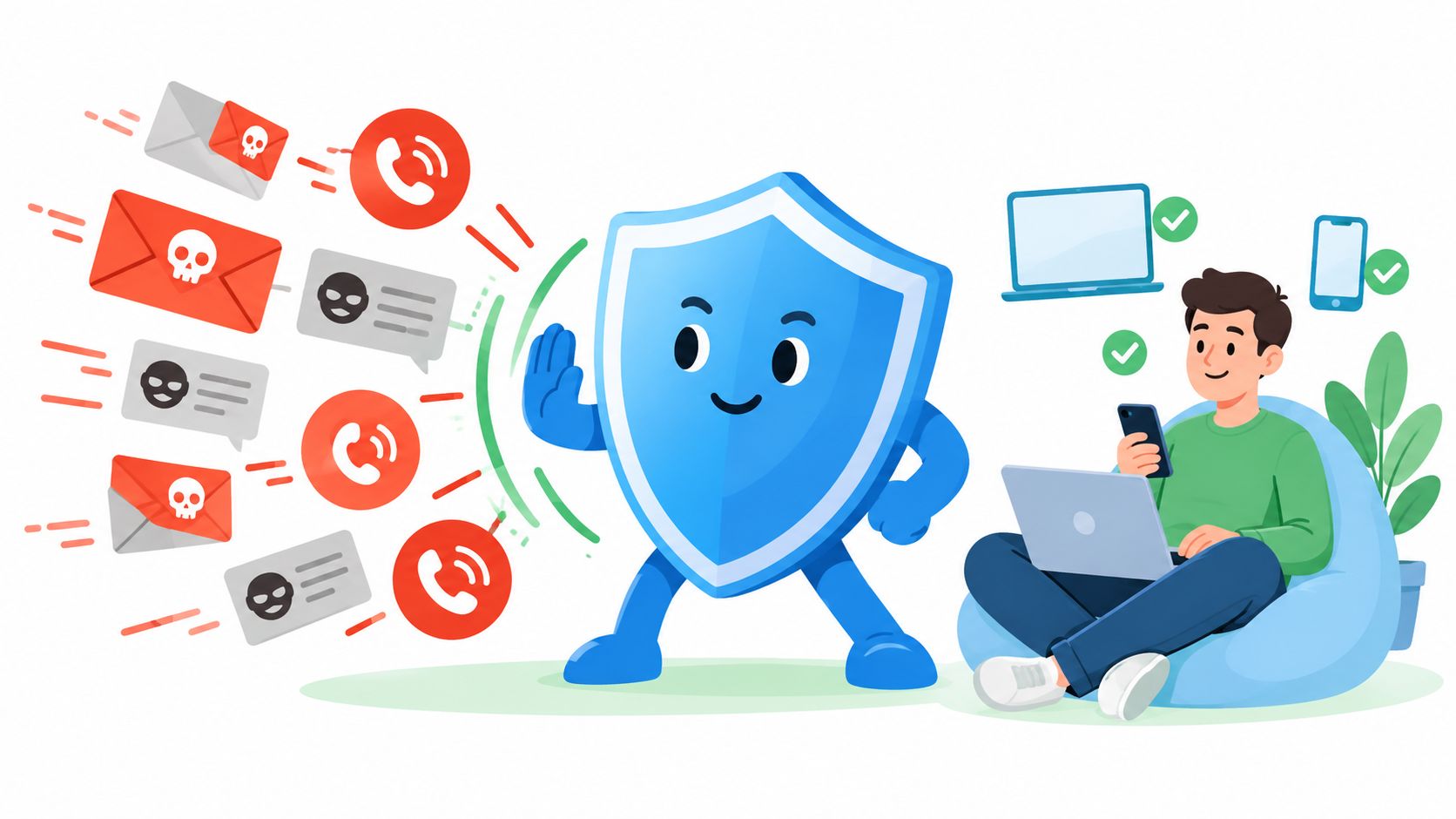
Choose protection that fits your household
Gini Help launched in December 2025. Its subscription costs $5.99 per month, and family plan options let relatives share threat intelligence. That arrangement can help caregivers coordinate protection for parents or teens instead of leaving each person to judge suspicious messages alone. The service targets the $12.5 billion annual fraud problem.
Download the app through Google Play or the App Store. Treat the app as an additional safeguard. If a request involves money, credentials, an MFA code, or remote access, verify it independently before responding.
For a closer look at the technology, read this overview of AI-based phishing detection. Automated screening can flag suspicious signals before you make a rushed decision. Your verification and reporting habits still handle anything that reaches you.
Set one household rule and repeat it often: an urgent email never authorizes a payment, password disclosure, MFA approval, or remote-access session. Pause, open the official app or website yourself, and confirm the request through a trusted channel.
Gini Help screens emails, calls, and texts for scam indicators and adds another review layer before suspicious requests reach you. Visit Gini Help to assess its multi-channel protection, then download the app and set up coverage for yourself or your family.