Gmail Phishing Scam: How to Spot and Stop It
By Josh C.
You get an email that appears to come from Google. It warns that someone accessed your account, gives you a button to “secure” it, and uses familiar branding throughout. You're busy, the warning sounds urgent, and the message has already reached your Gmail inbox. That combination is exactly what makes a Gmail phishing scam effective.
Don't judge modern phishing by spelling mistakes alone. Attackers now use polished designs, lookalike domains, compromised accounts, QR codes, and realistic login pages. The right response depends on what you did, so the most useful skill is knowing how to verify a request and what to do immediately if you interacted with it.
The Reality of Modern Email Fraud
A convincing fake security alert usually follows a simple psychological sequence. It creates fear, offers a fast solution, and sends you to a page where the attacker wants a password, payment detail, verification code, or other sensitive information. The email may imitate Google, a bank, a delivery company, an employer, or a person you know.
Phishing and spoofing are foundational forms of email fraud because criminals imitate trusted organizations, domains, or individuals. The FBI's Internet Crime Complaint Center recorded 193,407 phishing or spoofing complaints in 2024, the most frequently reported cybercrime category that year, according to the FBI IC3 2024 Internet Crime Report. Those complaints represented roughly 22.5% of 859,532 total complaints, while reported direct losses from phishing exceeded $70 million.
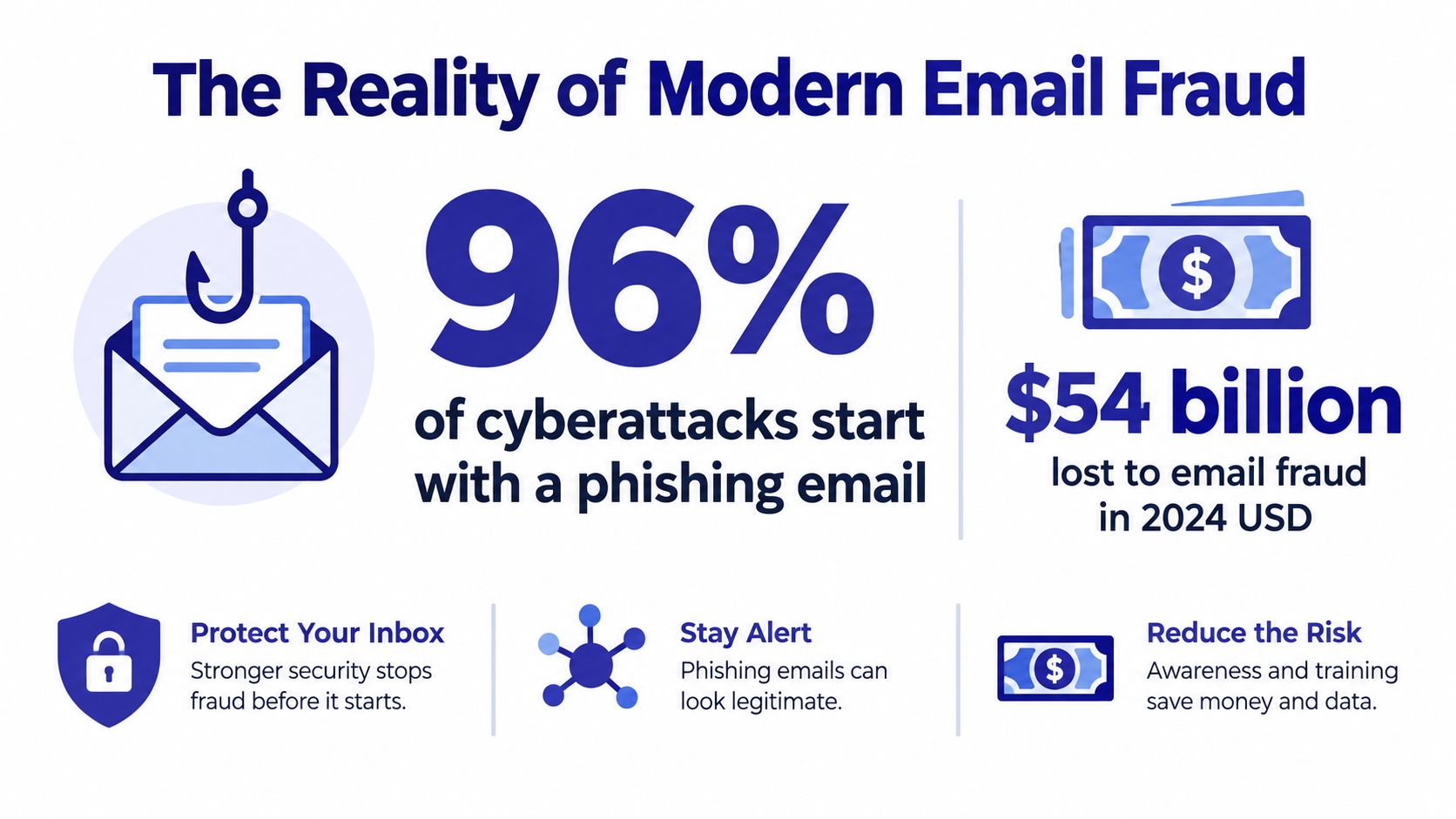
The FBI's figures measure reported complaints, not every incident. Many people never report a phishing message, especially when they feel embarrassed, lose only a small amount, or don't realize what happened. The same report recorded $16.6 billion in total reported internet-crime losses in 2024, a 33% increase from 2023, showing why a suspicious email deserves more attention than a routine nuisance message.
Why Gmail phishing causes serious damage
A phishing email rarely exists only to steal one password. Stolen credentials can give criminals access to email conversations, cloud files, saved contacts, shopping accounts, recovery addresses, and financial information. An attacker may then impersonate the victim, reset other accounts, or use the mailbox to target coworkers and relatives.
Business email compromise illustrates the financial risk. The FBI received 21,442 BEC complaints in 2024, with reported losses approaching $2.7 billion in the same report. A criminal may impersonate an executive, vendor, solicitor, or financial partner and request a payment or confidential document.
Google and Stanford researchers measured more than 1.2 billion phishing and malware attacks against Gmail users and found that exposure varied with demographics, geography, email-use patterns, and security posture, as described in their research on who is targeted by email phishing and malware. That finding matters because attackers don't need to fool everyone. They need to find the right person at the right moment with the right story.
Practical rule: Treat an unexpected request for a password, payment, verification code, or urgent exception as a security event, not as ordinary correspondence.
Spotting Tactics That Bypass Traditional Filters
“Look for typos” is outdated advice. Poor grammar can still be a warning sign, but professional criminals can copy a company's logo, writing style, page layout, and support language. A message can look clean and still be designed to steal your credentials.
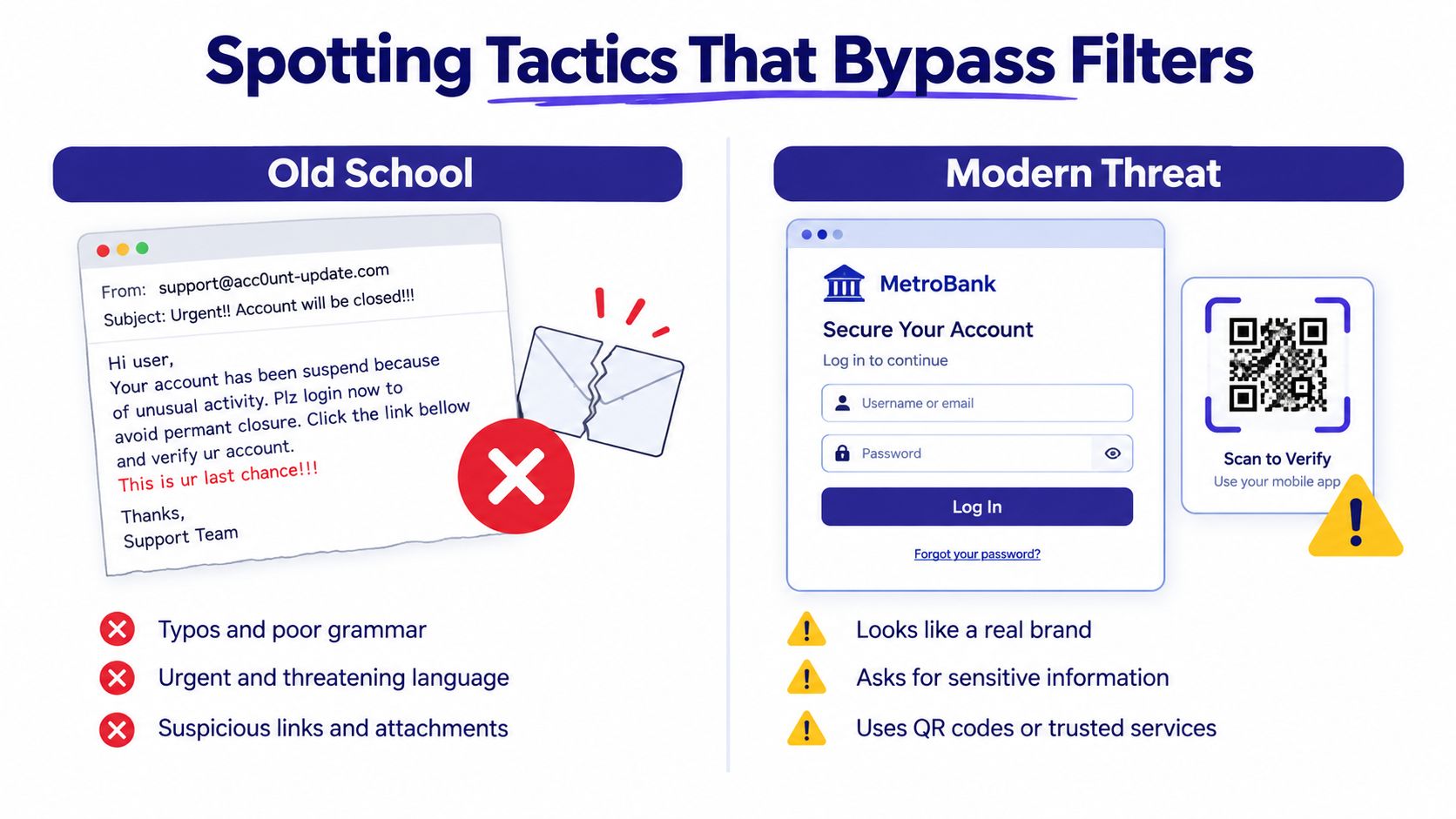
Start with intent and context, not appearance. Ask why the sender contacted you, whether you expected the request, and whether the action fits the normal process. A shared-document notice that suddenly demands a Google sign-in, a payment request that bypasses established approval, or a security message that pressures you to act immediately deserves independent verification.
Look past the display name
The name shown in Gmail can be familiar while the underlying address is unrelated. A criminal might use a free webmail address, a lookalike domain, or a legitimate account that has been compromised. The presence of a recognizable logo proves nothing.
Spear phishing deserves special attention because it targets a particular person or organization with a story crafted for them. If you want a deeper explanation of the technique, this resource on what is a spear phishing attack provides useful context. The practical defense is simple: verify the request through a separate channel, not by replying to the suspicious thread.
QR codes remove useful visual clues
A QR code can send you to a credential-harvesting page without showing the destination clearly in the email. The page may imitate a bank, Microsoft, Google, or an employer and ask you to sign in. Attackers can also place QR codes in documents, invoices, event invitations, or security notices.
APWG reported that phishing attacks increased 13.8% from 853,244 in Q4 2025 to 971,181 in Q1 2026, and found that 72% of business-email-compromise attacks used free webmail domains, with Gmail accounting for 53% of those free-webmail cases, according to the APWG report cited by Google's phishing guidance. Microsoft separately reported that QR-code phishing rose from 7.6 million attacks in January 2026 to 18.7 million in March, a 146% increase, while link-based attacks remained the dominant email threat type.
Don't scan an unexpected QR code just because the email looks official. Open the organization's official app or type its known website address yourself. If the request concerns money, call a trusted number from a statement or official website, not a number supplied in the message.
Understanding Automated Protections and Their Limits
Gmail uses several layers of automated defense, but inbox delivery doesn't certify a message as safe. Google says Gmail blocks more than 99.9% of phishing and malware attempts before they reach users, as explained in its overview of Gmail security protections. That protection is substantial, but it remains probabilistic. A small residual share can still reach an inbox, and a delivered message can exploit human trust rather than a technical vulnerability.
Email authentication helps with one specific problem, domain impersonation. SPF lets a domain identify authorized sending infrastructure. DKIM adds a cryptographic signature to message headers. DMARC tells receiving systems how to handle messages that fail authentication or alignment. The Cybersecurity and Infrastructure Security Agency says a DMARC policy of reject provides the strongest protection against spoofed email because unauthenticated messages can be rejected before delivery, as described in its email security guidance.
Authentication isn't the same as legitimacy
A message can pass authentication and still be dangerous. An attacker may use a lookalike domain, a compromised legitimate account, a malicious link hosted on a reputable service, or a convincing reply in an existing conversation. SPF, DKIM, and DMARC help answer “Did this domain authorize the message?” They don't answer “Is this request appropriate for me?”
Organizations should inventory legitimate senders, deploy SPF and DKIM, review DMARC reports, and move from monitoring to quarantine and reject after validating alignment. Individuals should focus on behavior: unexpected requests, unusual urgency, new payment details, login prompts, and instructions to bypass normal safeguards.
Email forwarding also deserves review because hidden forwarding rules can expose future messages after an account takeover. SignalZen's guide to Google Workspace email forwarding offers useful background for administrators and account owners checking how messages are routed.
Gmail filtering is a safety net, not a permission slip to trust every message that arrives.
Immediate Steps After Interacting with a Suspicious Message
Don't panic, and don't continue experimenting with the suspicious page. Your next action should match what happened.
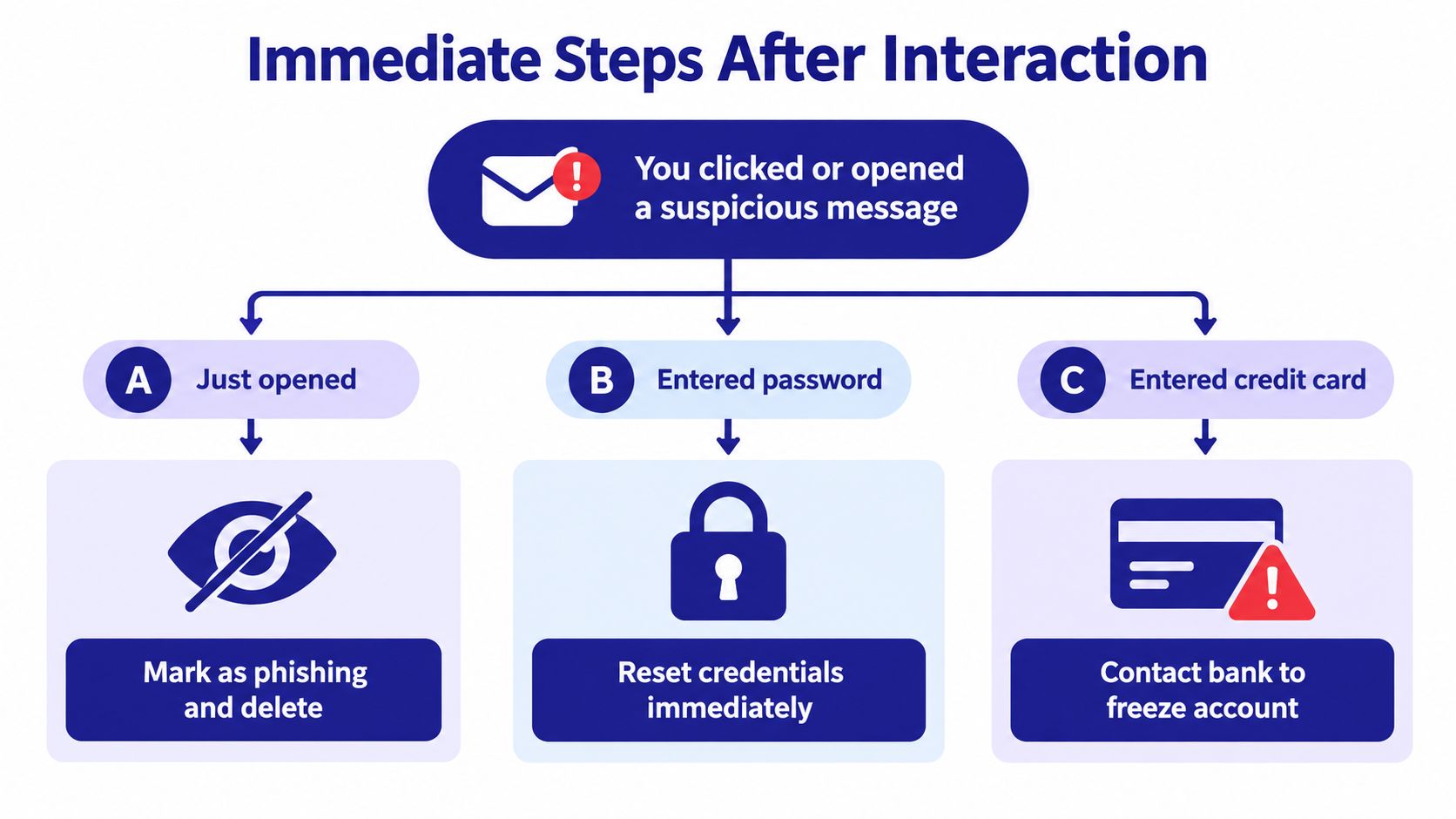
If you only opened the email
Opening a message is not the same as giving away a password. Close any attachment or link, don't reply, and avoid downloading anything else from the message. Use Gmail's reporting control, then delete the email.
If the message displayed unusual content, downloaded a file, or caused a pop-up, run the security checks available on your device. If you're helping an older adult, ask what appeared on screen and whether they entered information. Write down the sender, subject, time, and any visible website before deleting anything, because those details may help later.
If you clicked a link but entered nothing
Close the suspicious browser tab. If a file downloaded, don't open it, and don't install anything it offered. From a trusted device, review recent Google Account activity and look for unfamiliar sessions, devices, or security changes.
If the page asked you to approve a sign-in, don't approve it. A legitimate-looking page can still be a trap, and an unexpected approval request may indicate that an attacker already has a password. You can follow this practical guide on what to do after clicking a link in a phishing email for a concise response checklist.
If you entered a Google password or verification code
Act immediately from a trusted device. Change your Google password, then change any other password where you reused it. Review active sessions, remove unfamiliar devices, revoke suspicious third-party access, and enable a stronger authentication method.
A stolen password can remain useful even after you close the phishing page. The attacker may already be signed in, may have captured a session, or may have used the password against another service. If your Gmail account controls password resets for banking, shopping, healthcare, or social accounts, secure those accounts next.
If you entered payment information
Call your bank or card provider using the number on your card or an official statement. Explain that the details were entered into a suspected phishing page and ask what protective action is appropriate, such as monitoring, replacement, or a freeze.
Preserve evidence before deleting it if you can do so safely. Save the email, website address, screenshots, transaction notices, and times. If money moved or identity information was exposed, report it to the relevant financial institution and local authorities.
Reporting the Threat and Revoking Unauthorized Access
Report the message even if you didn't lose money. In Gmail, select the suspicious email, open the more-options menu, choose Report phishing, and follow the confirmation steps. Reporting helps Google classify the message and gives you a clean way to remove it from the inbox. This Gmail phishing reporting guide shows the process in practical terms.
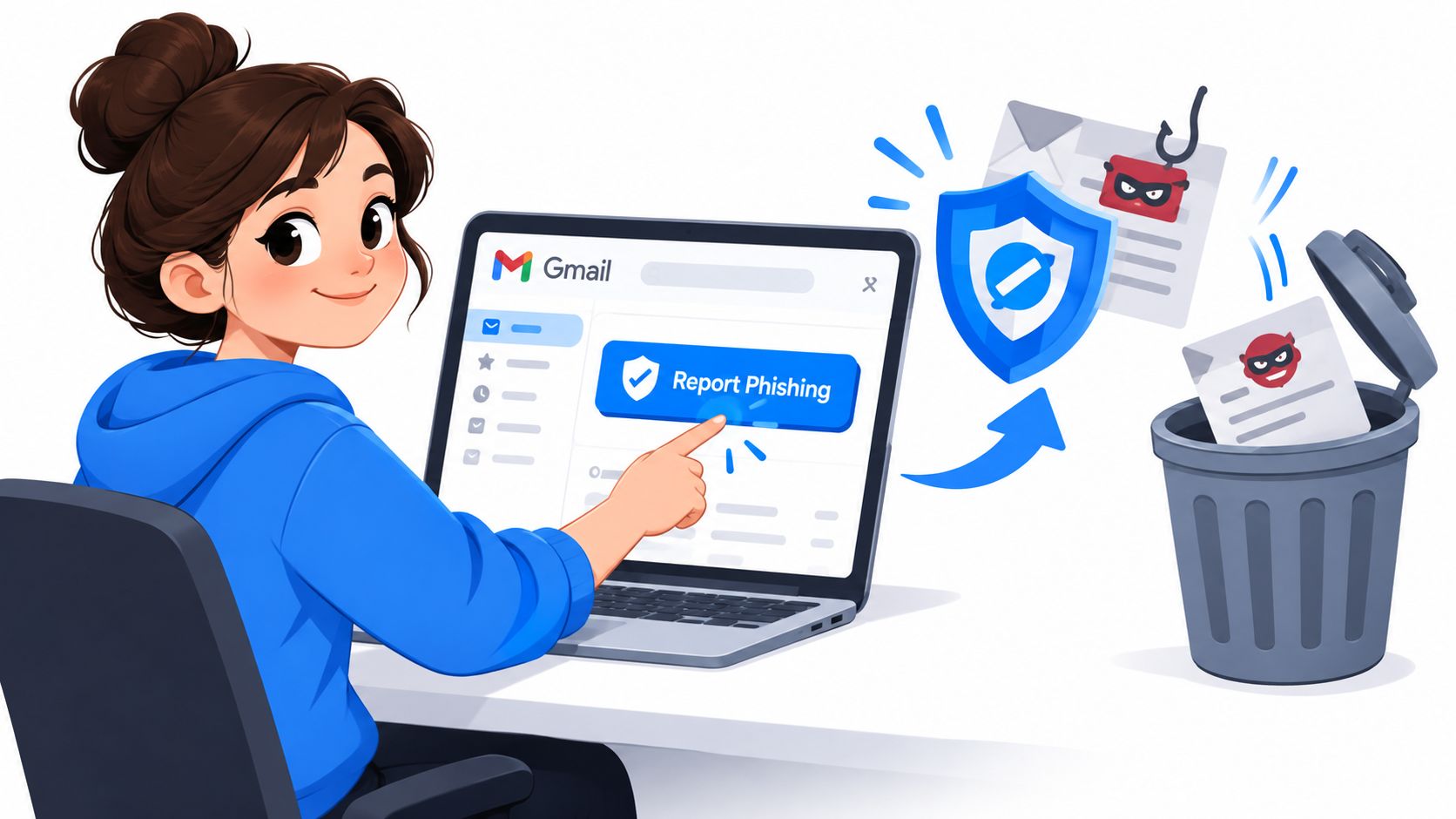
Reporting is only one part of recovery. If you entered credentials, open your Google Account security settings and inspect recent security activity. Look for unfamiliar devices, locations, password changes, recovery details, passkey registrations, and sign-in approvals. Remove anything you don't recognize.
Check access beyond active sessions
Attackers may use an authorized connection rather than repeatedly signing in with a password. Review third-party apps and services connected to the account. Revoke access for anything unfamiliar or unnecessary, especially tools that can read Gmail, manage files, or send messages.
Check Gmail settings for forwarding addresses, filters, delegation, signatures, and automatic replies. An attacker who changes these settings may continue receiving copies of messages or hide evidence from the account owner. Restore only settings you recognize, and ask a trusted technical person for help if you aren't sure.
If the account belongs to a workplace, contact the administrator immediately. A personal password reset won't address every risk in a managed environment, and the administrator may need to investigate related mailboxes or revoke sessions centrally.
Here is a short demonstration of the reporting process:
After cleanup, tell people who may have received a message from the compromised account. A short warning can prevent contacts from trusting a follow-up request that appears to come from you.
Upgrading Your Defense with Passkeys and AI Screening
Passwords are a weak point because attackers can trick people into typing them into a fake page. Passkeys remove the reusable secret from the login process. They use a device-based credential, such as a fingerprint, face scan, or screen-lock PIN, with public-key cryptography to authenticate the legitimate service.
Google says passkeys can't be shared, copied, written down, or accidentally disclosed to an attacker. Its early 2023 testing found passkeys were twice as fast and four times less error-prone than passwords, according to Google's passkey guidance for accounts. Google Workspace also began offering passkey sign-in to more than 9 million organizations in an open beta in June 2023, as described in its Workspace passkey announcement.
Why passkeys change the phishing equation
A fake Google sign-in page can capture a typed password. It generally can't obtain or replay the private key held by your device. The passkey is associated with the legitimate website or service, which reduces the chance that a convincing imitation can authenticate as you.
Set up a passkey through your Google Account security settings on a device you control. Keep your device lock protected, and don't approve an unexpected sign-in request. Passkeys reduce password theft, but they don't make social engineering irrelevant. You still need to question suspicious payment requests, document invitations, and account alerts.
AI screening adds a separate layer by evaluating context across email, calls, and text messages. That matters because attackers change phone numbers, sender addresses, domains, and wording faster than static blocklists can keep up. For broader context on the changing defensive environment, this overview of AI-powered cyber attacks and defense explains why behavioral analysis matters.
One consumer option is Gini Help, which screens calls, emails, and texts for scam signals and can explain why a message was flagged. It connects with Gmail, Outlook, Yahoo, and iCloud, and its Live Call Analysis can provide a risk score and haptic warnings during calls. Families and caregivers can download the Gini Help app on Google Play or get it from the Gini Help App Store listing. Its AI-based phishing detection information explains how this type of screening fits alongside Gmail's native protections.
Building a Sustainable Security Routine
Security habits work best when they're simple enough to use under pressure. You don't need to inspect every ordinary email like a forensic analyst. You do need a firm rule for messages that request money, credentials, codes, confidential documents, or urgent exceptions.
Use this quick check before acting:
- Pause the urgency: Don't let a countdown, threat, or executive request force an immediate decision.
- Verify separately: Open the official app, type the known website yourself, or call a trusted number outside the email.
- Inspect the destination: Hover over links on a computer, and don't scan unexpected QR codes.
- Protect critical accounts: Use unique passwords where passkeys aren't available, and enable stronger authentication.
- Review account changes: Check sessions, recovery details, forwarding rules, and connected apps after any suspicious interaction.
- Tell someone early: Caregivers, family members, and workplace administrators can limit damage when they know what happened.
Teach older relatives one sentence they can remember: No legitimate support person needs you to rush, share a password, or bypass the normal process. Keep a written recovery plan with official bank numbers and trusted contacts, but never store passwords in that document.
Technology should handle as much routine screening as possible, while people reserve judgment for requests that carry real consequences. Passkeys reduce the value of stolen passwords, Gmail's filters block much of the volume, and independent verification stops polished deception from turning into a payment or account takeover.
Gini Help screens calls, emails, and texts for suspicious behavior and helps explain why a message may be dangerous, giving families and caregivers another layer against Gmail phishing scams. Visit Gini Help to review its cross-channel protection and choose the app setup that fits your household.