Best Apps for Seniors: How to Choose Safe, Usable Ones
By Josh C.
The most striking reason to choose senior apps carefully is the scale of fraud losses: the FTC says U.S. consumers aged 60 and older reported $2.4 billion in fraud losses in 2024, about four times the roughly $600 million reported in 2020, according to its annual report on protecting older adults. The best apps for seniors aren't just the ones with the most features or the highest ratings. Choose tools an older adult can use, recover from a wrong tap, and trust when a suspicious message arrives, including protection across the channels they use day to day.
Best App Categories for Each Everyday Need
AARP's survey of 3,605 U.S. adults, conducted in September 2024, found that 91% of adults aged 50 and older owned a smartphone, and adults 50-plus used an average of 10 apps over three months, according to its 2025 technology trends survey. Older users aren't short of apps. The challenge is choosing one practical tool for each important job, then making sure the app is straightforward enough to use independently.
A good starting rule is one app per need, judged by whether it does that job clearly. Most seniors need three to five useful apps, not twenty overlapping tools.
| Need | App category | Common examples | Judge it first by |
|---|---|---|---|
| Stay in touch with family | Video and messaging | FaceTime, WhatsApp, Facebook Messenger | One-tap calling from a saved contact |
| Take medicines on time | Medication reminder | Medisafe, phone clock alarms with a dose list | Alarms that repeat and can alert a caregiver |
| Track health or activity | Health and fitness tracker | Apple Health, Samsung Health | Simple daily view with no required subscription |
| Get somewhere safely | Navigation | Google Maps, Apple Maps | Voice directions and large route text |
| Share location in an emergency | Location and emergency sharing | Apple Find My, Google Maps location sharing | Consent-based sharing and a clear help button |
| Handle money safely | Banking with fraud alerts | The bank's own app | Alerts for every transfer and a clear way to freeze the account |
| Block scam calls and texts | Scam protection | Gini Help, built-in phone spam filters | Coverage across calls, texts and email |
These categories cover distinct routines: contacting family, following a medication schedule, checking activity, navigating, sharing location, banking, and avoiding scams. An app that does several jobs can be convenient, but a crowded interface may make the main task harder to find. Start with the need that causes the most trouble, and add another app only if it solves a separate problem.
The following criteria help distinguish a genuinely usable app from one that merely looks polished. They also help identify when a senior needs added support, especially for financial actions, account recovery, and suspicious messages.
Criteria That Separate Senior-Friendly Apps
Feature count is the wrong test. Interaction design matters more: a systematic review of older-adult interfaces found recurring accessibility features including simplified navigation, enlarged text and touch targets, high contrast, voice interaction, audio feedback, adjustable display settings, and workflows that tolerate mistakes. The systematic review of senior-friendly app design connects these choices to common changes in vision, fine-motor precision, and the ability to manage crowded menus or unrecoverable errors.
| Criterion | What to check | Red flag | Pass test |
|---|---|---|---|
| Text and touch size | Adjustable text and generous touch targets; aim for buttons near Apple's 44-point guideline | Fixed small text; tiny icons in a crowded corner | Main task completed on the first attempt |
| Contrast and status | Readable labels in bright and dim light; status shown by text or shape, not color alone | Pale grey text; red and green as the only status signal | Senior can tell success from failure without color |
| Confirmation before consequential actions | Payments, deletions, and transfers ask for a second confirmation | One tap sends money or cancels a service | A confirmation screen appears before any payment |
| Error recovery | Back and undo work at every step | Dead ends and lost entries after a wrong tap | Senior recovers from a deliberate wrong tap |
| Voice and audio alternatives | Spoken prompts and voice commands sit alongside visible controls | Voice-only with no visible controls | Primary task completed with audio on |
| Login and account recovery | Recovery through a phone number or trusted contact, not only one email account | Recovery requires the device that was lost | Account recovered without the old device |
| Notification control | Quiet hours, fewer alerts, and settings reachable in two taps | Constant banners with no mute option | Caregiver can reduce alerts remotely with permission |
| Caregiver controls | Shared view, alerts, or assisted setup with the user's consent | No way for a family member to help set up | Family member can complete setup with permission |
| Privacy and permissions | Each request explains why the app needs access | Requests contacts, location, and microphone without reason | Each permission has a stated purpose |
| Support path | Phone, chat, or in-app guidance from a person | Email-only support or no contact listed | Help is reachable within the app |
Use the table as a practical screen, not a scorecard. Ask the senior to enlarge text, complete the main task, and then recover from a deliberately wrong tap. If you're assessing how audio can help someone access written material, this guide to turning written text into accessible audio offers a useful starting point. For more interface ideas, see this guide to a user-friendly interface.
Practical rule: If the user can't tell whether an action worked without relying on color, the app needs clearer feedback.
Voice and audio should supplement visible controls, not replace them. Some users may find accessibility settings hard to configure, and changes can affect how an app's original layout appears. Look for an option to enlarge text without clipping, controls with clear labels, and a visible way to undo or ask for help.
Communication Apps That Keep Families Connected
Choose one family-wide messaging or video app, not a collection of overlapping tools. Familiarity matters: a senior who knows where the call button is can reach family more easily than one who has to remember which app each relative prefers.
- FaceTime is a strong fit when the family uses Apple devices. It makes video calls easy to start from saved contacts, but mixed-device families may need another option.
- WhatsApp works on iPhone and Android, so relatives don't need matching phones. Voice notes can be easier than typing, though the family should agree on which conversations belong there.
- Facebook Messenger suits families whose relatives already use it. Its connection to Facebook feeds and notifications can introduce distractions, so simplify alerts and avoid making it the default for urgent calls.
- Google Meet works well for scheduled video calls, including from a tablet. A family member may need to help set up the first meeting and save the joining steps.
The best choice is the one the senior will actually open. Don't select an app because a younger relative likes its extra features. Choose one everyone can support and agree on how to use it: for example, routine updates by message and urgent matters by phone call.
During setup, save family contacts with photos and full names, pin the main contact to the home screen, and make sure the displayed name is recognizable. Agree on one channel for urgent calls, too. That gives relatives a predictable way to reach the senior and gives the senior a clear answer to the question, “Where should I look first?”
Medication and Health Apps That Support Routines
Health apps work best when they support an established routine rather than adding another complicated one. In an AARP survey of adults aged 50 and older, 55% of older health-app users tracked fitness or physical activity, while 29% monitored health and 29% used apps for personal goal setting, according to its survey of health-app users.
For medication reminders, check whether the app can:
- Repeat alarms until acknowledged, rather than making one sound that can be missed.
- Show doses and times in a simple daily view, with each medicine clearly identified.
- Notify a caregiver about a missed dose, but only with the user's consent.
- Prompt the user to refill a prescription, without making the reminder hard to dismiss.
- Make it easy to update the schedule when a doctor changes a prescription.
For health tracking, prefer a clear summary of the day over a screen crowded with charts. Apple Health and Samsung Health can collect useful activity information, but the best choice depends on the user's phone, existing habits, and willingness to enter information. A simpler reminder may be more useful than an elaborate dashboard that nobody checks.
For families supporting someone with a chronic condition, Venus Health's guide to home care offers additional context on supporting ongoing care at home.
A reminder app doesn't check drug interactions or replace a pharmacist. Compare the app's medication list and dose times with the prescription labels, and review the list with a pharmacist regularly, particularly when a prescription changes. Don't adjust a dose based on an app notification alone.
Scam Protection Across Calls, Texts and Email
Consumers aged 60 and older reported losing $2.4 billion to fraud in 2024, about four times the roughly $600 million reported in 2020, according to the FTC's report on fraud losses among older adults. Every app added to a phone is one more place a scammer can reach someone.
The same report breaks reported losses down by contact channel:
| Channel | Reported losses, older adults (2024) | Protection to look for |
|---|---|---|
| Social media | $561 million | Warnings on unknown contacts and suspicious links |
| Websites and apps | $303 million | Link checks and warnings before a page or app asks for money or data |
| Text messages | $183 million | A separate scam-text folder and phishing-link warnings |
| Online ads and pop-ups | $147 million | Blocking of fake support and prize pop-ups |
| $143 million | Inbox scanning for phishing and impersonation | |
| Phone calls | Included in overall fraud totals | Screening of unknown callers before the phone rings |
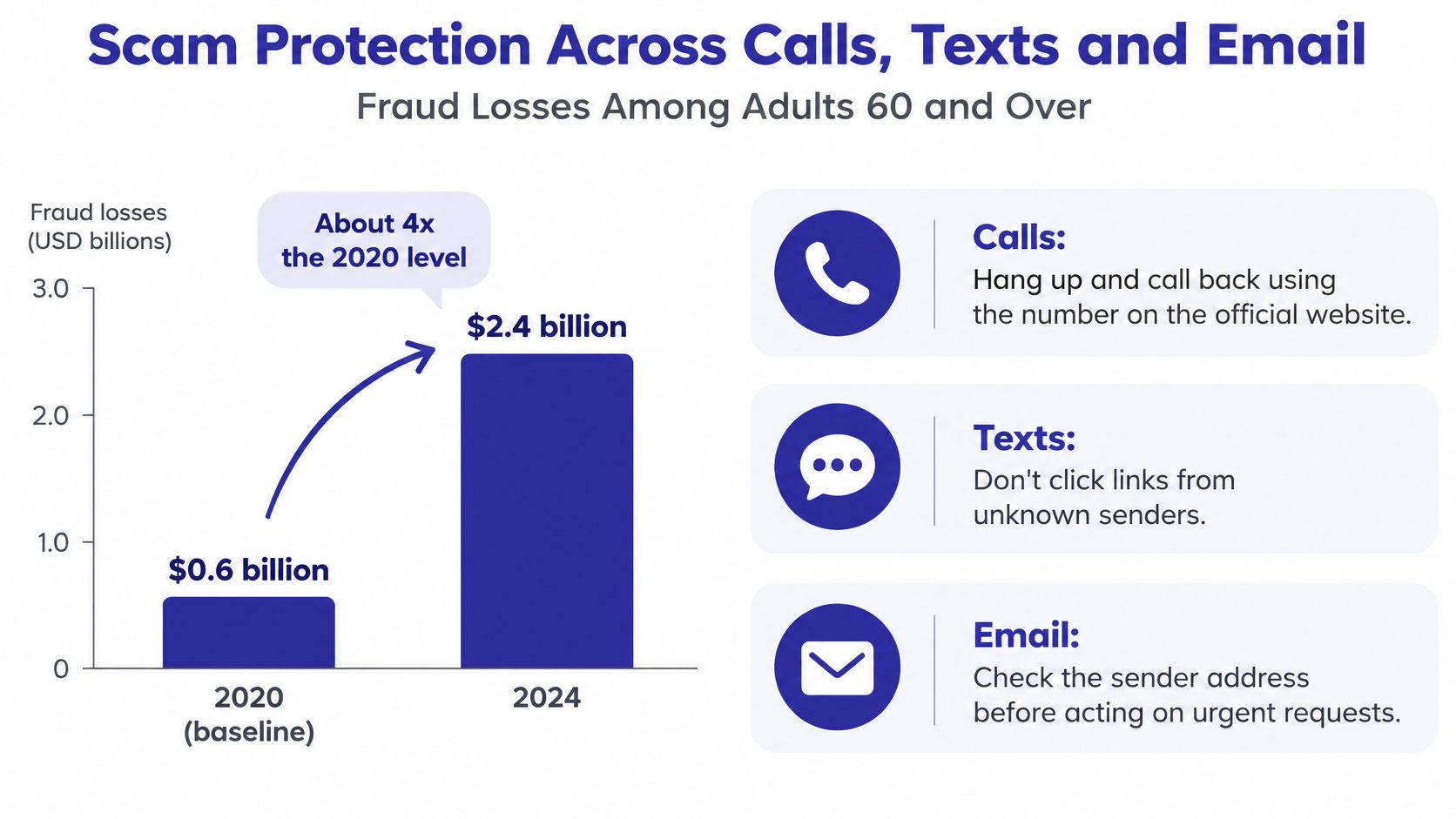
That spread across six channels argues for protection that covers calls, texts and email in one place. Gini Help screens unknown callers before the phone rings and lets approved callers through. It moves scam texts such as fake delivery alerts, prize scams and phishing links into a separate folder, and it scans a connected Gmail, Outlook or Yahoo inbox. Every plan includes text and email scam scanning. Text filtering and warnings depend on the phone platform, and email protection requires connecting a supported inbox. Plus plans add Live Call Analysis, which listens during answered calls from unknown numbers and warns the customer when a caller uses scam tactics. Family coverage puts each member under their own protection on a shared subscription.
Recovery matters as much as blocking. The app shows how each call was handled, so a suspicious contact can be reviewed later instead of disappearing. If the app is reinstalled or the phone is replaced, the customer can restore the subscription. "I can look on the app and see who's calling," says Gerald, a Gini Help customer.
These layers add setup steps, and no app makes it safe to follow an unexpected demand for money. A convincing caller or message can still be deceptive. For a broader look at safer digital routines, Luno: Self Care's safety information is a useful companion read. For examples of the specific tactics behind these losses, see this guide to how scammers trick seniors online and how to stop them.
How to Test an App With a Senior Before Trusting It
Star ratings don't prove that a senior can complete the tasks that matter. A usability study tested two groups of older adults, each with 15 participants and mean ages of 72 and 71. Participants generally reported satisfaction, but long instructions and cognitively demanding tasks still caused difficulties, according to the study of older adults' app usability.
Test the app with the older adult who will use it. Pick three useful tasks, such as answering a call, reporting a suspicious message, and changing notification settings.
- Choose the tasks. Pick the three actions the person needs most. Specific tasks reveal whether the app supports their actual routine.
- Demonstrate once, then observe. Show the senior how to do each task, then let them try without help while you time them. This tests whether the instructions and controls make sense after an initial introduction.
- Record the outcome. Note whether they completed each task, how long it took, and how many errors occurred. A task that takes a long time or requires repeated correction may be hard to manage independently.
- Test recovery. Have them make one deliberate wrong tap and try to get back on track. This shows whether the app supports mistakes or traps the user in a dead end.
- Check account recovery. Sign out, then try to recover the account without relying on the old device. An account that becomes inaccessible after a lost phone can undermine the app's usefulness.
- Contact support from inside the app. Ask the senior to find help and follow the available path. Support that can't be located or understood won't be available when the user needs it.
- Repeat the test after an update. Run the same tasks again after the app changes. A once-familiar control may move, or the user may need help adjusting to a revised screen.
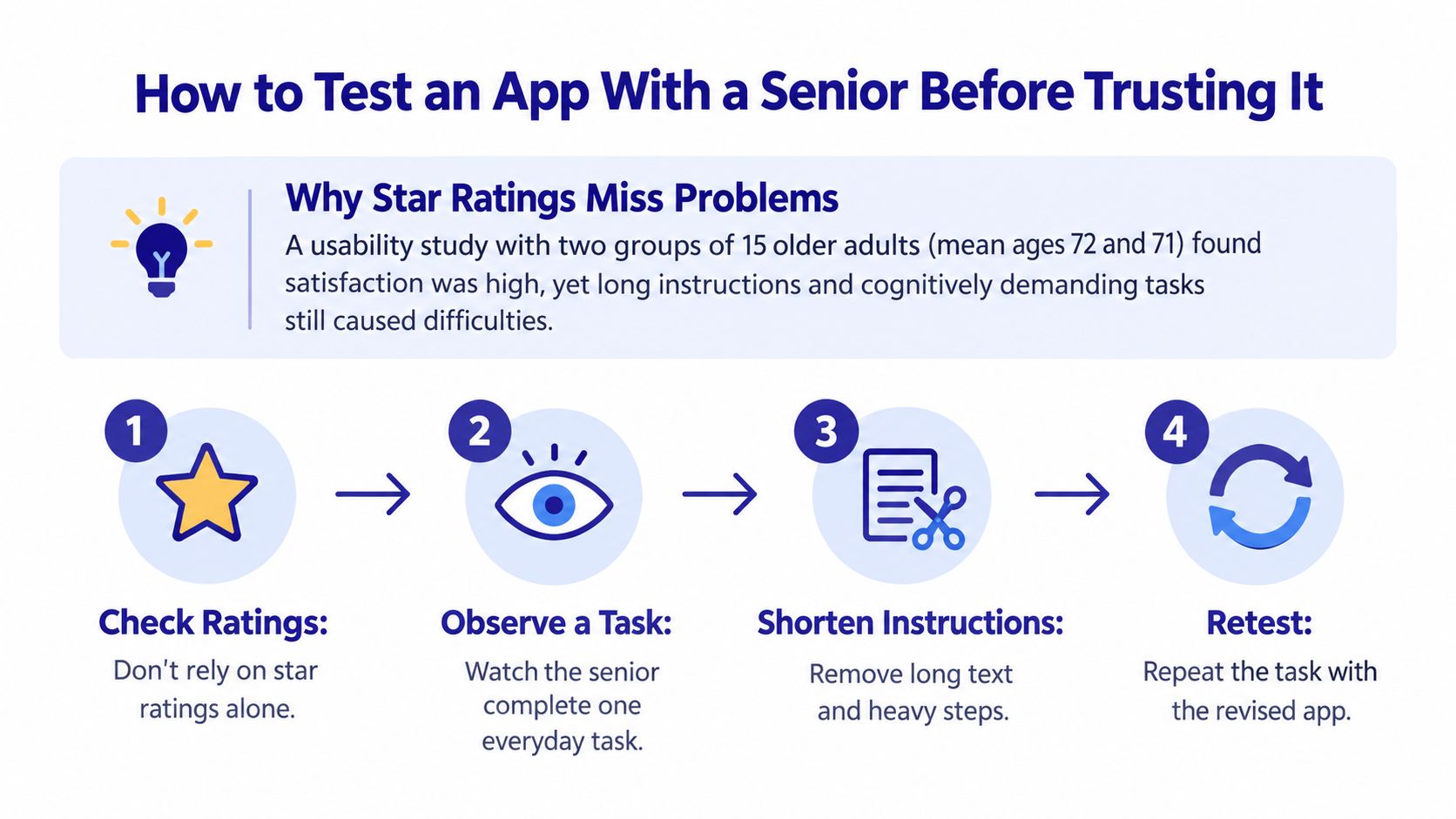
A task completed in under two minutes with no errors is a strong pass. A longer task isn't automatically a failure, but any step that requires caregiver help every time is a warning sign, even if setup initially seemed easy. Prioritize task completion, recovery, and the user's confidence over star ratings.
How to Set Up Apps for a Parent Safely
Set up the phone and app together, then test them in everyday use. Start by increasing text size and contrast in the device's system settings, before opening any app. Then turn on only useful alerts, such as calls, medication reminders, and bank notifications, and set quiet hours to avoid late-night interruptions.
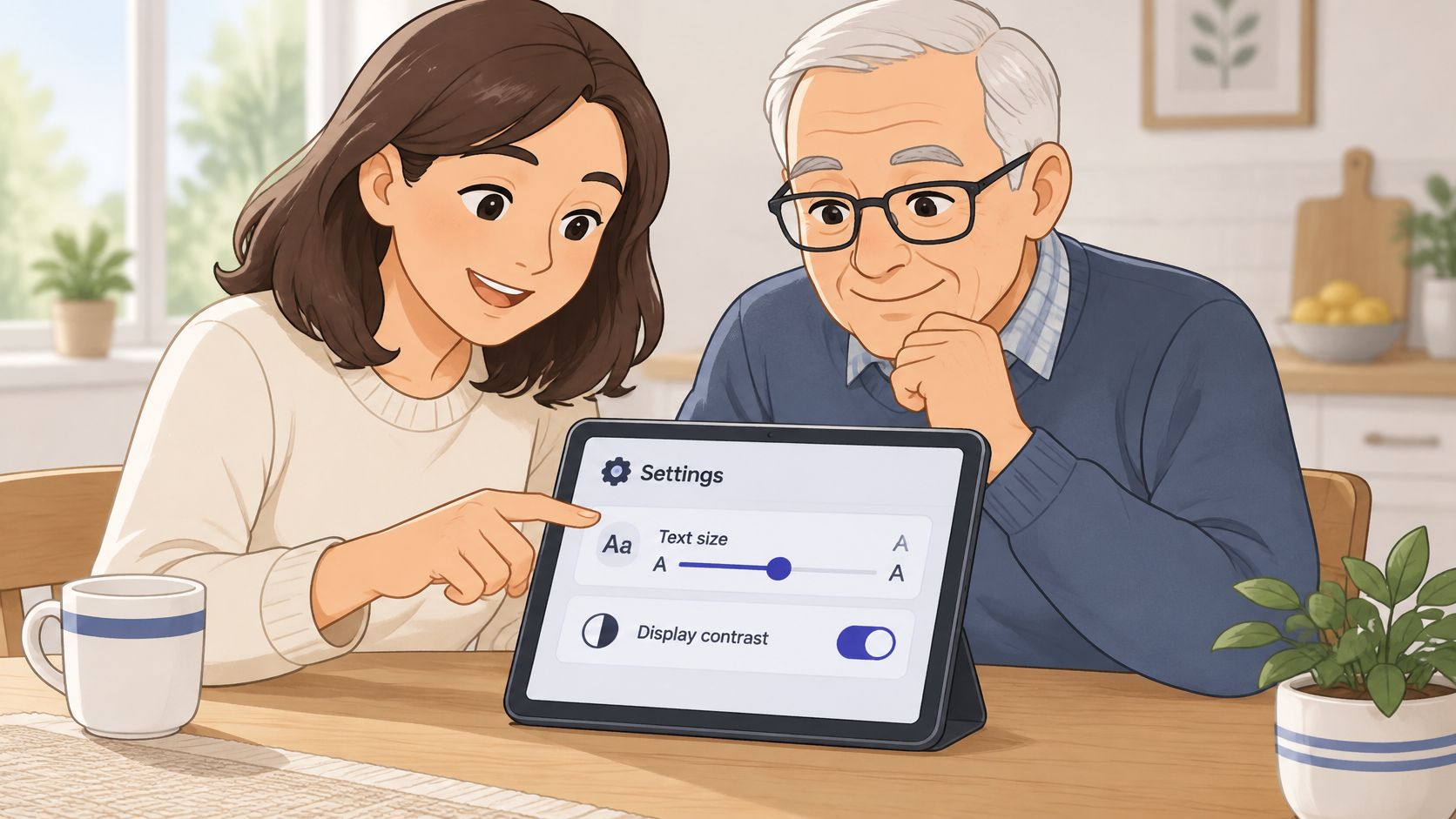
Next, add emergency contacts and trusted family members inside each app. Review permission requests together and decline access that lacks a clear purpose. For a plain-language explanation of app permissions, use this guide to understanding app permissions.
Set up account recovery using a trusted family phone where possible, and keep recovery details on paper at home. Confirm everything with one real task, such as blocking a scam caller, using the testing method above. Then schedule a monthly settings review and check again after a major update.
Support belongs in the setup. Gini Help's support team is trained to help seniors with care and respect, and can walk users through tasks such as spotting scams or fixing settings at their own pace. Family coverage gives each family member their own protection under one subscription. Choose an app whose help path the senior can find alone, and test that path during the first week.
Choose the Right Apps and Take the First Step
Match the first app to the problem that needs attention now:
- For an older adult who lives alone and receives many scam calls: Start with a call-screening layer, then add one family video app.
- For a parent managing several prescriptions: Choose a medication reminder that can send missed-dose alerts to a caregiver with the user's consent.
- For a caregiver supporting someone who struggles with email: Prioritize inbox scanning and an in-app support path the senior can reach independently.
Before committing, run the three-task test and check the app against the criteria table using its actual screens. Gini Help works on iPhone and Android across 60+ U.S. carriers, including AT&T, Verizon, and T-Mobile. Download it from Google Play or the Apple App Store.
Check current pricing in the store before buying. Premium Plus costs $9.99 per month or $79.99 per year for one person, and Family Plus costs $16.99 per month or $99.99 per year for up to five people. A trial isn't available on every plan. You can cancel in the app or through the app-store subscription settings without a cancellation fee, and Settings, then Plan and Billing, shows the next billing date.
Start with the single clearest step: install the app that matches your situation and run the first test task today.
Gini Help screens unknown calls and scans texts and supported email inboxes for scams, giving older adults and families one place to manage protection across everyday channels. Visit Gini Help to see whether its call, text, and email features fit your family's needs, then test the app with the person who'll use it.