uBlock vs AdBlock: Which Blocker Fits Your Browser
By Josh C.
“Just install uBlock Origin” is no longer reliable advice for everyone. Before choosing an ad blocker, check which browser you're using and whether the extension is uBlock Origin or uBlock Origin Lite. Those names don't describe the same capabilities.
The practical answer to uBlock vs AdBlock starts with browser compatibility, then moves to how much advertising you want to allow and how much troubleshooting you'll accept. A blocker that suits a Firefox enthusiast might be the wrong setup for a parent who needs shopping, banking and video pages to work without intervention.
uBlock Origin and AdBlock at a Glance
uBlock Origin vs AdBlock on the criteria that matter
| Criterion | uBlock Origin | AdBlock |
|---|---|---|
| Open source | Yes | No, not equivalent to uBlock Origin's fully open-source model |
| Acceptable Ads | No equivalent program | Enabled by default |
| Paid tier | No | Optional paid features |
| Chrome after Manifest V3 | Full version effectively off for many Chrome users; Lite version runs | Runs under Manifest V3 |
| Firefox | Full version runs with granular control | Available for Firefox |
| Filter control | Granular, user-controlled filter lists | Simpler, guided defaults |
| Typical reader | Power users, Firefox users, open-source supporters | Mainstream users who want less setup |
Read the browser rows before comparing individual features. The uBlock Origin column describes the full extension, except where it explicitly mentions Lite. Don't assume every control listed there exists in the Chrome-compatible Lite edition.
The larger distinction is a design choice. uBlock Origin gives users direct control over what their browser loads and displays. AdBlock offers a more guided experience, including an advertising exception that changes what blocking means out of the box.
Popularity doesn't establish blocking quality
Public store figures reported in October 2026 listed approximately 64 million users for AdBlock and 21 million for uBlock Origin Lite on the Chrome Web Store, according to the uBlock Origin overview. These are store-displayed user counts, not independently audited global market shares, and they don't measure how successfully either extension handles your websites.
That distinction matters when comparing recommendations. A large Chrome installation base can reflect compatibility and convenience rather than more granular filtering. Likewise, enthusiasm among technically confident users doesn't mean their preferred configuration will be easy for someone else to maintain.
Buying rule: Choose the browser-compatible product first. Compare its actual controls second.
Keep the names separate while installing, too. AdBlock and Adblock Plus are different products, and uBlock Origin Lite isn't the full uBlock Origin with a shorter settings menu. Check the complete extension name rather than relying on a familiar-looking icon or a search result.
For someone who never wants to adjust a filter, guided defaults can be a genuine advantage. For someone who wants to inspect requests and create narrow exceptions, access to granular controls matters more than installation popularity.
Which Version Works in Your Browser
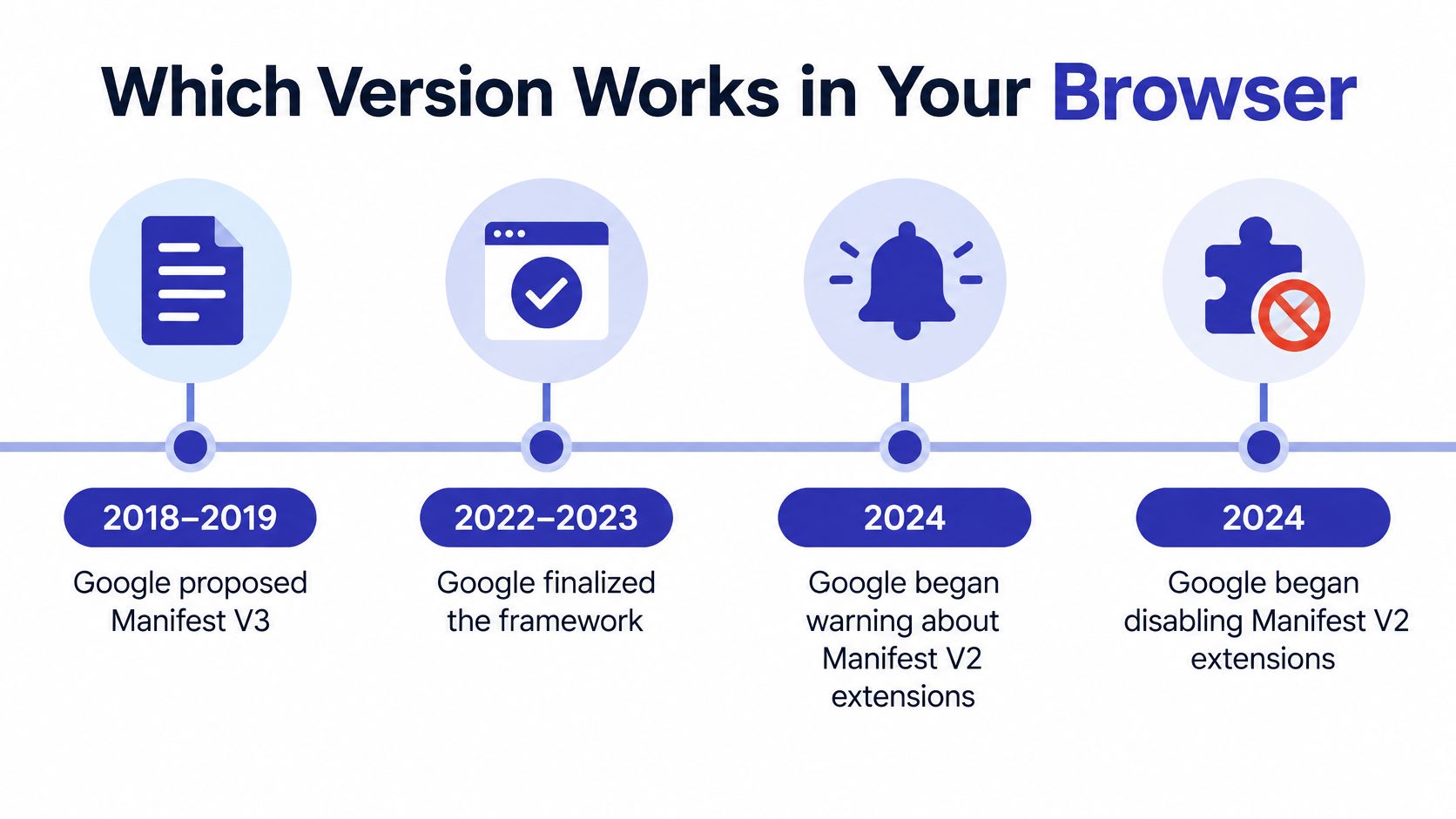
Chrome's extension transition explains why older recommendations can lead you to a disabled extension. The Adblock Tester migration overview dates Google's Manifest V3 proposal to 2018–2019, framework finalization to 2022–2023, warnings and disabling of Manifest V2 extensions to 2024, and the broad Chrome rollout's completion to 2025.
The timeline shows how that transition unfolded.
What Chrome changed
Under the older blocking model, an extension could intercept a network request while it happened. Under Manifest V3, blockers generally register conditions and actions in advance through the Declarative Net Request API.
Chrome's migration documentation explains that this approach allows request modification without exposing every request's full contents to the extension. That's a legitimate privacy consideration, but it doesn't make the newer architecture functionally identical to the older one.
The original uBlock Origin relied on capabilities that Chrome retired. AdBlock also had to adapt to the platform change, so this wasn't a restriction aimed only at one extension.
Chrome Manifest V3 rule limits that shape blocker capability
The following quotas come from Chrome's declarativeNetRequest reference.
| Limit | Value | What it affects |
|---|---|---|
| Static rulesets | Up to 100, with up to 50 enabled at once | How many filter lists load together |
| Guaranteed static rules | At least 30,000 across enabled rulesets | Core blocking capacity |
| Safe dynamic rules: block, allow, allowAllRequests, upgradeScheme | Up to 30,000 from Chrome 121 | Custom and temporary blocking |
| Other dynamic rules | Up to 5,000 | Rule actions outside the safe set |
| Regular-expression rules | Up to 1,000 per rule type | Complex pattern matching |
| Compiled rule size | Under 2 KB per rule | Length of any single rule |
These are separate quotas, not a single universal ceiling on every blocker's filters. A static ruleset also isn't necessarily identical to the subscription list you recognize in a settings screen.
Check your installed extension
Open Manage Extensions in Chrome or Add-ons and Themes in Firefox. Record the complete extension name and version, then inspect its details for the manifest version where available. Chrome's developer mode can expose additional extension information, but not every browser displays the manifest label directly.
Test a news site's cookie banner afterward. Check whether it disappears, remains usable or leaves the page stuck behind an overlay. A failed banner test doesn't prove that ordinary ad blocking has failed, but it does expose a task your chosen configuration can't currently handle.
For households or teams using several browsers, 99tests' resource can help you compare browser coverage for 2026 and organize compatibility checks.
If you migrate to Firefox for full uBlock Origin, install the official extension afresh. Recreate essential exceptions carefully rather than assuming Lite settings, custom rules and browser permissions transfer unchanged.
Blocking Power, Speed and Resource Use
The available blocking-engine benchmark doesn't support a sweeping claim that one complete extension always feels faster. In the 2019 independent performance study, researchers tested request matching on an X1 Carbon with an Intel i7-U6600, 16 GB RAM and Node.js 11.9, producing the results below.
Latency of the two blocking engines in the 2019 benchmark
| Metric | uBlock Origin | Adblock Plus |
|---|---|---|
| Median per-request latency | 0.017 ms | 0.019 ms |
| 99th-percentile latency | 0.124 ms | 0.103 ms |
| Test machine | X1 Carbon, Intel i7-U6600, 16 GB RAM, Node.js 11.9 | Same machine |
Notice the comparator: Adblock Plus, not AdBlock. These results are useful evidence about blocking engines, but they aren't a direct performance test of the products in this article's title.
The study also excluded cosmetic filtering, interface overhead, subscription management and other browser-integration costs. The matching differences were measured in microseconds, so they shouldn't become promises about noticeably faster browsing.
Test the page, not just the counter
What you feel depends on page complexity, filter-list size, cosmetic rules, the browser engine and which requests get stopped before rendering. A blocker can report more blocked requests without making a checkout easier to use.
Run a controlled comparison:
- Use matching conditions. Open the same news front page in separate browser profiles, with only the blocker being tested enabled.
- Check visible content. Note when the headline and main image appear, not just when the loading indicator stops.
- Inspect resource use. Open Chrome's Task Manager or Firefox's process information and record extension and tab memory.
- Check usability. Try navigation, search, embedded video and consent controls.
- Keep settings comparable. Don't compare an extensively customized setup against untouched defaults and call it a product-only result.
A long custom list can add processing and memory overhead. AdBlock's defaults may be lighter than an overloaded custom configuration, but that isn't evidence that AdBlock is lighter than uBlock Origin.
More blocked requests aren't automatically a better result. The page still needs to perform the task you opened it for.
If your main complaint is a recurring overlay, identify what a website pop-up means and how to handle it before changing blockers. A consent notice, notification request and deceptive security warning require different responses.
The honest verdict is that neither product has a demonstrated raw-speed win that every reader will notice. Measure your own pages before accepting a universal performance ranking.
Privacy and the Acceptable Ads Trade-Off
Acceptable Ads is an intentional exception, not necessarily a malfunction. The Adblock Tester comparison reports that AdBlock enables it by default, allowing some advertising through unless users disable it; uBlock Origin runs no equivalent program and includes its capabilities without a paid tier.
Open AdBlock's options and look for the Acceptable Ads control. Turn it off if you want stricter advertising filtering, then reload the page rather than judging a tab that was already open.
The illustration captures the broad difference in default approach.
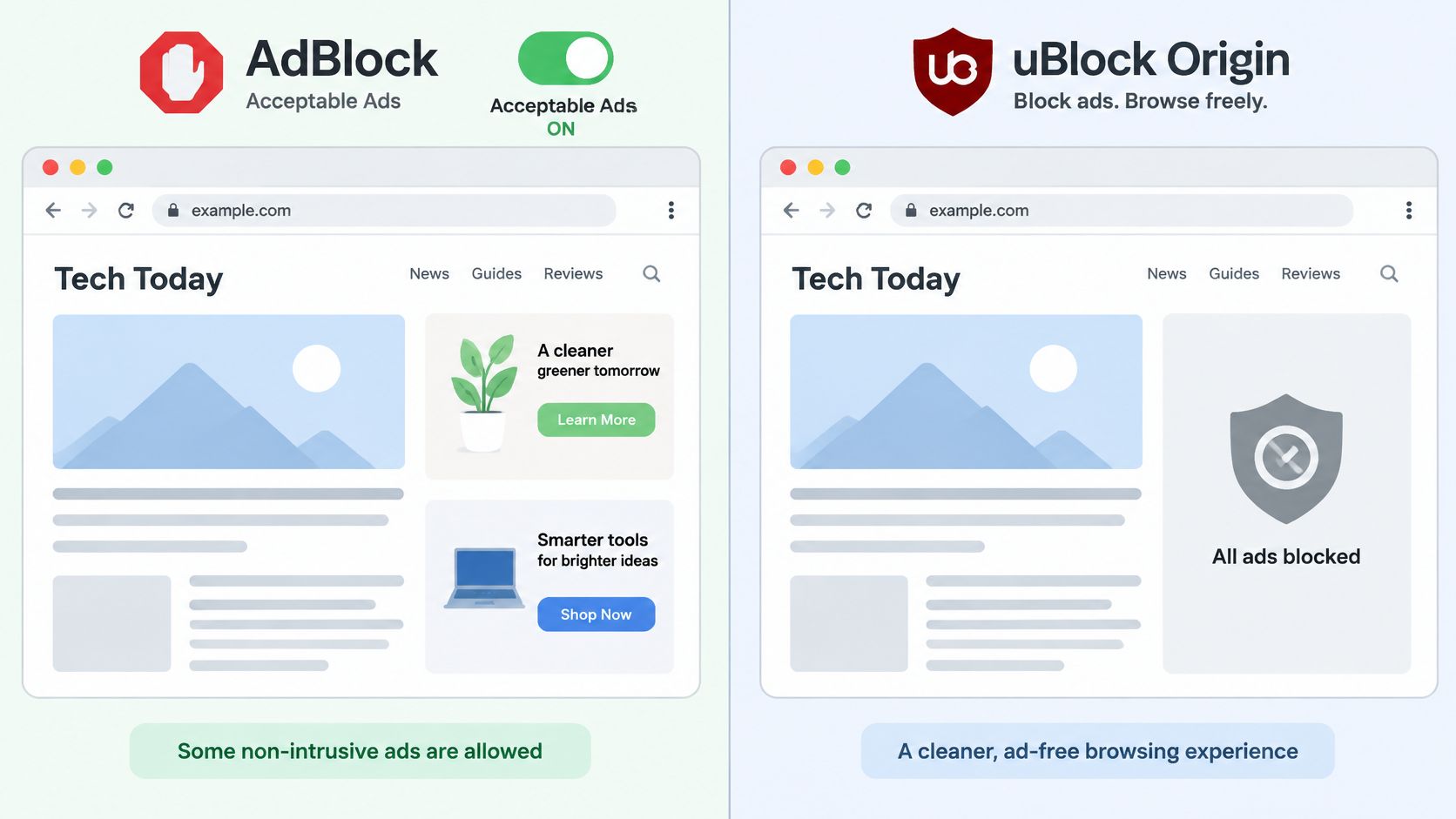
No blocker can guarantee that every advertisement disappears. The meaningful distinction is whether the product intentionally permits an advertising category, alongside what its active filters can detect.
Fewer ads and easier support aren't identical goals
Allowing some advertising isn't automatically a security failure. A caregiver might reasonably prioritize readable pages, working accessibility controls and a setup they can troubleshoot over the phone.
A privacy-focused user may prefer default-deny rules for selected requests and more granular tracker filtering. The cost is responsibility: if a required payment or sign-in component gets blocked, someone must identify the problem and make a narrow exception.
Use this practical check:
- Confirm the advertising preference. Inspect the setting rather than assuming the installation defaults match your intent.
- Exercise sensitive tasks. Compare a news page, retail checkout and bank login with the setting enabled and disabled. Record blocked requests, broken controls and the actions required to create an exception.
- Check the support burden. Compare memory in the browser task manager and note whether someone else could reproduce your fix without guessing.
Don't enter payment details just to test a checkout. Reaching the relevant form and confirming that its controls load is enough for an initial check.
Advertising isn't the whole privacy picture
Tracker filtering doesn't make a browser anonymous. Clearcote Labs' guide to understanding canvas fingerprinting signals provides useful context for privacy mechanisms that aren't visible advertisements.
At Gini Help, we don't sell user data, show ads or track users across the internet. That policy is separate from a browser blocker's configuration: privacy protection still depends on the services you use, the permissions you grant and the filters you enable.
Filter Control and Everyday Ease of Use
The full uBlock Origin exposes filter lists, custom filters, an element picker and per-site controls. AdBlock emphasizes guided defaults, with customization available through its settings. Neither approach eliminates maintenance, but they ask different things of the person responsible for the browser.
Filter syntax also has limits. Recognizing a familiar subscription format doesn't mean an extension supports every extended directive or cosmetic instruction inside it.
The Adblock Plus snippet-filter tutorial demonstrates how advanced filters can combine operations and pass structured arguments. That documentation describes Adblock Plus, not proof that every instruction works in AdBlock or uBlock Origin.
Compare the same everyday tasks
The counts below describe workflow stages, not fixed click counts. Menu layouts change, and opening an extension menu may require an extra action if its icon isn't pinned.
| Task | Full uBlock Origin | AdBlock |
|---|---|---|
| Add a custom filter | Three stages: open Dashboard, enter the rule in My filters, apply changes | Three stages: open settings, find custom-filter controls, enter and save the rule |
| Allow a trusted site | Two stages: use the site power control, reload | Two stages: choose the site-specific pause or allow option, reload |
| Diagnose a broken checkout | Three stages: pause on that site, reload and test, restore protection and narrow the exception | Three stages: pause on that site, reload and test, restore protection and review the exception |
Adding a custom filter: In uBlock Origin, paste only a rule you understand into My filters. In AdBlock, locate the custom-filter area and check which syntax that installed edition supports. These instructions don't apply unchanged to Lite.
Allowing a trusted site: Use a site-specific exception instead of disabling the extension globally. Confirm whether the control applies to the current page or the entire site before leaving it enabled.
Fix breakage without abandoning protection
If checkout fails, temporarily pause filtering for that site and reload. If the problem persists, investigate cookies, another extension or the website itself instead of leaving the blocker disabled indefinitely.
Troubleshooting boundary: Use a temporary exception to diagnose a problem, then remove it unless it's still necessary.
Element picking is useful for visual clutter, but hiding an element doesn't necessarily stop its network activity. Cookie walls and paywalls also aren't interchangeable with ads, and cosmetic hiding doesn't grant access to protected content.
Review custom lists and exceptions periodically. Guided defaults reduce decisions; granular controls provide more visibility, but only if you're willing to inspect them.
Which Blocker Fits Your Situation
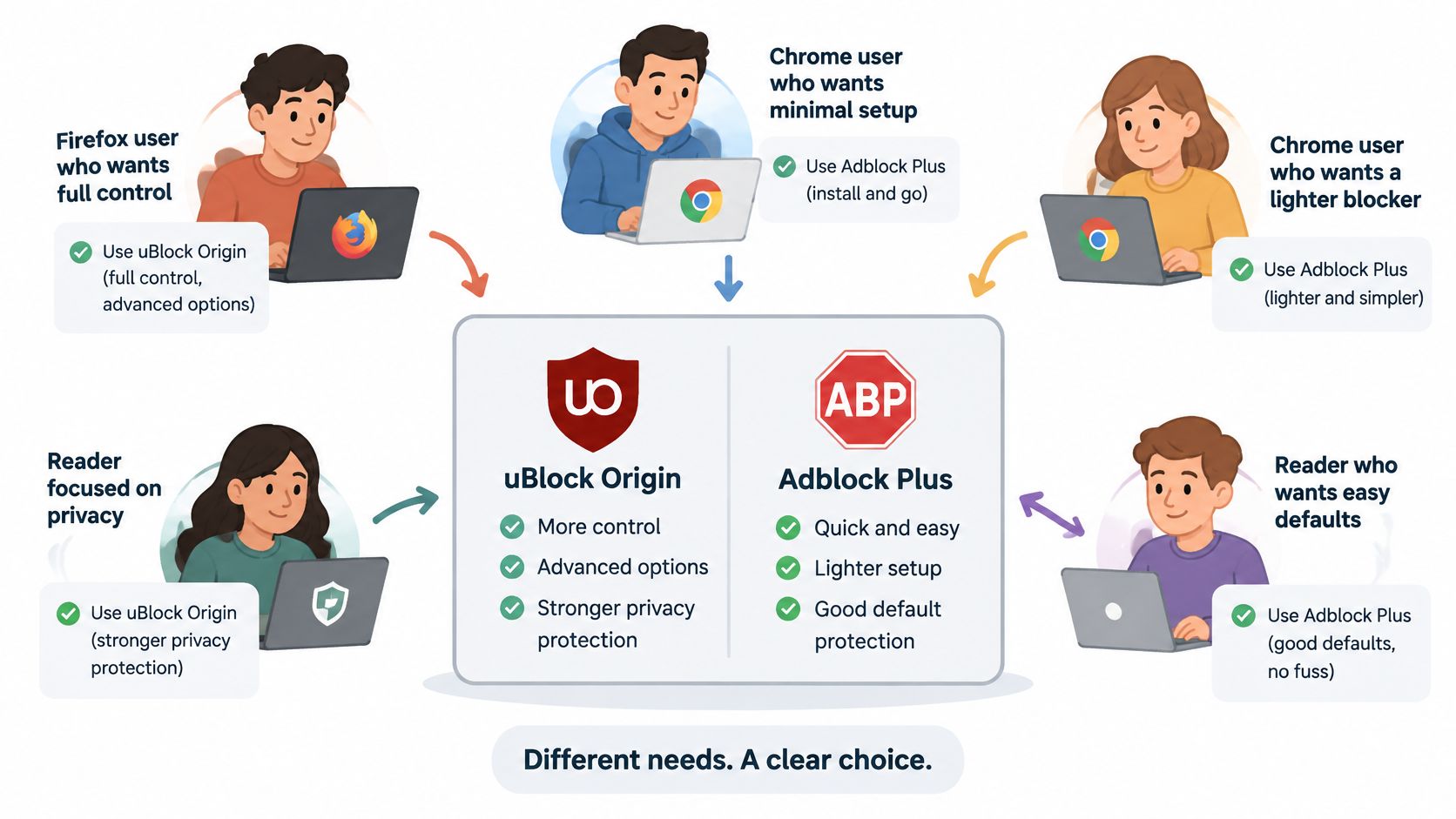
The name on the extension tells you less than the browser underneath it. uBlock Origin on Firefox is the full extension, while the same name on Chrome now means the lighter Lite build, and AdBlock is a different product from Adblock Plus despite the near-identical names. Pick the setup you can maintain over the one with the longest feature list.
Which blocker fits which situation
| Situation | Better fit | Why | Watch for |
|---|---|---|---|
| Firefox user who wants full control | uBlock Origin | Full version runs with granular filters | Keep Firefox and the extension updated |
| Chrome user who wants minimal setup | AdBlock | Runs under Manifest V3 with guided defaults | Turn off Acceptable Ads if stricter blocking matters |
| Chrome user who wants a lighter open-source option | uBlock Origin Lite | Open-source, Manifest V3-compatible design focused on low resource use | Fewer advanced controls than the full version |
| Caregiver setting up for an older parent | AdBlock or uBlock Origin Lite | Fewer settings to explain and troubleshoot remotely | Confirm the Acceptable Ads preference if choosing AdBlock |
| Privacy-focused user who tests sites carefully | uBlock Origin on Firefox | Supports default-deny configurations and granular filtering | Expect some site breakage to fix by hand |
Avoid the mistakes that waste time
The most common dead end: trying to keep full uBlock Origin running in Chrome after the browser dropped the extension architecture it depends on. Install a supported product instead of following an old workaround or trusting an unofficial copy from outside the store.
The second mistake cuts the other way. AdBlock showing ads usually means Acceptable Ads is enabled, not that filtering broke. Check the advertising preference before reinstalling the extension or stacking a second blocker on top.
Caregivers should leave a written note naming the installed product and showing how to pause it on one specific site. A folder of undocumented custom rules makes sense only to the person who created them.
Use the video as supplementary viewing, then confirm the interface and behavior in your own browser.
Decide in the right order
Work in this order: browser support first, advertising and privacy preferences second, acceptable setup effort last. I lean toward full uBlock Origin on Firefox when hands-on control matters. For a Chrome install that needs simple upkeep, compare AdBlock against Lite on maintenance burden rather than on brand.
Persistent redirects, a changed default search engine, or ads appearing outside normal webpages point to unwanted software rather than weak filters. Follow an adware removal workflow before assuming a stronger extension will fix it.
Revisit the decision whenever you change browsers. A familiar extension name does not guarantee that its permissions, controls or filtering behavior survived the move.
Choose Your Blocker and Confirm It Works
Finish the setup in one sitting, while you can still remember what you changed.
- Identify the browser and extension. Check the browser version in its About screen, then open the extensions page and record the installed blocker's complete name.
- Choose the matching setup. Use your browser, advertising preference and willingness to troubleshoot as the deciding criteria.
- Install from the official browser store. Verify the developer and listing carefully. Don't install an extension from an advertisement promising a repaired or unrestricted edition.
- Set the advertising preference deliberately. In AdBlock, choose whether Acceptable Ads should remain enabled. Don't search for that setting in a product without the program.
- Test real tasks. Open a news front page, retail checkout and video page. Note broken controls, unwanted ads and any exception you create.
- Recheck after changes. Repeat the usability check after a browser update or switch, especially if something stops working.
Keep browser problems separate from scams
If suspicious behavior continues, use this guide to checking Chrome for viruses and unwanted software. Replacing an ad blocker isn't a substitute for investigating a compromised browser.
Browser blockers handle page advertising, not phone calls, texts or suspicious emails. Choose Gini Help when unwanted calls and scam protection are the main concern: our service screens unknown calls before connecting them and offers email protection when you connect Gmail, Outlook or Yahoo.
Text filtering can separate scam texts before you see them, but filtering and warnings depend on your phone platform. We don't block every unwanted call, so continue checking unexpected requests for money, passwords or verification codes.
Download the app from Google Play or the App Store to set up the protection available for your device.
Keep your browser blocker focused on webpages, and use Gini Help for call screening, supported-inbox email protection and platform-dependent text filtering. Visit Gini Help to watch a live browser demo of a real spam call being screened before deciding whether to sign up.