Yahoo Mail Spam Filter Not Working: Fix It in 6 Steps
By Josh C.
You're waiting on a bank alert, a medical appointment reminder, or a message from family, and it doesn't show up. Your inbox does fill up, but with prize claims, fake delivery notices, and urgent warnings you didn't ask for. You mark them as spam, create a filter, and the next morning the same pattern repeats.
That's the frustrating loop behind a Yahoo Mail spam filter not working complaint. It rarely means one switch is broken. More often, Yahoo made one decision, one of your filters made another, and Outlook or Apple Mail made a third. I'd start by separating those layers before changing any setting, because fixing the wrong one can hide good mail while letting the bad mail through.
Find Which Layer Is Causing the Problem
Most Yahoo Mail spam filter not working reports come down to three separate failure points, not a single broken filter. Yahoo's spam classifier judges a message first, your user created filters run next, and an outside app can then move or delete what Yahoo delivered.
Yahoo's support documentation on spam and filters confirms that spam filtering occurs before user created mailbox rules. That order matters. A rule can't pull a message into a custom folder if Yahoo has already sent it to Spam, and a rule can't explain why obvious junk reached your inbox if Yahoo missed it first.
Match the symptom to a layer
Use the pattern you see, not the folder you expected. One missing message, one inbox escape, and one disappearing message point to different places.
| Symptom | Likely layer | First check |
|---|---|---|
| Legitimate email missing from Inbox | Spam folder or a rule redirecting it | Look in Spam, then Trash, then the custom folder |
| Spam keeps reaching Inbox | Classifier missed the message | Mark it as spam, then watch the next similar messages |
| New rule is ignored | Earlier rule or classifier takes priority | Check filter order and conflicting rules |
| Old mail is not moved | New filters do not apply to mail already received | Move existing mail manually, then test with a new message |
| Mail disappears only in Outlook or Apple Mail | Third party client sync or client filtering | Compare the same account in Yahoo webmail |
Yahoo also identifies conflicting rules, incorrect rule order, and rule settings as causes of bad routing. A message routed to Trash by an old rule looks lost, even though Yahoo's classifier delivered it correctly. That's why a broad cleanup that edits five rules at once is a poor test. You won't know which change helped.
There's another trap that wastes time. Newly created filters do not apply retroactively to messages you've already received. If you create a rule after a statement lands in Spam, that statement stays where it is. Move the old copy yourself, then judge the new rule only on the next message that arrives.
Practical rule: If webmail and your app disagree about where a message is, trust webmail first and investigate the app.
The one test that separates the layers
Open the same account in Yahoo webmail before you change anything, and compare the Inbox, Spam, Trash, and your custom folders side by side. If the message is correct in webmail but wrong in Outlook, Yahoo isn't your problem. If it's wrong in webmail too, you've narrowed it to Yahoo's classifier or filter order.
Run that comparison, then use this email spam filter check to work through the same sequence without guessing. Don't delete test messages while you compare. You need the exact copy, in its final folder, as evidence of which layer touched it.
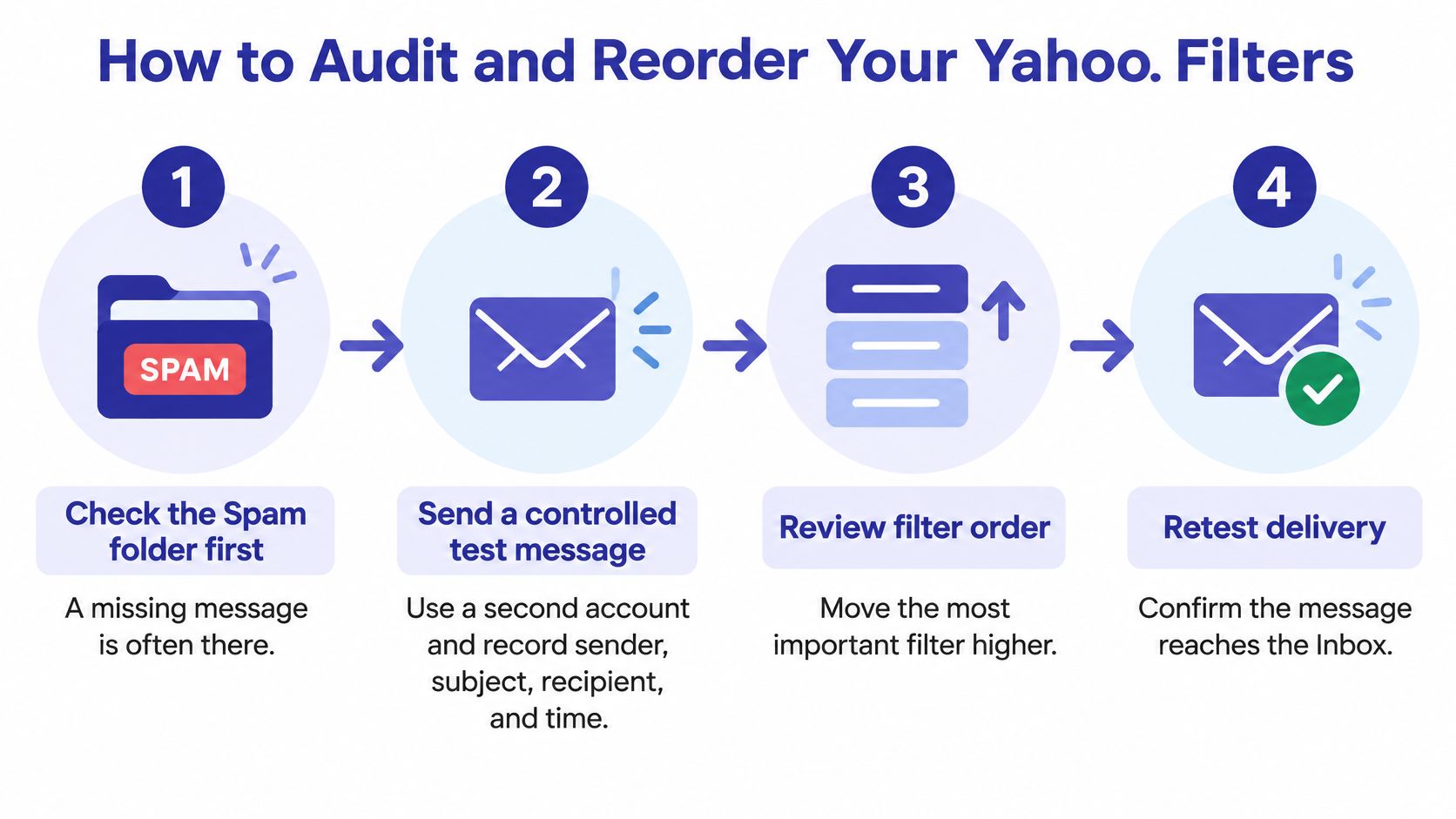
How to Audit and Reorder Your Yahoo Filters
A filter audit works when you change one thing at a time and test with new mail. Yahoo's filter troubleshooting guide describes a sequential pipeline, with filters applied in list order after spam classification. Read your rules in that order. A correct rule near the bottom won't help if a broad rule above it grabs the message first.
Follow the audit in order
- Check Spam first. Open Spam before opening Settings, because a missing message is often sitting there and no filter edit will move it. If you find it, note the sender and subject exactly as shown.
- Send a controlled test. Use a second account that you own, and record the sender, subject, recipient, timestamp, and final folder. That record tells you whether Yahoo routed it, not whether you merely found it later.
- Read the list top to bottom. Open Filters in Yahoo Mail settings and scan for any rule that could match your test message before your intended rule runs. An early rule for a domain, a word in the subject, or a folder move can win without obvious notice.
- Disable suspects one by one. Pay close attention to rules that send mail to Trash or another folder. Turn off one suspicious rule, send a fresh test, and only then move to the next suspect.
- Replace negative conditions. Swap does not contain for a positive match such as an exact sender address, domain, or subject. Broad negatives are hard to predict and they catch mail you never meant to target.
- Split complicated rules. If one rule tries to cover billing mail, family mail, and a newsletter, break it into simpler filters with one job each. Yahoo combines multiple criteria in a rule, so extra conditions can make a filter narrower than you intended.
- Retest with a new message. Send another controlled message after each repair and confirm its final folder in webmail. Old mail proves nothing about a rule you just created or reordered.
Build safe senders narrowly
For a sender you trust and can verify, create the narrowest positive rule that fits, such as one exact address to the Inbox. If you want a wider grounding in how allow lists should be built across mail services, Listava's guide to safe senders is a useful companion before you start exempting whole domains. I'd avoid a broad domain rule for a bank or delivery company unless you understand exactly which addresses send from it.
The most common slip is testing only in an outside app. Outlook and Apple Mail can apply their own rules, so a message can vanish after Yahoo delivered it correctly. Finish every step in webmail first. Only compare the app once Yahoo's own result is clean.
Use Correction Controls and Set Realistic Expectations
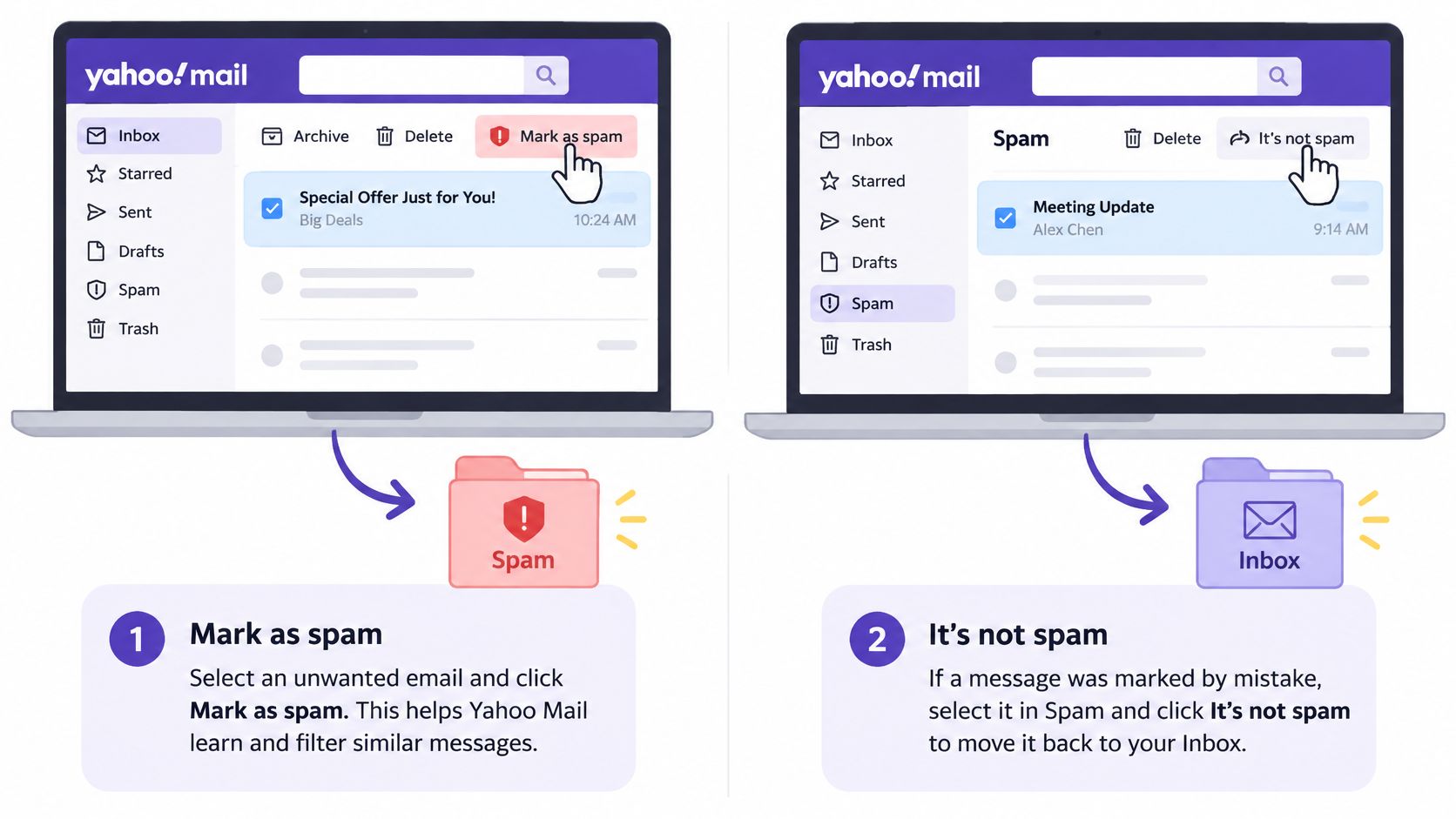
Yahoo gives you several correction buttons, and they don't mean the same thing. Pick the control that matches the message in front of you. Using Mark as spam on a legitimate newsletter teaches the wrong lesson, and using unsubscribe on an impersonation attempt can confirm that your address is active.
The short tutorial below shows where the basic spam controls sit in Yahoo Mail.
Pick the control that fits the case
| Control | What Yahoo does | Use it when |
|---|---|---|
| Mark as spam | Moves the message to Spam and teaches future mail from that sender to go there | Unwanted mail reached the Inbox |
| It's not spam | Moves the message to the Inbox and sends future mail from that sender there | Legitimate mail landed in Spam |
| It's safe | Stops repeated spam warnings for a sender Yahoo flagged | A trusted contact keeps getting flagged |
| Remove sender and mark as spam | Moves the message to Spam and removes the sender from contacts | Impersonation or a bad contact |
| Unsubscribe option | Offered for mailing lists Yahoo trusts | Unwanted newsletter that is not a threat |
Yahoo's guidance on reporting suspicious emails says future emails from the same sender will automatically be routed to the Spam folder after you mark a sender as spam. Selecting It's not spam does the reverse for future mail from that sender. You're not just moving one message, you're training the next decision.
Yahoo's additional security guidance adds the more specific options. It's safe fits a contact whose mail resembles spam, Remove sender and mark as spam suits impersonation, and an unsubscribe option may appear for mailing list mail Yahoo trusts. Do those corrections inside Yahoo webmail or its official apps, not only inside an outside client.
Watch how those choices play out in a real mailbox walkthrough before you work through a backlog.
What improvement actually looks like
Filtering is probabilistic, not perfect. A peer reviewed USENIX security study using Yahoo Mail data found that more than half of all delivered email was classified as spam and sent to the spam folder. At that scale, some legitimate mail will be caught and some junk will slip through, even with a filter that's working as designed.
Campaigns also rotate sender addresses, display names, and content, so one stray message isn't evidence that marking failed. Report several representative samples, preserve the headers and sender details, and don't open links to inspect them. Keep harmless newsletters in a different mental pile from impersonation, fake invoices, and account takeover lures.
Count comparable messages over several days instead of reacting to a single escape. A falling share in the Inbox is progress, even if Spam still collects plenty.
Sender requirements are tightening in your favor. Validity's summary of Yahoo's 2024 sender changes reports a 70% increase in the use of email authentication and a 50% increase in compliance with published best practices after Yahoo introduced stricter requirements. That helps Yahoo judge legitimate senders, but it won't rescue a sender whose own mail looks careless.
Track inbox escapes over a week or two, then apply the same marking habits from this guide on how to stop email spam. If an impersonation campaign keeps arriving after consistent marking, treat it as a security issue, not a tidy inbox issue. Don't click, don't call numbers in the message, and verify any payment or account request through a separate channel you chose yourself.
Stop Third-Party Apps From Undoing Your Fixes
You fix a filter in Yahoo, the test lands in the Inbox, and the next day good mail disappears again. That pattern usually points away from Yahoo. An app on a phone or laptop is applying its own rule after Yahoo has done its job.
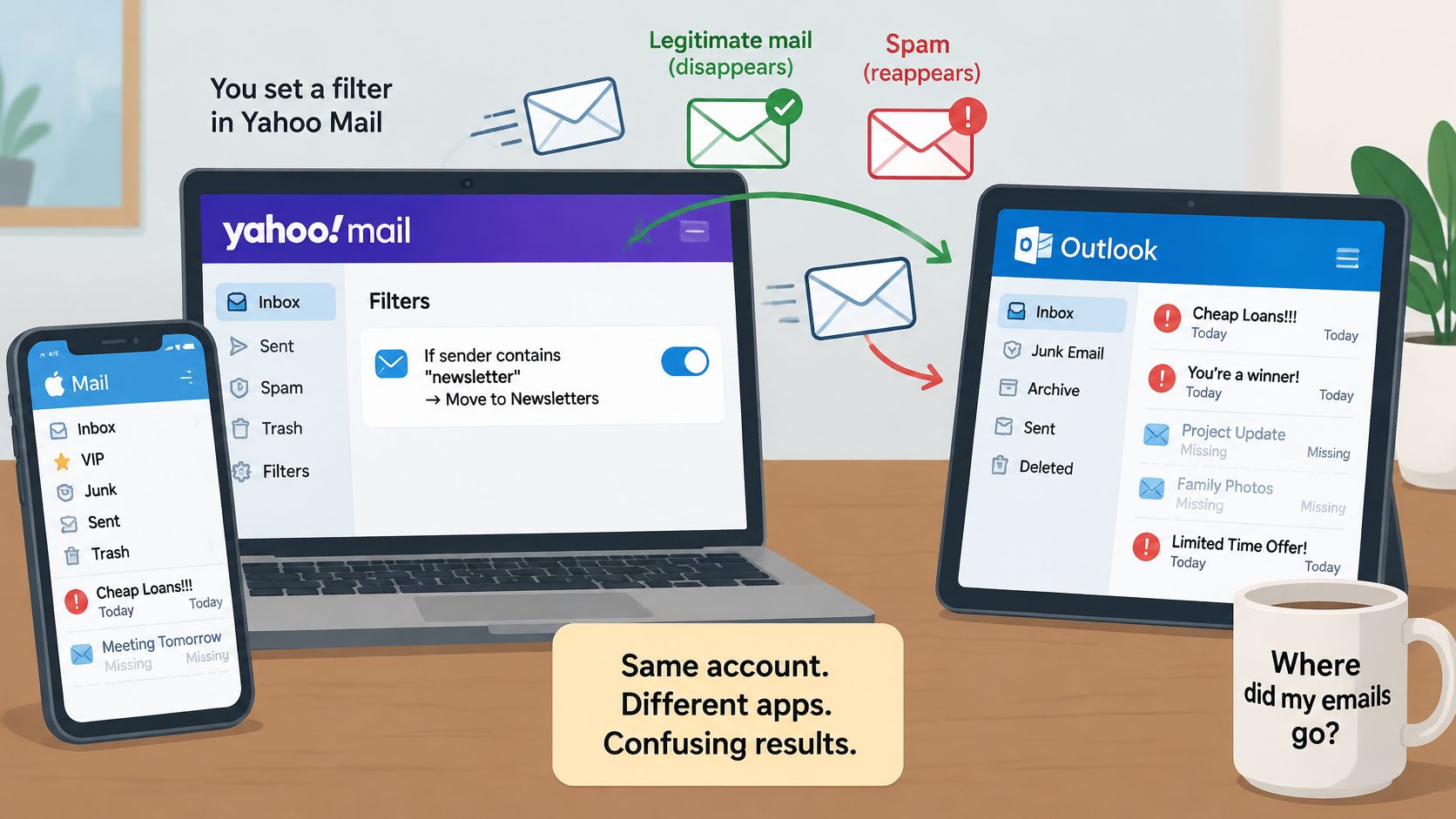
Yahoo's guidance on stopping spam warns that third party clients are outside Yahoo's control and can independently delete or redirect messages. Yahoo recommends managing spam in webmail or its apps for that reason. If Outlook has a junk rule and Yahoo has a filter, you've got two systems moving the same mail for different reasons.
Isolate the app in four moves
- Test in webmail first. Send a fresh message and confirm its folder in Yahoo before opening Outlook or Apple Mail.
- Pause client processing. Temporarily disable the client's spam filtering and automatic rules, then send another test.
- Check server behavior. Look for settings that delete mail from the server, move it after download, or file it into a local folder that never syncs back.
- Retest from scratch. Use a new message each time, because a client can't undelete or refilter a copy it already handled the way you expect.
This matters most in households where a caregiver helps an older adult across several devices. A fix made carefully on a laptop can be undone by a phone that still has an old rule, an aggressive junk setting, or a different account setup. No one sees the conflict, so everyone blames Yahoo.
Check every device that touches the account, including a tablet that only gets opened on weekends. One forgotten client with server deletion turned on can make legitimate mail vanish for every other device. Write down which devices you checked and what you turned off, so you don't chase the same setting twice.
Keep one spam authority. Let Yahoo handle spam and stop duplicate processing in the client.
That single authority rule is the trade off that works. You give up a little extra client side sorting, and you gain a mailbox that behaves the same way on every screen. If webmail stays correct while the app is paused, you've found your culprit, and Yahoo's filter was never broken.
Confirm the Fix and Add Scam Protection
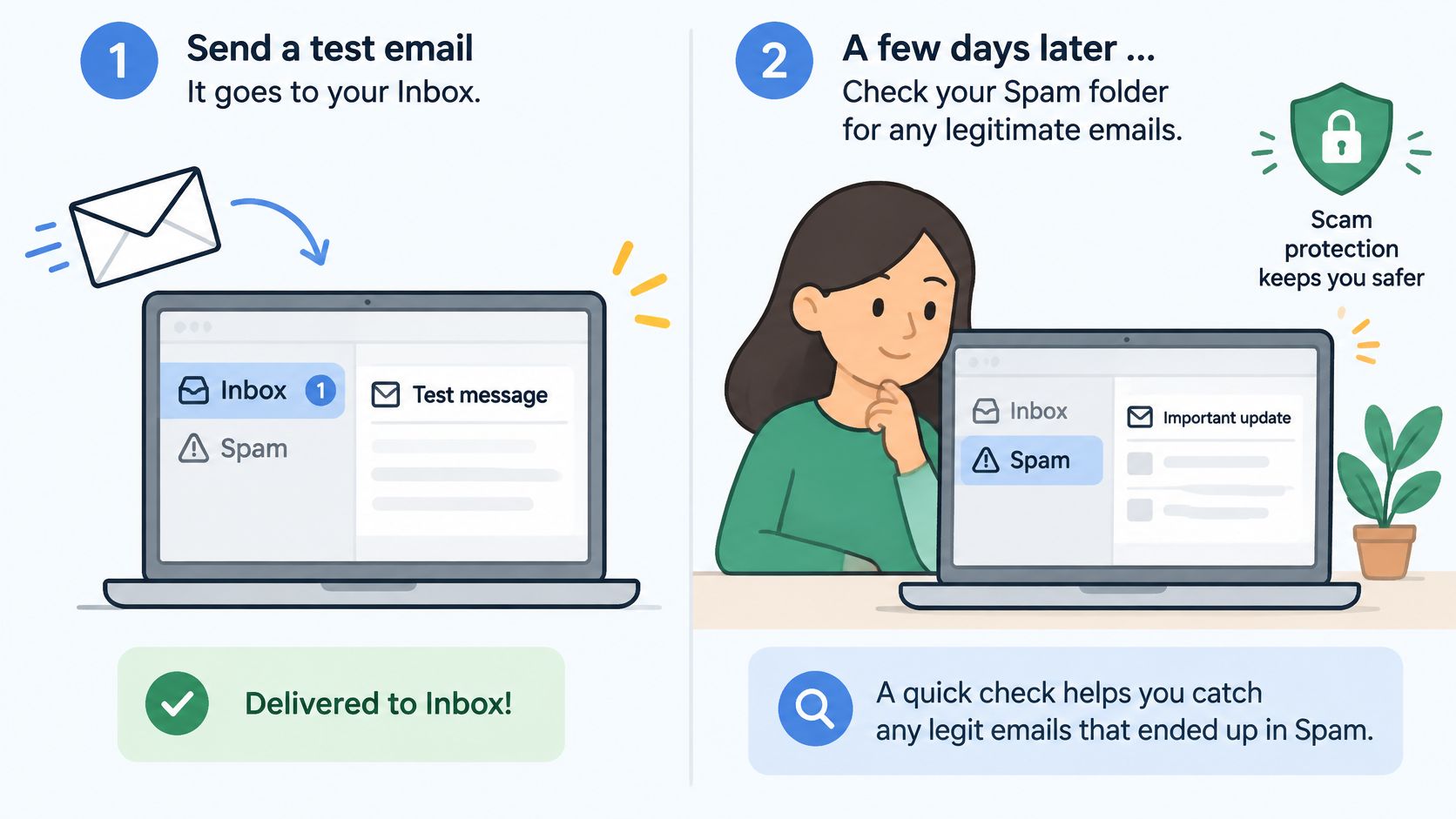
Send one final test message and confirm it lands in the Inbox in webmail. Then check Spam after a few days for legitimate mail that may still be misrouted, and rescue anything genuine with It's not spam. Don't declare victory on the first afternoon. Sender patterns need a few delivery cycles to settle.
Keep an export or backup habit for mail you can't afford to lose while you test, especially in a home office where receipts and contracts sit in email. The practical email backup guidance for home offices from Nerds 2 You Edmonton covers that side of mailbox care. It won't fix filtering, but it protects important messages while you change rules.
Email is only part of the exposure. The Federal Trade Commission report on 2025 fraud losses says consumers lost about $16 billion to fraud in 2025, the highest annual amount recorded, with imposter scams accounting for $3.5 billion. In its breakdown of fraud reports involving a monetary loss, email accounted for 10%, while phone calls accounted for 11% and text messages for 7%.
That spread is why a repaired Yahoo filter still leaves gaps. Our email protection works with Yahoo when you connect a supported inbox, checks for phishing, and warns you before you click dangerous links. We only scan an inbox when you connect it, and no service catches every scam, so important requests still need independent verification.
Review these Yahoo email security steps, then download Gini Help on Google Play or from the App Store if you want that wider check across email and other channels. Start with the confirmation test today, because a filter you haven't tested is only a hope.
Visit Gini Help to add protection that checks connected email for phishing, fake senders, and dangerous links in plain language. If Yahoo's spam filter is still letting convincing scams through after your audit, connect your inbox and let us warn you before a bad click. You'll keep control of your mailbox while getting an extra check where Yahoo's classifier can't see intent.