How to Stop Phishing Emails in Gmail
By Josh C.
You're having morning coffee when an email arrives from your bank. It says your account will be locked today unless you confirm your password. The logo looks right, and your name is spelled correctly. Your heart beats a little faster, and that's exactly what the sender wants. Before you click, pause. Learning how to stop phishing emails in Gmail starts with that pause, then builds into simple habits you can repeat every time.
Why Phishing Emails Still Reach Your Gmail Inbox
That bank email may not be from your bank at all. Phishing means a scammer pretends to be someone you trust so you'll share a password, send money, or open a harmful file. The message might copy a bank logo, use a family member's name, or warn about a package you never ordered.
Don't feel embarrassed if it looks convincing. Scammers copy real emails closely. They may also send from a real account that was taken over, or from a brand new address that Gmail hasn't seen before.
Gmail Is Already Working for You
You don't need to install a separate filter to get basic protection. Gmail's protection is on by default. Google says Gmail blocks more than 99.9% of spam, phishing attempts, and malware before they reach inboxes, and stops more than 100 million harmful emails every day.
Gmail checks who sent the message, where links lead, and whether attachments look dangerous. It also uses Safe Browsing to warn you about risky websites. If Gmail shows a warning at the top of a message, please believe it. Don't click through just because the email seems urgent.
If Gmail warns you about a message, leave it alone. A warning is Gmail tapping you on the shoulder.
Why a Few Still Get Through
No filter catches everything. A scammer who uses a stolen, real account can look like a normal sender. A brand new website address may not yet be known as dangerous. Fake calendar invites have also become a common trick, with alarming payment notices designed to make you call a number or join a meeting.
That's why looking safe isn't the same as being safe. A nice logo, neat spelling, or a familiar name can't prove an email is real. You need two layers working together.
- Gmail's layer: Automatic filtering, warnings, and blocking known harmful links and files.
- Your layer: Checking the sender, not clicking in a hurry, and confirming requests another way.
Gmail supplies the strong lock, while you still decide whether to open the door. If a stranger claims to be from the bank and needs your keys right now, you wouldn't hand them over. Treat an urgent email the same way: keep the lock in place and judge the request carefully before acting.
This isn't a one-time cleanup. Scammers change their stories, subjects, and sender addresses. Your protection comes from a steady routine you use with every unexpected message, even one that appears to come from a relative, employer, bank, or government office.
How to Spot a Phishing Email Before You Click
Start with the sender's real address, not the name shown in bold. A scammer can make the display name say almost anything. On a computer, click the small arrow or sender name to see the full address. Ask whether it matches the company it claims to be from.
For example, an email may say it's from your bank, but the address ends in a random string of letters or a misspelled company name. One letter can be changed to fool a quick glance. Slow down and read it character by character.
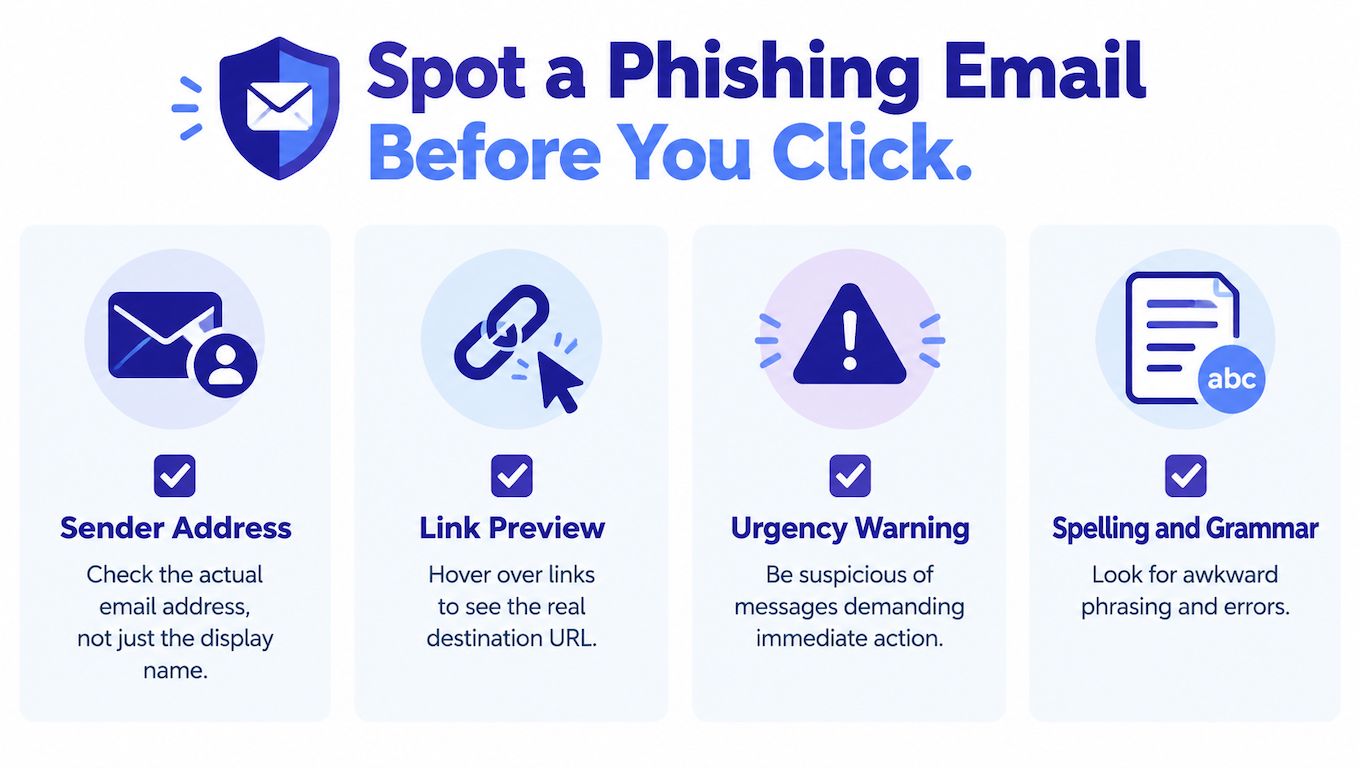
A Simple Four-Part Check
- Check the sender address: Does the part after the @ symbol match the company?
- Preview the link: On a computer, rest your mouse over the link without clicking. Look at the address that appears. Does it match the website?
- Notice pressure: Words like urgent, final notice, or account closed today are meant to rush you.
- Question the request: Be very careful with requests for passwords, gift cards, wire transfers, payment, or identity documents.
On a phone, link previews are harder to see. If you can't check safely, don't tap. Wait until you can use a computer, or go to the company website yourself.
Common Stories Scammers Use
You may see a fake account recovery notice saying someone tried to sign in. It may offer a button to secure your account. Another common trick is a fake invoice or document attached to an email. Opening that file, or signing in to view it, can hand your password to a scammer.
If you handle invoices and signing requests at work, this email security guide for professionals shows how a familiar document service can be copied to steal sign-in details. You can also practice with this plain-language guide to detecting fake emails before a real one arrives.
Don't be reassured by a padlock or HTTPS in a web address. That only means the connection to that site is encrypted. A fake site can have it too. A correct logo proves even less, because logos are easy to copy.
Safest move: Don't use the link, phone number, or reply address in a suspicious email. Type the website you already know, use a saved bookmark, or call a number from an official bill or card.
This caution matters for everyone. The FBI's 2024 Internet Crime Report recorded 193,407 phishing and spoofing complaints, the most frequently reported cybercrime category, with people aged 60 and older suffering nearly $5 billion in losses. You're not being rude or difficult when you verify. You're protecting your money and your identity.
If anything feels off, stop. You can always check later. A real bank or family member will understand why you called through a number you trust.
Using Gmail's Built-In Tools to Block and Report Phishing
When you find a suspicious email, you have a better option than deleting it. Report phishing tells Gmail what happened. Deleting only removes the message from your view. Reporting helps protect you and other people from the next copy.
Don't click links, download attachments, reply, or enter any information first. If you already opened the message to look at it, that's okay. Just don't interact with anything inside it.
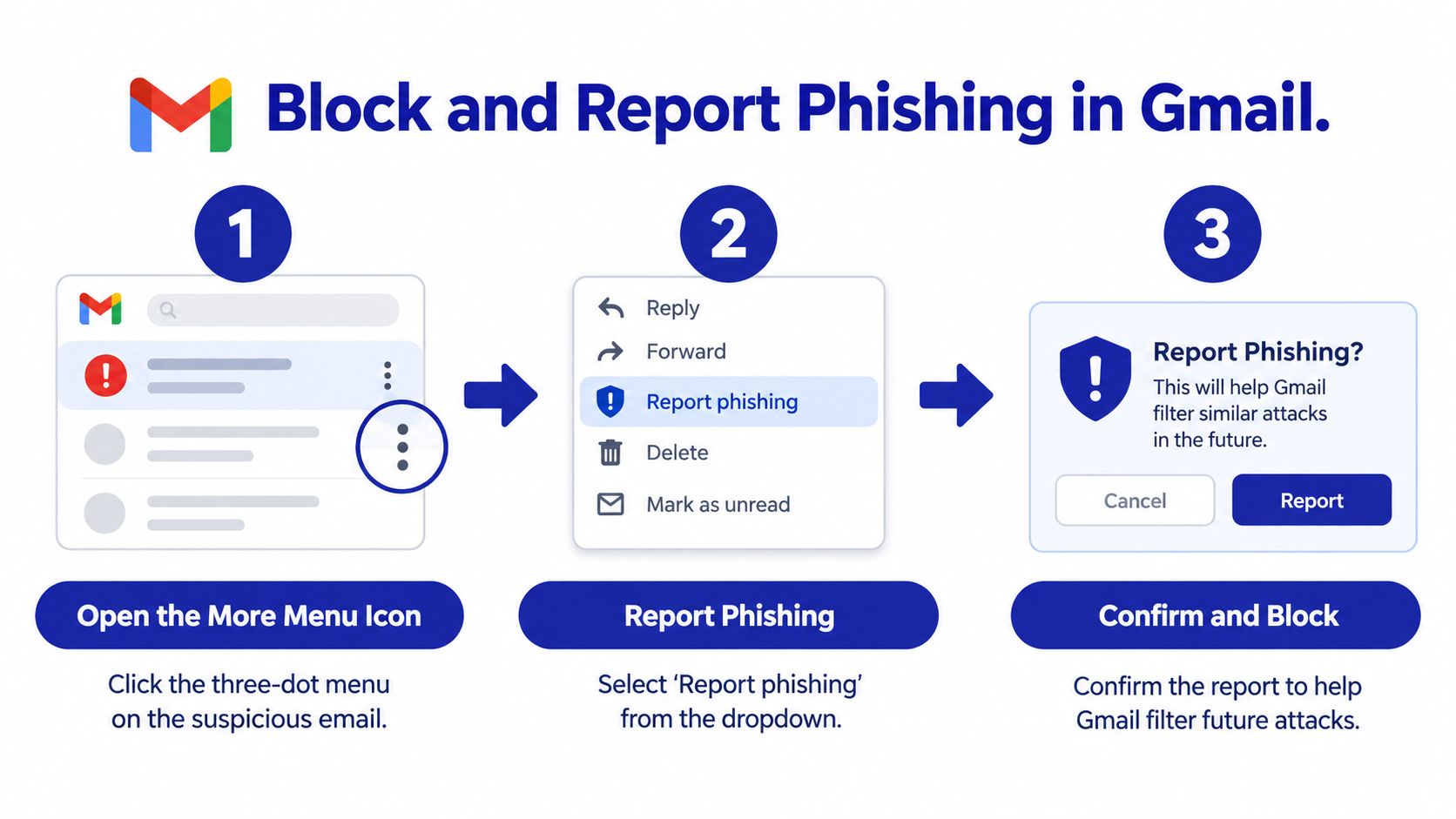
Report the Message in Gmail
- Open the message on a computer: Don't click anything in the body of the email.
- Find the three dots: Look for the More menu, shown as three vertical dots near Reply.
- Choose Report phishing: Select that option and confirm if Gmail asks.
According to Google's guidance on reporting phishing, your report helps Gmail review the message and improve protection against similar attempts, and user reports train Gmail to classify comparable messages as spam or phishing in the future. That's a real difference. Your one report becomes a useful signal.
If a message is unwanted advertising but not pretending to steal information, Report spam is usually the right choice. If it imitates a bank, company, or person and asks you to sign in or pay, choose phishing. When you're unsure, don't engage with it.
Block a Sender and Use Filters
For repeat unwanted mail from the same address, open the message, select the three-dot More menu, and choose the block option for that sender. Future messages from that address go to Spam. Blocking helps with a persistent sender, but scammers often change addresses, so reporting still matters.
Filters give you more control. Click the settings gear, choose to see all settings, then open Filters and Blocked Addresses. Create a filter using a sender address, subject words, or phrases you see again and again, then choose to send matching mail to Spam or delete it.
Use filters carefully. A broad word like invoice might catch real bills you need. Start narrow, with one exact sender or an unusual phrase, and check Spam now and then for mistakes.
- Report phishing: Best for fake sign-in, payment, and impersonation emails.
- Report spam: Best for unwanted bulk mail that isn't impersonating someone.
- Block: Best for one address that keeps sending unwanted mail.
- Filter: Best for a repeated pattern you can describe precisely.
For a small business inbox, personal reporting works better when everyone follows the same approval rules for payments and bank changes. These business email security controls for Essex cover that workplace side in practical terms. The personal habit stays simple: report first, don't just delete, and let Gmail learn from what reached you.
Securing Your Gmail Account with Two-Step Verification
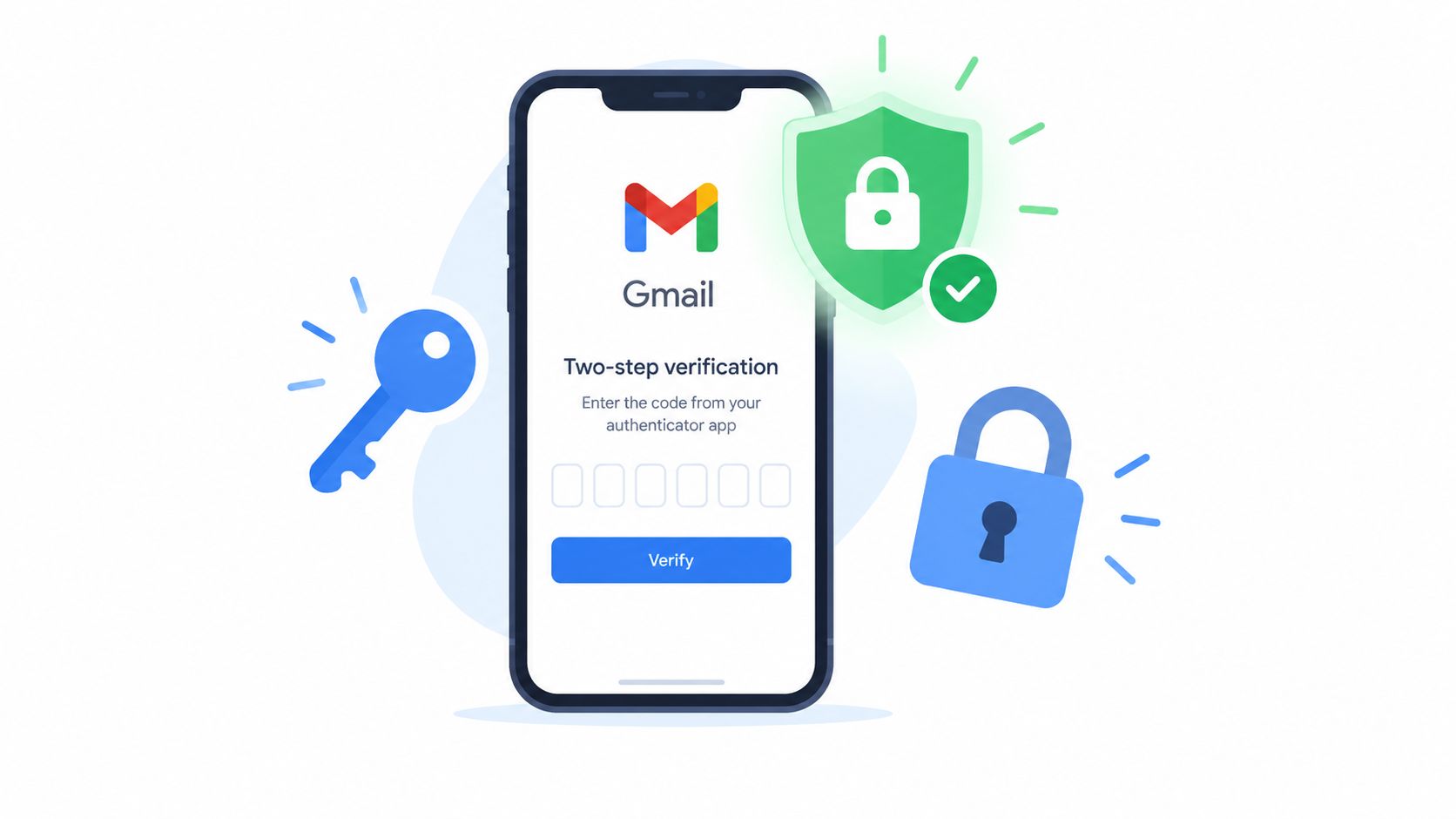
Blocking bad emails helps, but your account also needs a second lock. Two-step verification means signing in takes your password plus one more proof that it's you. If a scammer steals only your password, that second proof can stop them from getting in.
Think of your password as a house key. Two-step verification adds a deadbolt that needs your phone. A copied key alone isn't enough.
The image below shows what that extra check can look like on a phone during sign-in.
Turn It On in Your Google Account
Go to your Google Account, open Security, and find 2-Step Verification under how you sign in to Google. Choose to get started and follow the prompts. You can use a prompt on your phone, an authenticator app, or another method Google offers during setup.
If the steps feel unfamiliar, this explanation of two-factor authentication and how it protects your accounts can help you prepare before you start. Take your time. You don't have to rush through security settings.
Save your backup codes somewhere safe and offline. A sealed envelope in a secure place at home can work. Don't store them in the same email account they'd help you recover, and don't share them with anyone who calls or emails asking for them.
No real company needs you to read your sign-in code aloud. Treat every code like a key to your home.
Use a Different Password for Gmail
Your Gmail password should not match your shopping, social media, or banking passwords. If one service is compromised, a reused password can open several accounts. A unique password limits the damage to one place.
This short video walks through the setup visually, which can be easier than reading menu names alone.
After setup, test signing in on a trusted device so you know what to expect. Check that your recovery phone number and recovery email are current. If you share caregiving duties, decide together who keeps backup codes and where. Clear planning prevents panic later.
Two-step verification won't stop a phishing email from arriving. It protects you at the moment a stolen password is used. That's why it belongs alongside reporting and careful link checks, not instead of them.
What to Do If You Already Clicked a Phishing Link
First, breathe. Many careful people have clicked a convincing link. What you do next matters more than blaming yourself. Act quickly, but one step at a time.
If you only clicked and didn't type anything, close the page. Don't enter your password, card details, or codes. If you did type your Gmail password or other private information, treat the account as at risk and start recovery now.
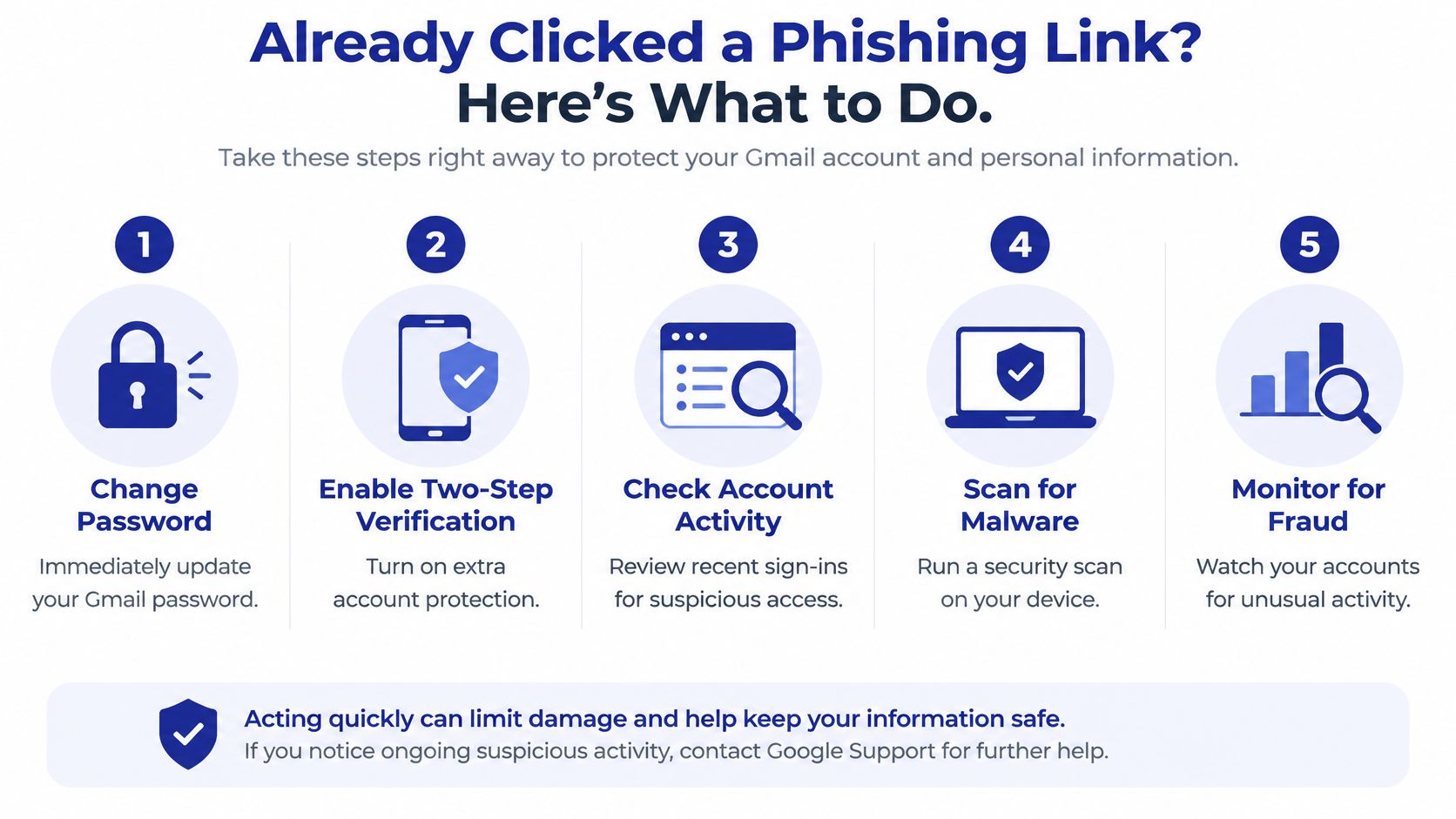
Your Post-Click Recovery Checklist
- Leave the suspicious page: Close the tab and don't go back through the email.
- Change your Google password: Use a trusted device and go to your Google Account yourself. Pick a new password you don't use elsewhere.
- Turn on two-step verification: Add the second lock if it isn't already on.
- Review devices and access: Sign out devices you don't recognize and remove third-party access you didn't approve.
- Warn your contacts if needed: If odd messages were sent from your account, tell people not to click them.
This detailed walkthrough for anyone who has clicked on a link in a phishing email can sit beside you while you work through the list. Ask a trusted family member to stay on the phone if that helps. You don't have to do this alone.
Check the Settings Attackers Hide In
A clean-looking inbox doesn't always mean you're safe. Someone who got into an account may change settings so future security warnings or bank notices are hidden from you. They may also forward copies of your mail somewhere else.
That's why Google's account recovery guidance tells users to inspect unfamiliar devices, recovery methods, Gmail filters, labels, forwarding rules, POP/IMAP access, and suspicious messages. In Gmail settings, look for forwarding addresses you don't recognize. Check filters that delete mail, skip the inbox, or forward messages without your knowledge.
Also confirm your recovery phone and recovery email still belong to you. Look through Sent mail for messages you didn't write. If contacts received strange requests, warn them through a phone call or text, not by replying inside a suspicious thread.
If you entered bank or card details on the fake page, contact your bank using the number on your card or statement. Don't use contact details from the phishing email. Ask what they recommend and watch your accounts closely.
Reporting later is still helpful. Once your account is secured, report the original message as phishing if it can be done safely. Recovery comes first, reporting second.
Building a Long-Term Defense Against Email Scams
You now have the full circle of protection. Gmail filters most harmful mail before you see it. You check the sender and avoid clicking in a rush. You report what slips through, protect sign-in with two-step verification, and know how to recover if something goes wrong.
Keep the routine short enough to remember under stress. Pause, check, go direct, report. Pause when a message creates fear or urgency. Check the sender address. Go direct to the website or phone number you trust. Report the message instead of only deleting it.
Make It a Family Habit
Talk through this routine with a spouse, parent, or adult child before a scare happens. Agree on a simple rule for money requests. Any email asking for gift cards, a wire transfer, a password, or a changed bank account gets confirmed by a voice call first.
For businesses, add a second person's approval before paying a new invoice or changing bank details. One convincing email shouldn't be able to move money by itself. At home, a quick call to your son or daughter can do the same job.
You can't control what scammers send. You can control whether you answer in a hurry.
Scams also arrive by phone and text, not only by email. For additional protection across calls, texts, and email, you can download Gini Help from Google Play for Android phones or the App Store for iPhone. It screens across channels and sits alongside Gmail's built-in defenses, rather than replacing the careful habits you've learned here.
Start with one action today. Turn on two-step verification, or report the suspicious message sitting in your inbox. Small steps, repeated calmly, make phishing much harder to pull off. You've got this, and you don't need to be a technology expert to stay safer.
Add one more layer beyond your inbox by using Gini Help to screen suspicious calls, texts, and emails before they pressure you into acting. It's made for people who want clear warnings without wrestling with complicated settings, and it works alongside the Gmail habits in this guide. Visit today, set it up for yourself or a loved one, and give every unexpected message one more careful check.