How to Make Gmail Spam Delete Automatically in 2026
By Josh C.
Google said Gmail blocked more than 99.9% of spam, phishing, and malware from reaching users' inboxes in December 2024, but that protection doesn't make every message safe to ignore. Gmail still keeps messages it classifies as spam for a review period before deleting them. A false positive in that folder could be an invoice, a flight update, or an account notice you needed to see.
If you're helping a parent or cleaning up your own inbox, the practical goal isn't to make Spam disappear at any cost. It's to let Gmail handle obvious junk while making sure a mistaken classification can't erase something important.
How Gmail Handles Spam Before You Touch Anything
Gmail keeps messages in Spam for 30 days before automatically removing them. Treat that as a review window, not instant deletion. The safest setup is to keep Gmail's built-in filtering in place, review Spam regularly, and add only narrow rules for predictable messages you're certain you don't need.
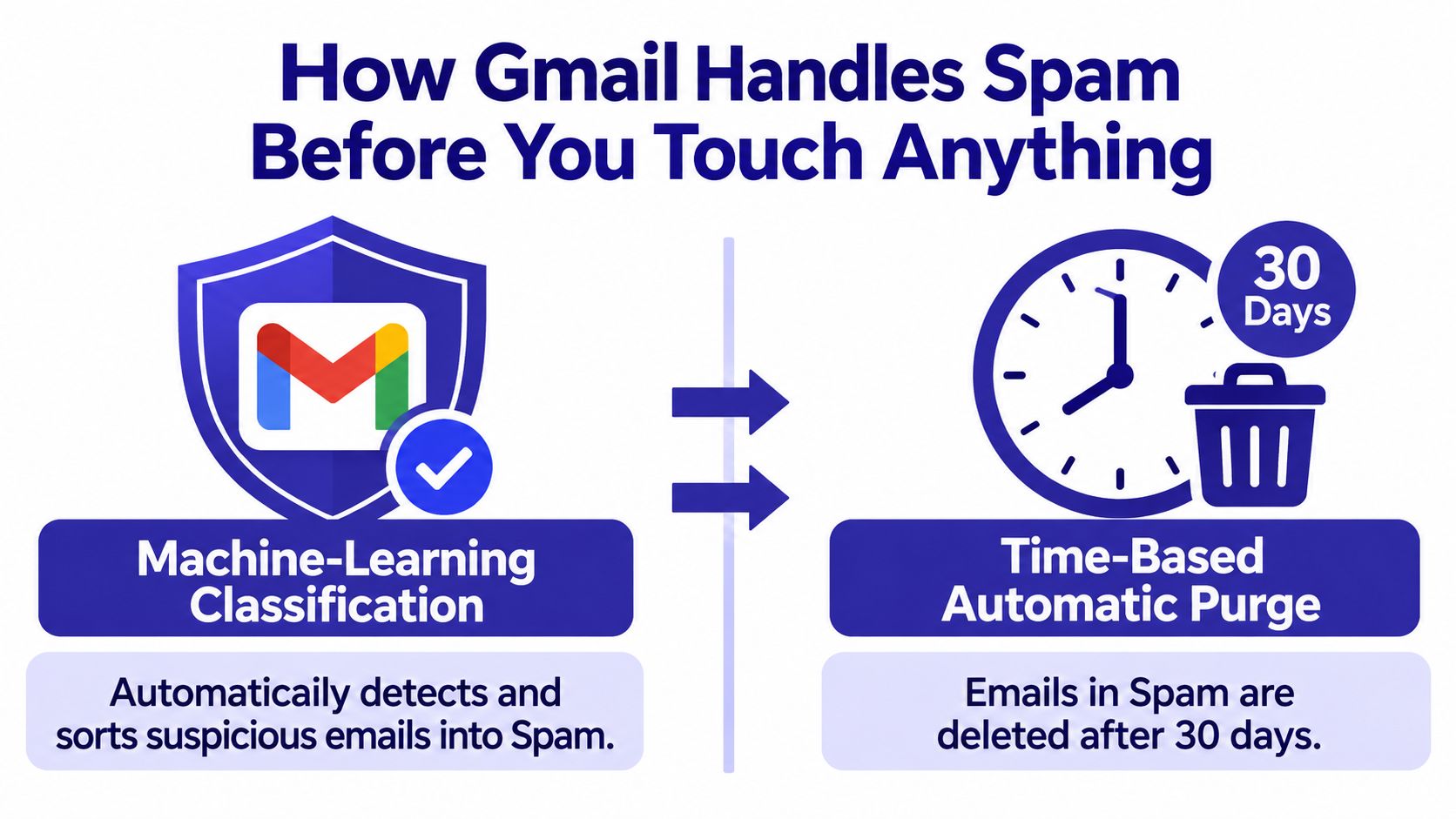
Gmail's spam controls work in two stages. Machine-learning classification tries to keep suspicious messages out of your inbox in the first place. Time-based deletion clears messages that Gmail has already placed in Spam after the retention window. Google reported that its large-language-model-based detection system blocked 20% more spam than its earlier approach and processed 1,000 times more user-reported spam each day (Google's account of Gmail's spam defenses).
That's substantial protection, not a guarantee. Gmail can still miss junk or flag a legitimate email by mistake, which is why automatically deleting everything the moment it's classified as spam is a bad default. The steps below add organization without treating Gmail's filter as infallible.
| Control | What It Does | Timeframe | Can User Override? |
|---|---|---|---|
| Spam classification | Sorts suspicious messages into Spam | When Gmail classifies the message | Yes. Review it and choose “Not spam” if it's legitimate |
| Automatic Spam purge | Removes messages that remain in Spam | After 30 days | You can review or delete messages sooner |
| Report spam | Moves a message to Spam and gives Gmail feedback | The message remains subject to Spam retention | Yes. You can remove a false positive from Spam |
To tell Gmail about an unwanted message, use Gmail's spam-reporting steps. Reporting is more useful than deleting a message because it also gives Gmail a signal about what you consider junk.
Building Filters That Delete on the Web
Gmail filters are useful for repeat clutter, but “Delete it” is an aggressive action. Start with a sender or pattern you've checked, not a broad word like “order” that might also match a receipt you need.
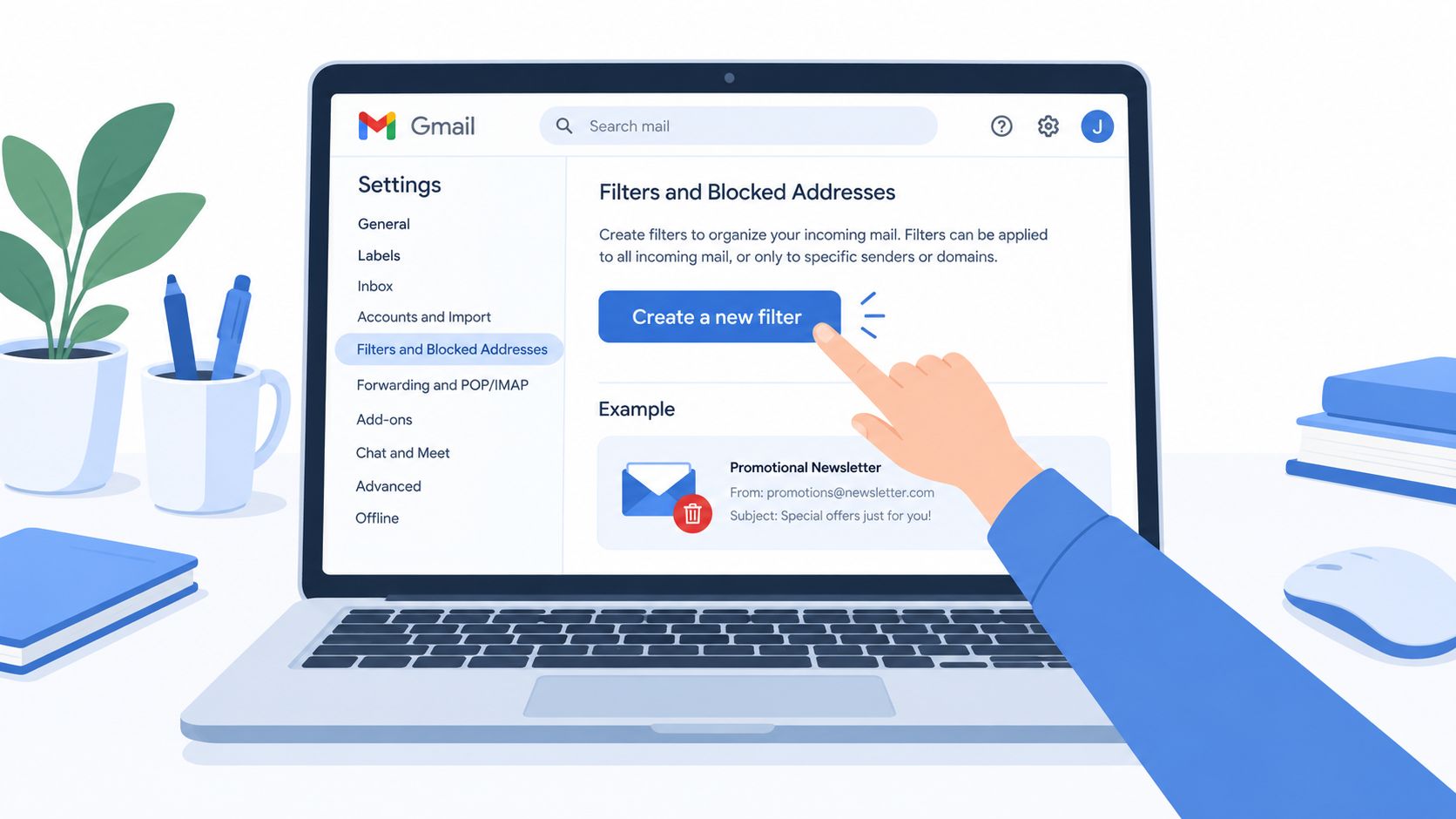
On Gmail's website, open the search options from the search bar. Enter the sender in From, a specific phrase in Subject, or a narrow match in Has the words. Check the search results before creating a rule. If the results include messages you care about, tighten the criteria rather than hoping the filter will sort them out later.
Select Create filter, then choose the action. Skip the Inbox archives matching mail, keeping it in your account without displaying it in the inbox. Delete it moves matching messages to Trash. It doesn't send them directly to permanent deletion, but you may overlook them while they're there.
For example, if a particular vendor sends repetitive promotional mail you don't want, filter by that vendor's exact sending address. Don't build a rule for every email containing “invoice” or “payment”; those words can appear in essential financial messages.
The Gmail filter walkthrough below provides a visual reference for the desktop process.
| Filter Action | Where the Message Goes | Auto-Deletes? | Recovery Possible? |
|---|---|---|---|
| Skip the Inbox | Archive, outside the Inbox | No | Yes, while the message remains in the account |
| Delete it | Trash | Not immediately | Yes, while it remains in Trash |
| Apply a label | The chosen label; message stays in its existing location | No | Yes |
| Mark as read | Stays where it would otherwise go | No | Yes |
Common filter mistakes: using broad keywords, deleting messages before checking what the rule matches, and treating Skip the Inbox as if it were Delete it.
Doing the Same Thing on the Gmail Mobile App
The Gmail app is good for reviewing messages and correcting mistakes, but it isn't a full replacement for Gmail's web settings. Filter creation and editing options can differ by device and account, so don't spend time searching the phone app for a control it doesn't offer.
When you open a message in the app, tap the three-dot menu to find message actions such as Report spam, Block, or Filter messages like this, depending on the version and account. If Gmail shows a “Desktop settings required” message, that's a sign to switch to Gmail in a desktop browser for the filter configuration you need. The exact options visible in the app can vary.
On Android or iPhone, you can still do the important day-to-day work: inspect Spam, report unwanted mail, and use Not spam when Gmail makes a mistake. If the filter controls aren't available, don't confuse deleting individual messages with creating an automatic rule. They're different jobs.
The least frustrating approach is to create and test filters in Gmail on the web, then use the phone to monitor how they behave. Gmail filters apply to the account rather than just the device, so a rule created on the web can also affect mail you later view in the app. Before relying on a delete rule, check its matches on the web and make sure it isn't catching legitimate messages.
Tuning Gmail's Spam and Trash Settings
Spam and Trash are separate folders with separate purposes. Spam holds messages Gmail identifies as junk. Trash holds messages you delete or that a filter moves there. Both have a 30-day automatic removal period, so moving a message to Trash isn't the same as deleting it permanently (Gmail's Spam and Trash retention details).
To review Gmail's Spam folder, open Spam from the left-side menu. If you find a legitimate message, open it and choose Not spam. That takes it out of Spam and helps correct the classification. If you want to clear out messages you've reviewed, use Delete all spam messages now. That empties Spam immediately, so use it only after checking for false positives.
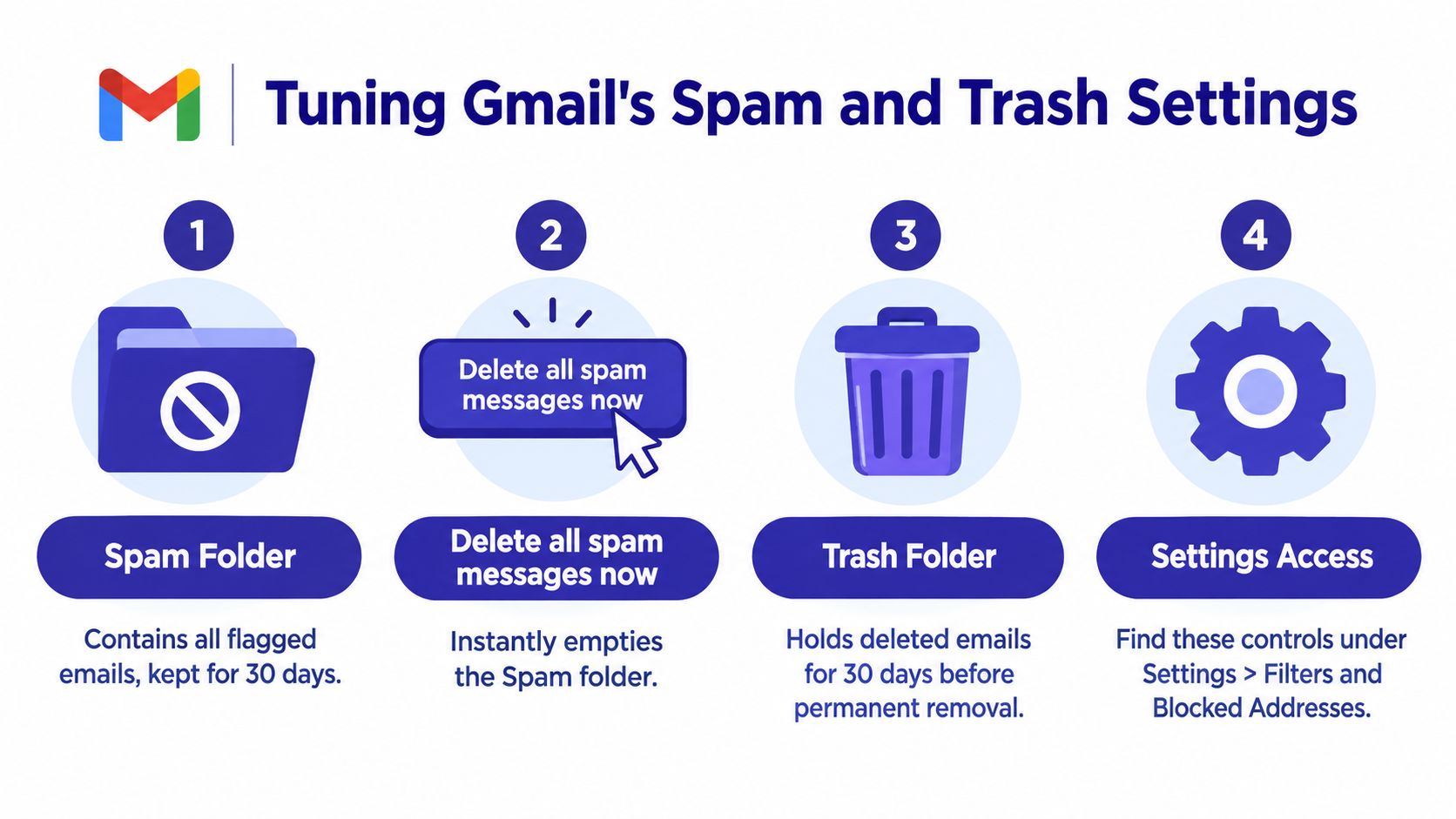
Trash has its own review window. Open Trash to restore a message or delete it permanently. If you empty Trash manually, messages there are no longer available through the normal folder view. For everyday use, let Gmail handle the automatic cleanup rather than emptying Spam or Trash without checking them.
A simple decision rule works well:
- Leave Spam alone when you haven't reviewed it yet.
- Choose Not spam when a message is legitimate.
- Use Delete all spam messages now only when you're confident you don't need to inspect those messages.
- Empty Trash manually only when you're comfortable giving up the remaining recovery opportunity.
Rules That Actually Fit Different Inboxes
A caregiver setting up a parent's Gmail should be conservative. Suppose the parent gets fake pharmacy notices, suspicious Medicare messages, and ordinary promotional emails. A broad rule that deletes messages containing “Medicare,” “prescription,” or “account” could catch a real appointment notice or an important account update.
The Federal Trade Commission reported that adults aged 60 and over reported approximately $2.4 billion in fraud losses in 2024, up from about $600 million in 2020. People aged 80 and older reported a median fraud loss exceeding $1,600 (FTC data on fraud affecting older adults). For a high-stakes inbox, I'd label or archive unfamiliar messages for review before considering automatic deletion. Keep messages about health, money, identity, and account access out of broad delete rules.
A small business owner has a different problem: vendor outreach can crowd out customer and billing messages. Filter known promotional senders individually, or route recurring sales pitches to a review label. Don't auto-delete everything that mentions “invoice” or “payment.” A real supplier's billing notice may use exactly those words.
For a personal side project, you can be more aggressive with predictable newsletters you never read. Even then, test the rule on existing messages and make sure it doesn't catch receipts or security notifications.
| Inbox situation | Safer starting rule | Avoid |
|---|---|---|
| Parent or caregiver-managed account | Label unfamiliar messages for review | Broad deletes based on health, benefits, or account keywords |
| Small business | Route known vendor pitches to a review label | Deleting all messages that mention billing or invoices |
| Low-stakes personal inbox | Filter specific unwanted senders | Assuming every promotion is disposable |
When Gmail's Native Tools Are Not Enough
Gmail filters handle predictable patterns well. They're less dependable as a complete answer to phishing and impersonation, where a message can appear to come from a real bank, delivery service, or account provider. A sender rule only works when the message matches the details you chose. If a scammer changes the address or disguises the message, a narrow filter may not catch it.
The scale matters. The FTC reported that consumers lost $12.5 billion to fraud in 2024, an increase of $2.5 billion from 2023, with more than $3 billion in reported losses coming from scams that began online (FTC's report on scams in 2024). That's a reason to treat suspicious email as a safety issue, not just inbox clutter.
My recommendation is to keep Gmail's spam filtering as the first layer, then add a protection service if the person using the account struggles to recognize convincing scam messages. A second layer should help identify suspicious content without deleting messages you may need to inspect. For a parent or a busy professional, a review-oriented warning is more useful than another broad auto-delete rule.
Gini Help is one option to consider. Its Gmail email protection scans for phishing and scam threats in the background, but it doesn't delete, move, or modify emails. That makes it a separate screening layer, not a replacement for Gmail filters. For a plain-language look at how these approaches differ, see Gini Help's explanation of AI email filtering.
If you want that additional protection on a phone, download Gini Help on Google Play or Gini Help on the App Store.
Habits That Keep Your Automatic Cleanup Safe
“Zero spam in the inbox” sounds tidy, but it isn't a good measure of safety. The true test is whether you can keep clutter down without losing messages Gmail misclassified. A message automatically removed from Spam may not be recoverable through Google Workspace's normal administrator recovery tools (Google Workspace's guidance on restoring permanently deleted email).
Create a recurring review instead of trusting a delete rule blindly. Once a month, open Spam, scan for important senders, and use Not spam on anything legitimate. Add trusted addresses, such as a bank, clinic, employer, or travel provider, to Contacts or a carefully scoped filter that prevents those messages from going to Spam.
Never auto-delete a category just because it sometimes contains junk. Invoices, account-recovery messages, medical notices, and financial communications deserve a safer destination, such as a label or archive. If a suspicious message might be evidence of a scam, don't rush to erase it before deciding whether you need to report or document it.
Practical rule: Automate the clutter you can identify. Review the messages that could affect someone's health, money, travel, or access to an account.
For help recognizing suspicious messages before you decide what to do, use Gini Help's guide to identifying spam emails. Then make the monthly Spam check part of the same routine as reviewing important account notifications.
Gini Help screens calls, texts, and emails for spam and scam threats, adding a separate layer alongside Gmail's own filters. If you're helping a parent or want another way to assess suspicious messages, visit Gini Help and see whether it fits your setup.