Why Email Security Is Important: Threats and Protection
By Josh C.
In the first quarter of 2026, Microsoft reported roughly 8.3 billion email-based phishing threats, and 78% of them used links rather than attachments (Microsoft Security Blog). That one detail reframes the entire subject. The message that hurts you usually isn't carrying a virus. It's carrying a sentence and a button.
Many readers never fully grasp this, so here it is plainly: the target isn't your laptop. It's your next decision. A filter can block a file. Only a habit can block a convincing request.
No alarm bells. Just a clear picture of what's happening and what to do about it.
Email Threat Numbers You Should Know
The scale comes first, because it explains the urgency. Verizon's 2025 Data Breach Investigations Report found that email was the attack vector in 27% of analyzed breaches, making it the second-most common entry point after web applications (Verizon DBIR 2025). The same report found the human element in about 60% of breaches, including phishing, pretexting and credential abuse. Read those two findings together and the lesson is uncomfortable: the weakest component in the chain isn't a server, it's a person having a busy afternoon.
Money follows the same pattern. The FBI's Internet Crime Complaint Center recorded 193,407 phishing or spoofing complaints in 2024, along with 21,442 business email compromise incidents that produced about $2.77 billion in reported losses (FBI IC3 2024 report). A year later, phishing and spoofing accounted for 19% of the 1,008,597 complaints filed with the IC3, still the most commonly reported cybercrime category (dmarcian analysis of the FBI Internet Crime Report 2025).
| Threat measure | Reported figure | Source and year |
|---|---|---|
| Email as entry point in breaches | 27%, second only to web applications | Verizon DBIR 2025 |
| Breaches involving the human element | About 60% | Verizon DBIR 2025 |
| Phishing or spoofing complaints | 193,407 complaints | FBI IC3 2024 |
| Business email compromise losses | About $2.77 billion from 21,442 incidents | FBI IC3 2024 |
| Phishing and spoofing share of complaints | 19% of 1,008,597 complaints | FBI IC3 2025 |
| Email phishing threats in Q1 2026 | About 8.3 billion, 78% using links | Microsoft 2026 |
| Complaints from people over 60 | More than 201,000 complaints and over $7.7 billion lost | FBI 2025 |
Treat every figure above as a floor rather than a ceiling. These are reported losses, and a large share of victims never recognize the fraud in time, never file a complaint, or never recover the money that left. The true totals sit somewhere above the published numbers.
If you want to watch how these categories shift year over year, the latest cybercrime figures and trends compiled by Statlyst are a useful reference, and they show one steady pattern: complaint volume climbs even as the underlying methods stay familiar.
That's the practical meaning of all this. Attackers rarely need a novel exploit. They need one convincing message, delivered at the right moment, to someone who is tired, rushed, or just being polite. Everything else in this guide follows from that single fact.
Common Email Threats and How They Work
Six patterns account for most of what lands in a normal inbox. They differ in craft and in target, but they share a common goal: get a person to act before they think.
| Threat | How it works | Warning sign | Main target |
|---|---|---|---|
| Phishing | A fake login or delivery page copies a trusted brand | Urgent link and a sender domain that differs slightly | Anyone with an online account |
| Spear phishing | The message uses personal details to look genuine | Knows your name, a recent purchase or a colleague | Individuals and staff with access |
| Business email compromise | Impersonates an executive, supplier or relative to request payment | Request to change bank details or pay urgently | Finance teams and households paying bills |
| Credential harvesting | Asks you to re-enter a password on a lookalike page | Login address differs from the real site | Email and banking logins |
| Malicious attachment | An invoice or document carries malware or macros | Unexpected file and a request to enable content | Devices and shared drives |
| Account takeover | A stolen password is used to read mail and send messages | Sent items you did not write and forwarding rules you did not create | Contacts and linked accounts |
A forged cheque is the right analogy for the first row. The document looks correct, the signature looks correct, and none of that matters once someone calls the bank to confirm the account exists. Phishing works the same way. The page is a copy, the logo is real, and the only thing separating it from the genuine article is the address in your browser bar.
Notice where the danger lies. Most of these messages carry no virus at all. A link that leads to a convincing login page is cheaper to build than malware and considerably harder for a filter to judge. The volume behind that design choice is hard to picture: Kaspersky reported that its security solutions blocked 554,002,207 attempts to follow fraudulent links in 2025 (Securelist), which averages out to more than 17 blocked attempts every second of the year.
Three warning signs that survive every redesign
Attackers change their logos and scripts constantly. Three signals show up in nearly every version:
- A deadline that demands action now: a package returned tomorrow, an account closed in two hours, a payment that must clear today. Urgency exists to stop you from checking.
- A request to skip the normal process: pay this invoice outside the usual system, send the code to me directly, keep this between us. Legitimate processes don't need a shortcut.
- An address or link that almost matches: one letter changed, a hyphen added, a different ending. Your eye fills in what it expects to see.
Practical rule: One warning sign means slow down. Two means stop and verify through a channel you chose yourself, such as a saved phone number or the official app.
If you want to see the anatomy of a single message, our walkthrough of phishing email cyber security breaks one apart piece by piece.
What a Compromised Email Account Puts at Risk
People tend to file a hacked inbox under annoyance. Reset the password, tell a few contacts, move on. That reading misses the point, because your email isn't a mailbox so much as a key ring.
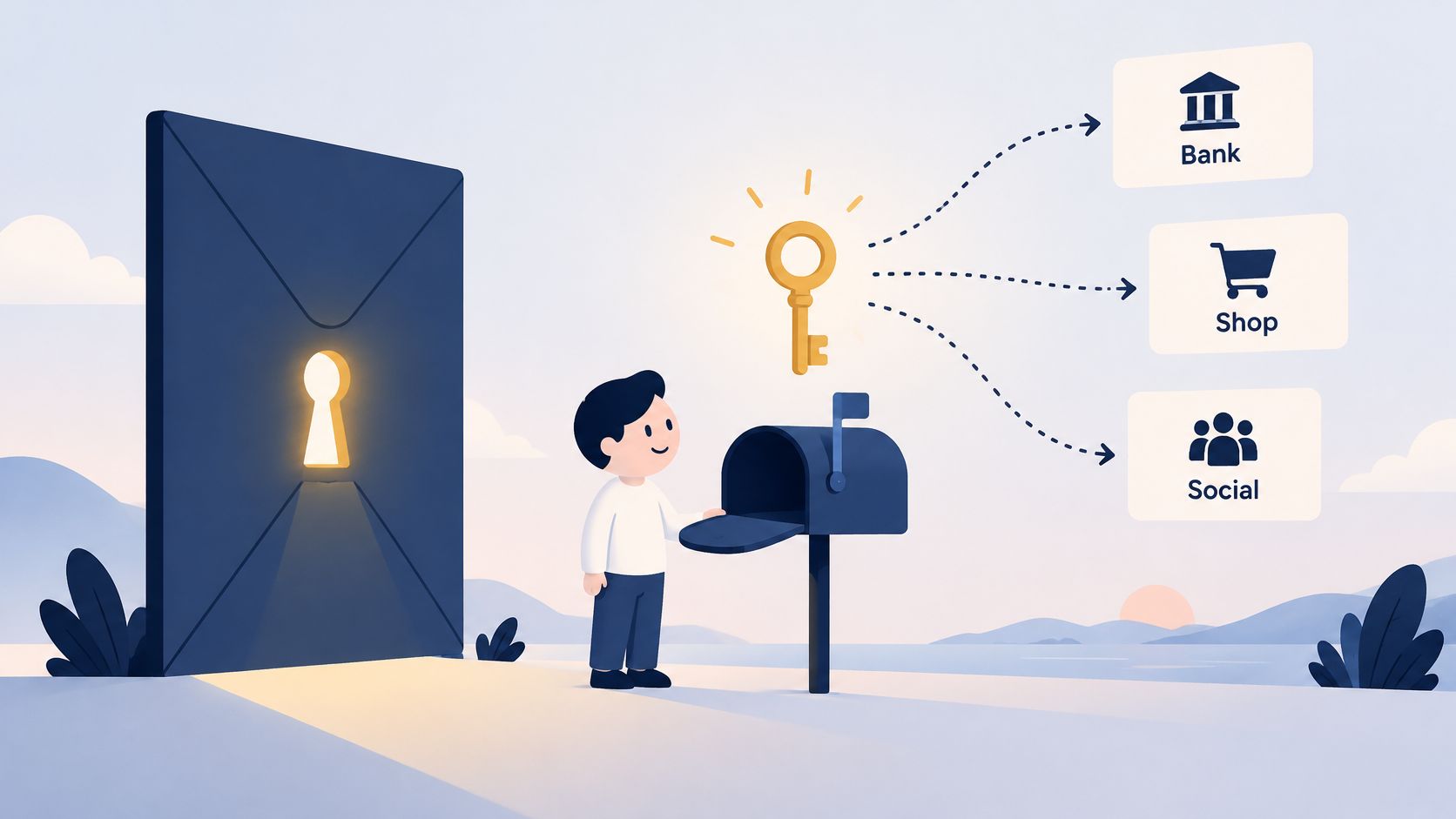
A house key works in layers. One key opens the front door, and behind that door sit the safe, the car keys and the drawer with the passports. Your inbox works the same way. Nearly every service you use sends its password reset link there, so anyone who can read your mail can trigger a reset on your bank, your shopping accounts, your social profiles and your cloud storage. The decision to click "reset" is made by a machine that trusts whoever holds the inbox.
That is the true exposure. The device is fine. The decisions are not.
What an attacker does in the first hour
The pattern is consistent enough to describe step by step:
- Creates a forwarding rule: a quiet setting copies every incoming message to an address you don't control. It keeps working after you change your password, which is why so many people get re-hacked.
- Reads the archive: old invoices, travel bookings and payroll threads tell a stranger who you pay, when, and how much. That context is what makes a later request believable.
- Sends from your address: your colleagues and relatives trust your name. A one-line request from your account outperforms any cold phishing email.
- Adds a filter: replies from your bank get routed to a folder you never open, buying the attacker days of quiet.
Notice what each step targets. None of them attack your computer. All of them attack your relationships and your judgment, using your own history as raw material. A stranger who knows you paid a contractor last month can write a follow-up invoice that looks routine, and the person approving it thinks they're making a normal decision.
The financial version of this is business email compromise, which the FBI's IC3 consistently ranks among the costliest cybercrime categories in its annual reporting (FBI IC3 2025 report). The technical reason is simple: the mail protocol itself doesn't reliably prove that the visible From address belongs to the organization it claims. An attacker who controls a lookalike domain, or a real mailbox, can pass visual inspection every time.
If you prefer watching to reading, this short walkthrough shows how one stolen credential turns into a chain of account resets.
Three checks worth doing today
- Open your forwarding and filter settings and delete any rule you didn't create.
- Confirm your recovery email and phone number and remove anything you no longer control.
- Scan your sent items for messages you never wrote.
That order matters. A forwarding rule left in place quietly undoes everything else, so it comes first. Recovery details come second because they decide who gets the reset links during an incident. Sent items come third because they tell you whether the account was already used against people you know, and those people deserve a warning call from you before the attacker reaches them again.
If you've already handed over a password somewhere, our explanation of what a compromised password means covers the recovery order. Protecting an inbox takes ten minutes. Reclaiming one takes weeks.
How Email Authentication Blocks Fake Senders
A sender name is just text. Anyone can type "Your Bank" into the display field, and your mail app will render it in confident bold letters. Authentication exists to replace that cosmetic label with something a receiving server can actually test.
| Protocol or policy | What it does | What a receiver checks |
|---|---|---|
| SPF | Lists the servers allowed to send mail for a domain | Whether the sending server is on that list |
| DKIM | Adds a cryptographic signature to each message | Whether the signature validates and the domain matches |
| DMARC | Sets a policy for mail that fails SPF or DKIM alignment | Whether the visible From domain aligns with an authenticated domain |
| DMARC p=none | Monitoring only, with reports to the domain owner | Nothing is blocked; failures are logged |
| DMARC p=quarantine | Suspicious mail is routed to spam | Whether the message passes alignment |
| DMARC p=reject | Unauthenticated mail is refused outright | Whether the message passes alignment |
Deployment order matters more than teams often expect. NIST SP 800-177 lays out the sequence: publish SPF and DKIM for every legitimate sender first, then run DMARC in reporting mode long enough to find the SaaS platforms and third parties that send on the domain's behalf, and only move to quarantine and then reject once alignment errors are corrected. The CISA guidance on email authentication recommends running all three together, because each addresses a different part of impersonation, and notes that a reject policy provides the strongest protection against spoofed mail claiming to come from a protected domain.
What you can actually see from your inbox
You can't publish a DMARC record for your bank. What you can do is notice the signals your provider already surfaces:
- A warning banner saying a message failed authentication or came from outside the organization. Treat it as a stop sign, not decoration.
- A domain that doesn't match the brand, even when the display name does.
- A reply-to address that differs from the sender, which is a common trick on invoice threads.
Two limits are worth stating plainly. Authentication doesn't stop a compromised account, because those messages pass every check. And it doesn't stop a lookalike domain that an attacker registered and configured properly. Both cases fall back on the habits in the surrounding sections: verifying through a separate channel, and watching for changes to payment details.
Protecting Older Adults and Family Members
The FBI reported that people over 60 filed more than 201,000 Internet Crime Complaint Center complaints in 2025 and reported losses exceeding $7.7 billion, with phishing and spoofing the most frequently reported fraud category at more than 48,000 complaints, over 24% of the total (FBI on scams targeting older adults). Those numbers describe more than money. One deceptive message can trigger identity theft, months of paperwork, and a loss of confidence that outlasts the transaction.
Two scenes repeat more than any other. A grandparent receives a delivery notice with a tracking link, and the page asks for an email password to "reschedule" the parcel. There is no parcel, and the password now belongs to someone else. A parent gets a message that appears to come from a daughter who lost her wallet on a trip and needs money tonight. The name is right. The phrasing is just slightly off.
How a caregiver helps without taking over
Don't ask for the password. Set up permission-based support instead: alerts that reach a trusted family member, a weekly protection summary, or a shared habit of reviewing suspicious messages together over coffee. The goal is fewer high-stakes decisions made alone, not fewer decisions made by the person who owns the account. Sitting beside someone while they check a sender address teaches more than doing it for them.
Family rule: any request for money or a password gets verified by calling a number already saved in the phone, never a number printed in the message.
What to do if the person already replied
Act in this order, and act today. Change the account password first. Then sign out of all other sessions so anyone already inside is pushed out. Check forwarding rules and connected apps for anything unfamiliar, and call the bank within hours rather than days, because the first few hours are when a transfer can still be recalled. If a code was shared, treat every account tied to that email as exposed.
How to report when someone feels embarrassed
Name the shame for what it is: a tool the attacker uses to keep victims quiet. Reporting is not an admission of gullibility. Forward the message to the email provider, file a report with your national reporting channel, and keep the original as evidence rather than deleting it in frustration. For a wider set of household habits, our guide to online safety for seniors covers the practical routines that hold up over time.
Prevention gets all the attention. Recovery and shared protection are what actually change the outcome.
Lock Down Your Email and Set Up Protection
You can close most of the gaps in a single sitting. Work through these in order, and don't skip the ones that feel obvious.
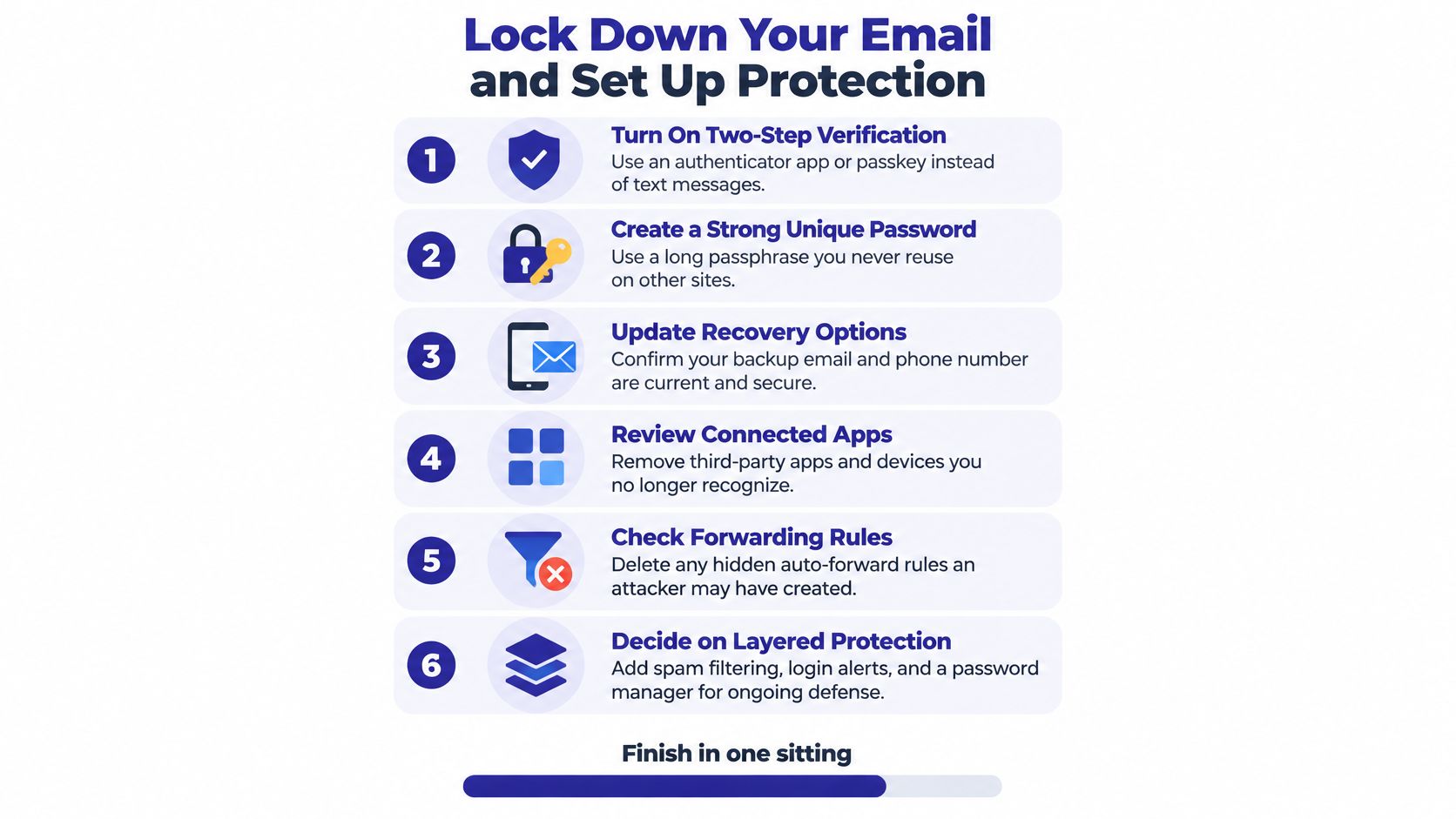
- Turn on two-step verification, and pick an app over a text code. A texted code can be intercepted or read off a stolen phone, while an authenticator app or a passkey stays on your device. This one change blocks most credential theft even after a password leaks.
- Confirm your recovery email and phone number. Every reset link travels to those two places, so an outdated address is an open door. Remove recovery details you no longer control, including an old work address or a former partner's number.
- Open forwarding and filter settings and delete anything you didn't create. An attacker's rule keeps copying your mail long after a password change. If you find one you don't recognize, treat the account as compromised and work through the recovery steps.
- Review connected apps and active sessions. A third-party app granted mailbox access can read your mail without your password, and old sessions stay signed in on devices you've forgotten. Revoke anything unfamiliar, then sign out of all other sessions.
- Give email its own password, generated and stored in a manager. Reusing a password from a site that has already been breached is the most common way inboxes fall. A manager makes a long, unique string practical to use.
- Verify every payment or bank-detail change by phone. Call a number you already have, never the one in the message. This single habit defeats most payment-redirection attempts, because the attacker can fake the email but not the person who answers.
- Report phishing to your provider and to your national reporting channel. In the United States that's the FBI's IC3. It takes two minutes and improves filtering for everyone else who shares your provider.
What a healthy setup looks like
No unknown forwarding rules. Recovery details you control. A short list of devices signed in, each one recognized. Login alerts switched on, so a new device triggers a notification you'll notice. If you'd like a wider set of configuration habits to compare against, the email security best practices for 2025 from Digital Footprint Check cover the provider-side settings worth reviewing once a year.
For ongoing coverage, one option is Gini Help, which scans a connected inbox for phishing emails and warns you before you click a dangerous link. Email protection works when you connect a supported inbox such as Gmail, Outlook or Yahoo, and text filtering and warnings depend on your phone platform. Stored data is protected with AES-256 encryption, and data in transit uses TLS 1.2+. You can install it from Google Play or the Apple App Store.
Start with three moves: enable stronger sign-in today, review your forwarding rules this week, and connect your inbox to a protection tool so a bad message gets flagged before you act on it.
Gini Help screens the messages that reach you, so a convincing email doesn't get a second chance to work: it scans a connected Gmail, Outlook or Yahoo inbox for phishing signs, warns you before you tap a dangerous link, and filters scam texts and calls with the same approach. If you're the person your family rings when something looks off, that gives you one place to check instead of five. Visit Gini Help to see how the screening works before you connect anything.