Yahoo Mail Spam Filter: Settings and Fixes for 2026
By Josh C.
Between 90% and 99% of interactions on Yahoo's system were some form of abuse, a Yahoo executive said in a 2015 interview, and the same account put the daily flow at roughly 30 billion emails on a weekday, of which about 5 billion were legitimate mail worth delivering (Business Insider). That ratio explains a lot about how the yahoo mail spam filter behaves. It's a high-volume classifier built to make millions of decisions an hour, not a safety guarantee for any single message.
Most advice stops at "mark it as spam" and calls it done. The harder questions come later. What do you do when an invoice never arrives? What happens when a convincing message slips past the filter with no warning attached? And why does a message appear on your phone but not on your laptop? Those three problems have different causes and different fixes, and none of them are solved by clicking a button twice.
Where Yahoo Mail Keeps Its Spam Settings
Spam filtering is not a setting you touch once and forget. Deliverability roundups like MarketSplash's email deliverability statistics track how the share of mail placed in spam shifts over time, so a sender that reached inboxes cleanly last year has no guarantee of the same result now. Your own settings deserve a look every few months rather than a single visit.
Where you change them depends entirely on what you read mail in. The controls sit in different places on the Yahoo website, inside Yahoo's own app, and inside third-party mail apps, so the right path for one reader can send another looking for a menu that does not exist on their screen.
| Platform | Where to look | What it controls |
|---|---|---|
| Yahoo Mail website | Settings (gear icon) > More settings > Spam | Spam handling and sender treatment |
| Yahoo Mail app on iPhone | Settings > your account > Spam (labels can vary by version) | Spam handling for that account |
| Yahoo Mail app on Android | Settings > your account > Spam (labels can vary by version) | Spam handling for that account |
| Third-party mail app | That app's own junk or spam settings | Its local filtering, separate from Yahoo |
If you'd rather watch than read, the walk-through below shows the same path on screen.
Two controls matter. The first is how aggressively Yahoo screens incoming mail, which you can nudge one notch at a time if you're seeing too much junk or too many real messages diverted. The second is sender treatment: blocking an address outright or letting Yahoo keep learning from the mail you mark. In the app, both sit under the account you're signed into, so a change made on a phone applies to that mailbox rather than to the phone itself. Junk options inside a third-party app behave differently: they filter what that app shows you, working alongside Yahoo's own screening instead of replacing it.
One structural detail explains a lot of missing-mail puzzles.
Yahoo's spam filter evaluates every incoming message before any filter you build yourself, so a rule you create afterward is working on mail the classifier has already judged. A rule can sort and rescue mail inside your folders, but it cannot change a verdict Yahoo reached upstream.
Before you change anything, confirm which device you read mail on, because that decides which setting has any effect. If you're unsure whether you're looking at a Yahoo-hosted mailbox or a client that just borrows the credentials, email account types explained covers the distinction and why it determines where junk filtering happens.
How to Adjust Your Spam Filter Step by Step
The whole routine takes about five minutes, and it works the same in webmail or in the Yahoo Mail app. Do the steps in this order, because each one feeds the next.
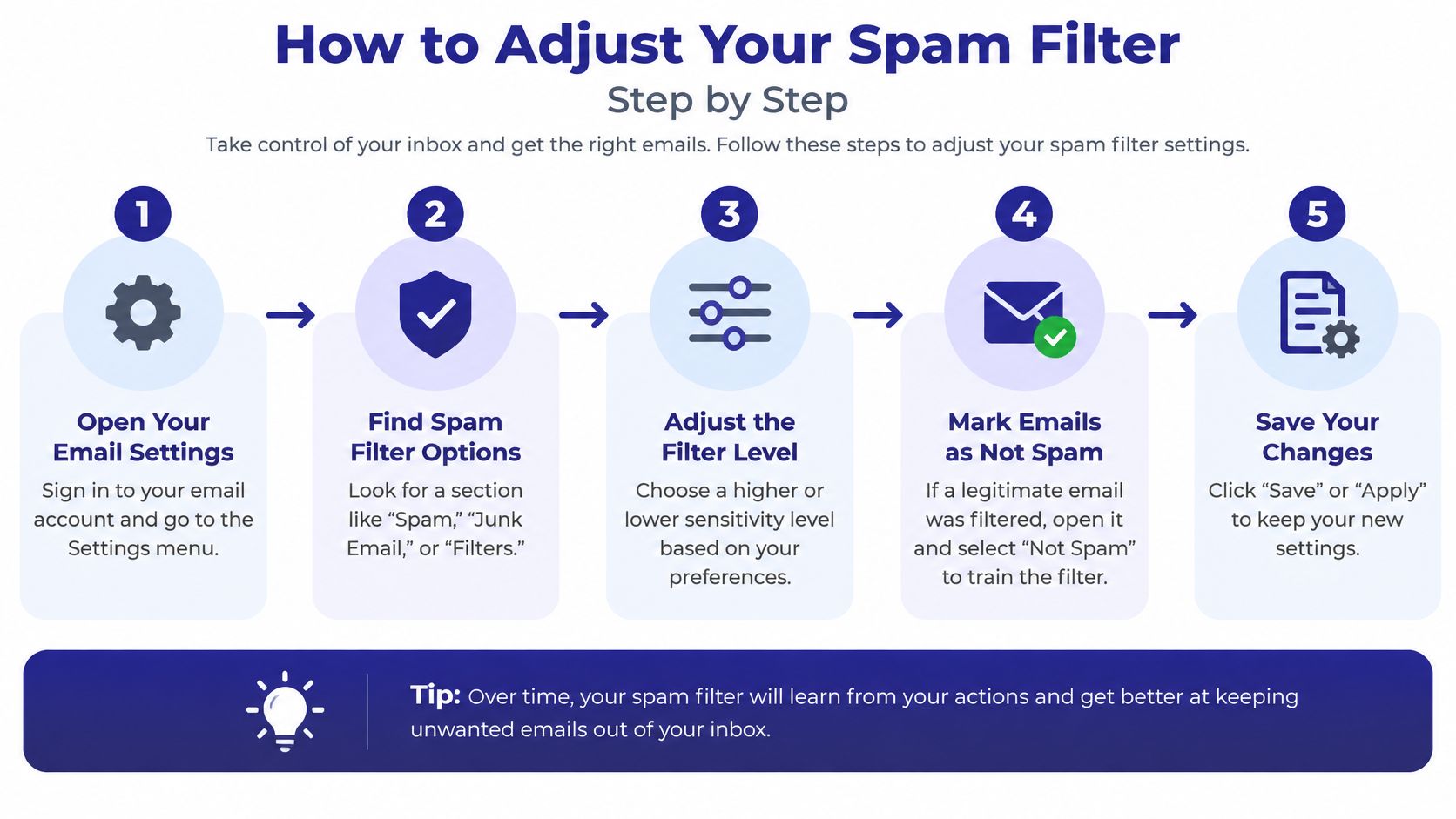
Report unwanted mail instead of deleting it. Open a message you're certain is junk and use the spam action. Yahoo says that signal helps its system learn that messages from the sender are undesirable and improves recognition of later ones, as described in its guide to adjusting spam filter settings. Deleting is tidy, silent, and teaches the system nothing.
Open the Spam folder every few days. Legitimate mail does land there. A short scan catches a missing bill before the due date passes, which is the whole reason the folder exists.
Rescue genuine messages with Not spam. Move them back to the inbox and mark them rather than dragging them and hoping. A real message left sitting in Spam confirms the classifier's original decision.
Add senders you never want to miss to your contacts. Your bank, your pharmacy, the relative who forwards photos. Contacts give you one stable place to look when a message goes missing, and one you can point to when you ask for help.
Block only when you're certain. Blocking is permanent and blunt. Anyone determined to reach you will change address, so save it for the persistent nuisance you recognize rather than every unwanted message.
Adjust the spam level in settings if the balance is off. Too much junk arriving, tighten it. Too many real messages diverted, loosen it a notch and wait several days before touching it again, since judging a filter after one hour tells you nothing.
Practical rule: Treat the Spam folder as a queue to review, not a bin to empty.
Feedback works sender by sender, so one correction doesn't fix every pattern. Yahoo is also explicit that its filters don't catch everything, which means a message sitting in your inbox isn't evidence that it's safe. Expect fewer unwanted messages within a few days of consistent marking. Keep checking Spam anyway.
Find Missing Mail and Fix Conflicting Rules
A message that never arrives is rarely one failure. Yahoo's classifier can hold it, one of your own rules can move it, and the app on your phone can filter it locally, all inside the same mailbox. Work out which of the three acted before you change anything, or you will spend an afternoon repairing the wrong layer.
Preserve the evidence first. Write down the sender address, the date and time, the subject line, and the folder you expected the message in. Screenshot anything still visible. Deleting the message takes the trail with it, and both rule repairs and support requests depend on those four details.
Match the symptom before you touch a setting
| Symptom | Likely cause | First check |
|---|---|---|
| Invoice or receipt missing | Yahoo spam classification or a custom rule | Spam folder, then rule list order |
| Newsletter you subscribed to lands in Spam | Sender reputation or a mistaken spam mark | Mark as Not spam, then watch where the next issue lands |
| Family message goes to Trash | Deleted or moved by a rule before it was read | Trash folder, then any rule that moves mail |
| Mail missing in one app only | Local filter in a third-party mail client | That app's own junk settings |
| Repeated unwanted mail keeps arriving | Deleting instead of reporting | Use the spam action so the classifier learns the pattern |
Why a rule can't pull mail back out of Spam
Yahoo's troubleshooting documentation states that all emails pass through the spam filter before other filters are evaluated. Custom filters then run in list order, and each filter uses every criterion defined in that rule (Yahoo Help on filters and spam). The practical consequence is blunt: a rule that points a sender to your inbox does nothing for a message the classifier has already moved. Fix the classification first, the rule second.
The app on your device is the second source of confusion. Yahoo recommends managing spam inside its own apps or webmail, because third-party email clients sit outside Yahoo's control and may apply their own filtering on top. If mail vanishes on your laptop but shows up on your phone, the client is almost always the difference.
Same mailbox, three sets of rules. Find out which one is holding the message before you change a single setting.
Repair the rules in the right order
List every rule and its position. Filters run top to bottom, so position matters as much as content. Write them out before you edit anything.
Flag any rule that moves mail to Trash or another folder. These are the rules that produce missing mail. Look for two rules that both match the same sender.
Swap negative tests for positive ones. A rule built on "does not contain" catches nearly everything. Use a condition like "begins with" and narrow it until it matches only what you mean.
Move protective rules above sweeping ones. Put the rule that protects trusted senders above broader rules that could also match them, so the specific rule gets first claim.
Send yourself a test message. Watch which folder it reaches. One test beats a page of settings.
Delete the rules you no longer need. Old rules outlive the problem they were written for and become the cause of the next missing message.
If you'd rather run this as a controlled test than a series of guesses, this email spam filter check sets out a practical way to see what your filter does with a known message.
One habit makes all of it worse. Marking legitimate mail as spam because it is convenient, or because a rule you wrote does it automatically, teaches the classifier the wrong lesson and can push that sender's future mail out of your inbox for good. Check the folder a rule targets, not just the inbox.
Spotting Phishing and Scams That Get Past the Filter
A clean inbox is not a safe inbox, and the gap between those two things is where most damage happens.
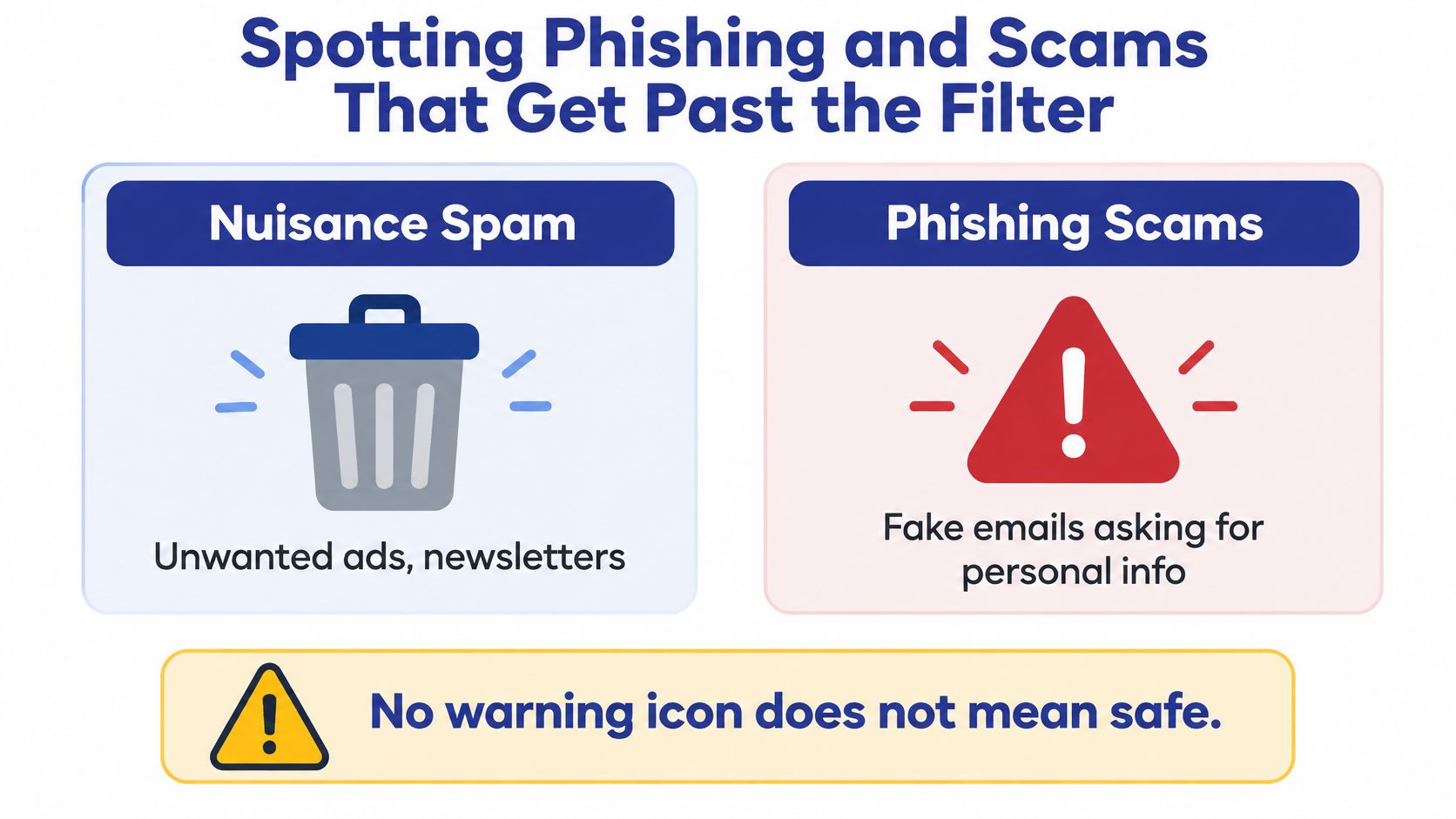
Yahoo's own help pages say most spam, malware and phishing messages are filtered, then add the part people skim past: some still get through, and attackers keep finding ways around anti-phishing filters. A missing warning banner means the filter had nothing to say, not that the message is genuine (Yahoo Help on spam and phishing).
Nuisance spam and dangerous mail need different responses, and confusing them is how people get hurt.
A triage routine for a message you're not sure about
- Don't click, don't call. No link in the message and no phone number printed in it, however official the number looks.
- Open the company's site or app yourself, typing the address you already know rather than following the message.
- Verify by phone using a number you already have, from a statement, a card, or the company's own app.
- Bring in a second person before you send money, share a verification code, or read out account details.
The red flags repeat. An urgent payment demand with a deadline measured in hours. A request for a verification code or account number. A sender address that doesn't match the brand name in the body. A logo that's slightly the wrong shade, or a footer with a mismatched address. Individually these are weak signals. Two or three together are enough to stop.
The absence of a warning is not a verdict. It only means the filter didn't flag the message.
Reporting spam teaches Yahoo about one sender, and that's worth doing, but the learning can't cover domains that change hourly or a compromised account belonging to someone you trust. That's why email safety tips from NotionSender are worth a read alongside your filter settings: most of the protection comes from what you do with a message, not what the provider does with it. Some scams still get through Help, which is why an important request should always be verified independently.
If you suspect you've already interacted with a scam, report it, change the password for that account if you entered one, and tell someone you trust. Our guide to detecting fake emails walks through the specific tells in more detail.
Add a Second Layer of Scam Protection
A spam filter answers one question: does this look like bulk junk? It doesn't answer the question that matters most when a message addresses you by name, quotes a real order number, and arrives at a plausible hour. Nothing about that pattern says "bulk," which is exactly why it reaches you.
That gap is where a second layer earns its place. Gini Help works with Yahoo mailboxes: connect your inbox and it scans for phishing patterns, flags fake links, suspicious senders and urgent payment requests, and explains the risk in plain language instead of moving the message without explanation. Email protection works with Gmail, Outlook and Yahoo, text filtering and warnings depend on your phone platform, and Live Scam Detection and other features depend on the plan you select. Plan details sit on the Gini Help website.
If you also send mail from your own domain, the sender-side half of deliverability matters, and Mojolin's comparison of authentication services is a sensible starting point for getting SPF, DKIM and DMARC right.
You don't have to change everything at once. Confirm your Yahoo settings match the device you read mail on, then check the Spam folder this week for anything real that got caught. Our Yahoo email security walkthrough covers the rest of the account settings. If you want the second layer in place before the next convincing email arrives, download the app from Google Play or the App Store.
Gini Help screens your Yahoo inbox for the messages a spam filter was never built to judge: the ones that look personal, arrive at the right moment, and ask for something. Connect your mailbox and it flags suspicious senders, fake links and urgent payment requests in plain language, without deleting anything behind your back. Visit Gini Help to see how the inbox protection and call screening work together.